

Key Capabilities
- Odette FTP support for automotive and manufacturing industry secure file exchange
- Bidirectional file transfer with certificate-based encryption, signing, and compression
- Message routing through intermediary OFTP entities with SSID/SFID configuration
- Automatic retry and resend logic with synchronous and asynchronous receipt handling
Overview
An OFTP connection is configured in two places. Configure the OFTP Profiles page with an Odette identifier, settings for the local OFTP server, and other information that is global across all OFTP connections. Then configure individual OFTP connectors with connection settings specific to a single trading partner (a single OFTP entity). For information on routing an OFTP message through a separate OFTP entity (for example, a clearinghouse), see Message Routing.Profile Configuration
The OFTP profile must be configured before connections can be established with individual OFTP connectors. Click Profiles > OFTP on the navbar.OFTP Profile Tab
Personal Id
Settings for identifying the local profile.Server Settings
Settings related to the OFTP server implementation.Personal Certificate
Settings related to the private decryption and signature certificate.Optional Certificate Settings
Optional settings to define parameters for a certificate.Advanced Settings
Lockouts
Optional settings related to locking server access.Trusted IP Addresses
Logging
Settings that govern the creation and storage of logs.
| Setting | Description |
|---|---|
| Log Level | The verbosity of logs generated by the connector. When you request support, set this to Debug. |
| Log Rotate Interval | The number of days to wait before creating a new log file. |
| Log Delete Interval | The number of days to wait before deleting old log files. |
Miscellaneous
Miscellaneous settings are for specific use cases.
| Setting | Description |
|---|---|
| Other Settings | Enables you to configure hidden connector settings in a semicolon-separated list (for example, setting1=value1;setting2=value2). Normal connector use cases and functionality should not require the use of these settings. |
Connector Configuration
This section contains all of the configurable connector properties.Settings Tab
Host Configuration
Settings related to the remote OFTP entity to connect to.Connection Info
Settings related to the OFTP connection parameters.Trading Partner Certificates
Settings related to the public key certificates provided by the trading partner.Routing
Settings related to routing an OFTP message through a separate OFTP entity.
For example, if the connector needs to send files to
serverA and route the file through serverB, configure the connector to connect to serverA and set this field to an OFTP connector configured to connect to serverB. See Message Routing for more information.
Advanced Tab
Optional Certificates (PEM/CER Format)
Settings related to additional certificates to use for enhanced security.Alternate Local Profile
Settings that override the OFTP configuration on the Profile page. Setting an alternate local profile allows the use of different local certificates and identifiers for certain trading partners.TLS Client Authentication
Settings related to client authentication when two-way TLS authentication is required.Automatic Certificate Identification
The fields in this section let you specify patterns that allow the connector to automatically identify certificates. The default wildcard character in each field (*) instructs the connector to not search for each pattern.Advanced Settings
Settings not included in the previous categories.Proxy Settings
These are a collection of settings that identify and authenticate to the proxy through which the connection should be routed. By default, this section uses the global settings on the Proxy Settings portion of the Security Settings page. Clear the checkbox to supply settings specific to your connector.
| Setting | Description |
|---|---|
| Proxy Type | The protocol used by a proxy-based firewall. |
| Proxy Host | The name or IP address of a proxy-based firewall. |
| Proxy Port | The TCP port for a proxy-based firewall. |
| Proxy User | The user name to use to authenticate with a proxy-based firewall. |
| Proxy Password | A password used to authenticate to a proxy-based firewall. |
| Authentication Scheme | Leave the default None or choose from one of the following authentication schemes: Basic, Digest, Proprietary, or NTLM. |
Logging
Settings that govern the creation and storage of logs.
| Setting | Description |
|---|---|
| Log Level | The verbosity of logs generated by the connector. When you request support, set this to Debug. |
| Log Subfolder Scheme | Instructs the connector to group files in the Logs folder according to the selected interval. The Weekly option (which is the default) instructs the connector to create a new subfolder each week and store all logs for the week in that folder. Leaving this setting blank tells the connector to save all logs directly in the Logs folder. For connectors that process many transactions, using subfolders helps keep logs organized and improves performance. |
| Log Messages | Check this to have the log entry for a processed file include a copy of the file itself. If you disable this, you might not be able to download a copy of the file from the Transactions tab. |
Miscellaneous
Miscellaneous settings are for specific use cases.
| Setting | Description |
|---|---|
| Other Settings | Enables you to configure hidden connector settings in a semicolon-separated list (for example, setting1=value1;setting2=value2). Normal connector use cases and functionality should not require the use of these settings. |
Automation Tab
Automation Settings
Settings related to the automatic processing of files by the connector.Performance
Settings related to the allocation of resources to the connector.
| Setting | Description |
|---|---|
| Max Workers | The maximum number of worker threads consumed from the threadpool to process files on this connector. If set, this overrides the default setting on the Performance Settings portion of the Advanced Settings page. |
| Max Files | The maximum number of files sent by each thread assigned to the connector. If set, this overrides the default setting on the Performance Settings portion of the Advanced Settings page. |
Alerts Tab
SLAs Tab
Establishing a Connection
The following settings are required to establish an outgoing OFTP connection:- Identifier (the trading partner’s identifier)
- Password (the password associated with the trading partner’s identifier)
- Remote Host
- Port
Send and Receive Files
Once the OFTP profile and partner-specific OFTP connectors have been configured, files can be securely sent and received.Send Files
In an OFTP connector, the Transactions tab displays the files to be sent to the target trading partner. If Send Automation is enabled on the Automation tab, files that reach the Transactions tab of the connector are automatically packaged and sent. Access the log files for all transmissions by expanding the row associated with the transmitted file. The Create Test Files button lets you generate a simple series of test files to send to the trading partner.Resend and Retry
An OFTP Resend is triggered when the trading partner is expected to return an asynchronous receipt, but fails to do so within the Resend Interval duration (60 minutes by default). The application then attempts to resend the transmission. The application continues resending the message until a receipt is received or the Max Attempts (async) is exhausted. A Retry is triggered when the protocol response from the trading partner’s system indicates that the server has not received the transmission. This can indicate a networking or connectivity issue, which is often transient. The application retries the transmission every Retry Interval minutes until the transmission is received or the Max Attempts is exhausted.Receive Files
In an OFTP connector, the Transactions tab displays the files that have been received by the application and routed to the connector. Files are routed to a specific OFTP connector based on the Odette identifier present in the incoming OFTP message. Expand each file row to display a list of available logs for the transmission. These files are available on the connector Transactions tab. If the connector is connected to other connectors in the flow, files are automatically moved from the Transactions tab of the OFTP connector to the Transactions tab of the next connector in the flow.Message Routing
Each OFTP connector is configured to connect to a single OFTP entity. Sometimes using OFTP requires a routing scenario where a file originating at one OFTP entity (agentA in the image below) needs to pass through another OFTP entity (agent B) to reach the destination OFTP entity (agent C).
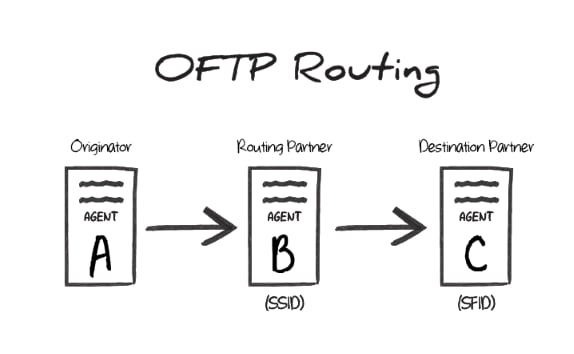
B is the SSID value during the transfer, and the Odette identifier of agent C is the SFID. In other words, the SSID identifies the ‘middleman’ server that the originator connects to, and the SFID identifies the target entity that this ‘middleman’ should route the OFTP message to.
OFTP Routing in Arc
To accomplish this routing scenario in Arc, configure one OFTP connector to connect to agentB (the ‘middleman’ server) and another OFTP connector to connect to agent C (the destination server).
Set the Routing Partner field (in the Routing portion of the Settings tab) for the agent C connector to the OFTP connector that is configured to connect to agent B.
Files to send out to the destination server should be processed by the OFTP connector configured to connect to agent C. The other OFTP connector (targeting agent B) is used behind-the-scenes to route the message, but does not directly process files in the Flow.
SSID vs SFID
If a partner provides a single identifier that they call an SFID, configure an OFTP connector to connect with this entity, and use the SFID as the SSID. If the partner provides an SFID value and an SSID value, the SFID corresponds to serverC in the above scenario, and the SSID corresponds to server B.