> ## Documentation Index
> Fetch the complete documentation index at: https://docs.arc.cdata.com/llms.txt
> Use this file to discover all available pages before exploring further.
# SAP IDoc Receive
> Configuration for receiving IDoc files from SAP using the Arc SAP IDoc connector.
## Connector Configuration
The following settings are available when you are receiving IDocs from SAP.
#### サーバーステータス
*サーバーの状態。*
| ステータス | 説明 |
| ---------- | --------------------------------------- |
| **アクティブ** | サーバーが実行中です。**サーバーを停止**をクリックして停止します。 |
| **非アクティブ** | サーバーが実行されていません。**サーバーを起動**をクリックして起動します。 |
サーバーの実行中に生成されたログを確認するには、[ログタブ](./sap-idoc#ログタブ)をご覧ください。
#### Receiver Options
*Settings related to receiving IDoc files.*
| Setting | Description |
| ----------------- | ---------------------------------------------------------- |
| **IDoc Receiver** | Whether the connector should retrieve IDoc files from SAP. |
| **Program ID** | A unique name that identifies CData Arc to the SAP system. |
| **IDoc Format** | Whether to receive files as raw IDoc or IDoc XML. |
#### Advanced Settings
*Settings not included in the previous categories.*
| Setting | Description |
| --------------------- | ----------------------------------------------------------------------------------------------------------------------------------------------------------------------------------------------------------------------------------------------------------------------------------------------------- |
| **Processing Delay** | The amount of time (in seconds) by which the processing of files placed in the **Transactions** tab is delayed. This is a legacy setting. Best practice is to [use a File connector](./Designing-a-Flow#interacting-with-the-local-file-system) to manage local file systems instead of this setting. |
| **Refresh Schema** | When enabled, the connector attempts to update the schema it uses for parsing when a parsing error occurs. The schema is updated by reaching out to the SAP system and querying for the appropriate schema. |
| **Local File Scheme** | A scheme for assigning filenames to messages that are output by the connector. You can use macros in your filenames dynamically to include information such as identifiers and timestamps. For more information, see [Macros](#macros). |
| **Upload Schema** | Use this to upload a schema and install it in the connector's Schema folder. If a schema already exists, you are asked if you want to overwrite it. |
#### Message
The **Save to Sent Folder** and **Sent Folder Scheme** settings are deprecated and hidden by default. They appear only on connectors where they were previously enabled or configured to a non-default value. To retain copies of successfully processed files, right-click the connector in the flow, choose **Show Success Path**, and connect the success path to a [File connector](../file).
| Setting | Description |
| ---------------------------- | ----------------------------------------------------------------------------------------------------------------------------------------------------------------------------------------------------------------------------------------- |
| **Save to Sent Folder**(非推奨) | Copies files processed by the connector to the Sent folder. Disabled by default. Files saved to the Sent folder are not covered by [Encryption at Rest](/26.3/self-hosted/ja/getting-started/administration/settings/encryption-at-rest). |
| **Sent Folder Scheme**(非推奨) | Groups files in the **Sent** folder by the selected time interval. Only relevant when **Save to Sent Folder** is enabled. |
#### Logging
*Settings that govern the creation and storage of logs.*
| Setting | Description |
| ------------------------ | ----------------------------------------------------------------------------------------------------------------------------------------------------------------------------------------------------------------------------------------------------------------------------------------------------------------------------------------------------------------------------------------------------------------------------------------------------------------------- |
| **Log Level** | The verbosity of logs generated by the connector. When you request support, set this to **Debug**. |
| **Log Subfolder Scheme** | Instructs the connector to group files in the Logs folder according to the selected interval. The **Weekly** option (which is the default) instructs the connector to create a new subfolder each week and store all logs for the week in that folder. Leaving this setting blank tells the connector to save all logs directly in the Logs folder. For connectors that process many transactions, using subfolders helps keep logs organized and improves performance. |
| **Log Messages** | Check this to have the log entry for a processed file include a copy of the file itself. If you disable this, you might not be able to download a copy of the file from the **Transactions** tab. |
#### Miscellaneous
*Miscellaneous settings are for specific use cases.*
| Setting | Description |
| ------------------ | ----------------------------------------------------------------------------------------------------------------------------------------------------------------------------------------------------------------------------- |
| **Other Settings** | Enables you to configure hidden connector settings in a semicolon-separated list (for example, `setting1=value1;setting2=value2`). Normal connector use cases and functionality should not require the use of these settings. |
## Receiving IDocs from SAP
Once you have configured the IDoc connector to connect to your SAP system, you can begin receiving IDoc files from SAP. The IDoc connector can receive files formatted in raw IDoc or XML IDoc.
To receive files from SAP, create an RFC destination for Arc. You can then check **Enable IDoc Receiver** in the [Receiver Options](#receiver-options) section of the Settings tab, then enter the **Program Id** that you registered in your SAP system for Arc.
### Test Receiving an IDoc from SAP
This example describes how to configure your SAP system to send a MATMAS IDoc to Arc.
1. *Define a logical system:* First, go to transaction SALE. Then navigate to Basic Settings > Logical Systems > Define Logical System. Create a new entry with a valid name (for example, Arc) and description.
2. *Create an RFC destination:* Open transaction code SM59. Click the create button and fill in the fields for the RFC destination described below.
| Setting | Description |
| ------------------- | ------------------------------------------------------------------ |
| **RFC Destination** | A unique name for the new destination (for example, Arc\_DEST). |
| **Connection Type** | **T** for TCP/IP. |
| **Description** | A description for the destination. |
| **Program Id** | A unique name that will be set in Arc to identify the destination. |
| **Activation Type** | Select **Registered Server Program**. |
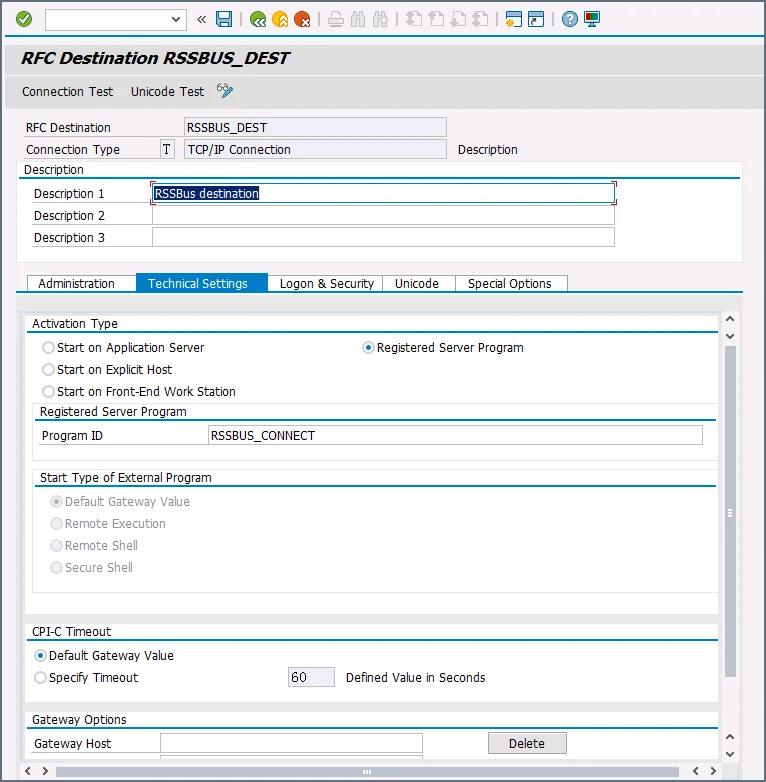 After you save the settings, test the connection to make sure you can successfully connect to Arc.
3. *Create a processing connector:* Go to transaction code WE21. Create a new Transactional RFC connector with a unique name and the same destination you created in step 2.
After you save the settings, test the connection to make sure you can successfully connect to Arc.
3. *Create a processing connector:* Go to transaction code WE21. Create a new Transactional RFC connector with a unique name and the same destination you created in step 2.
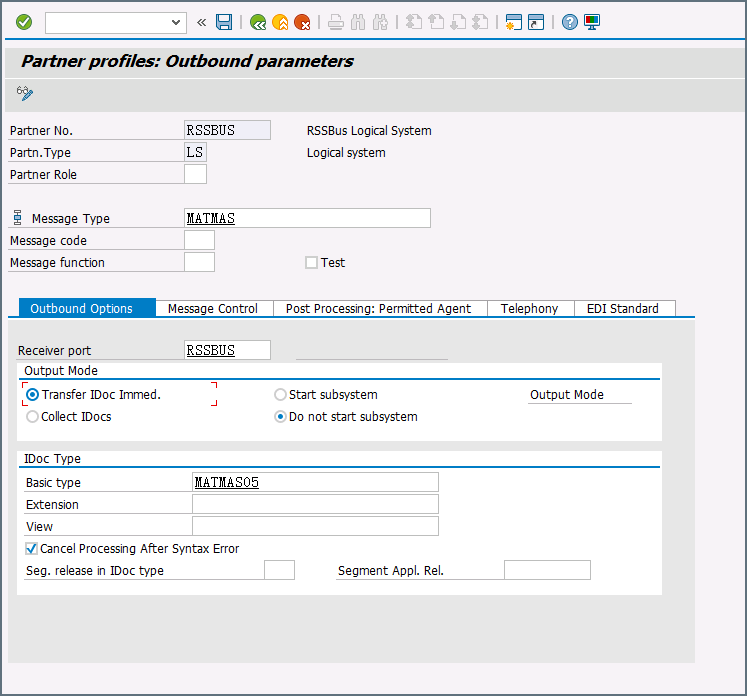
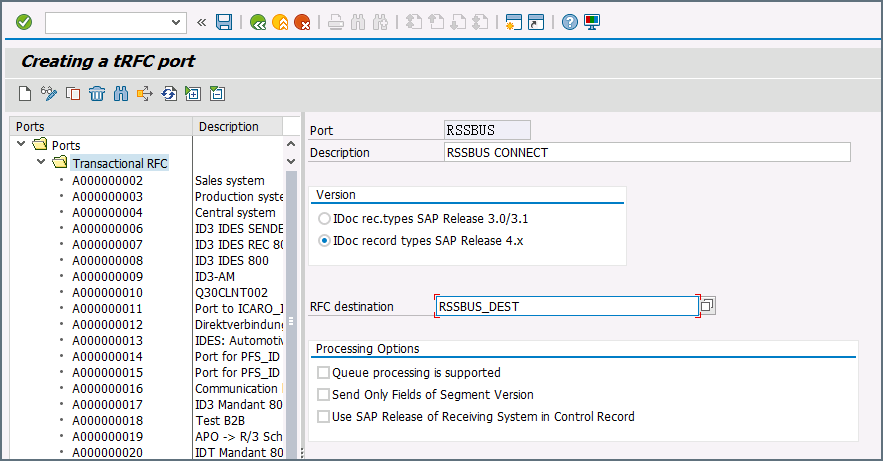 4. *Create a partner profile:* Open transaction WE20. Create a partner profile for the logical system that you added in step 1. Next, add an outbound parameter for the MATMAS document. Set the **Message Type** to **MATMAS**. On the **Outbound Options** tab, set the **Receiver port** to the value of the connector you configured in step 3, set the **Output Mode** to **Transfer IDoc Immed**, and set the IDoc **Basic type** to **MATMAS05**.
 5. *Send a test IDoc:* Use transaction BD10 to send a test IDoc to Arc for a specified material number. You need to configure the **Message Type** and **Logical System** before sending the message. Use transaction BD87 to monitor outgoing messages and process them again if necessary.