> ## Documentation Index
> Fetch the complete documentation index at: https://docs.arc.cdata.com/llms.txt
> Use this file to discover all available pages before exploring further.
# Connector View and Bulk Editing Connectors
> Use the Arc Connector View to search, filter, and bulk-edit connector settings across all workspaces from a single centralized interface.
export const siteNameShort = "Arc";
export const siteName = "CData Arc";
{siteName} provides a centralized connector management view that displays all connectors across all workspaces in a single interface, enabling users with connector management permissions to efficiently locate and manage connectors at scale. This feature supports bulk editing of connector settings, allowing you to apply changes to multiple connectors simultaneously.
Click [Flows](../flows/flows) on the navbar to open the workspaces grid, then click **Connector View** in the top right to see a list of all connectors in your application.
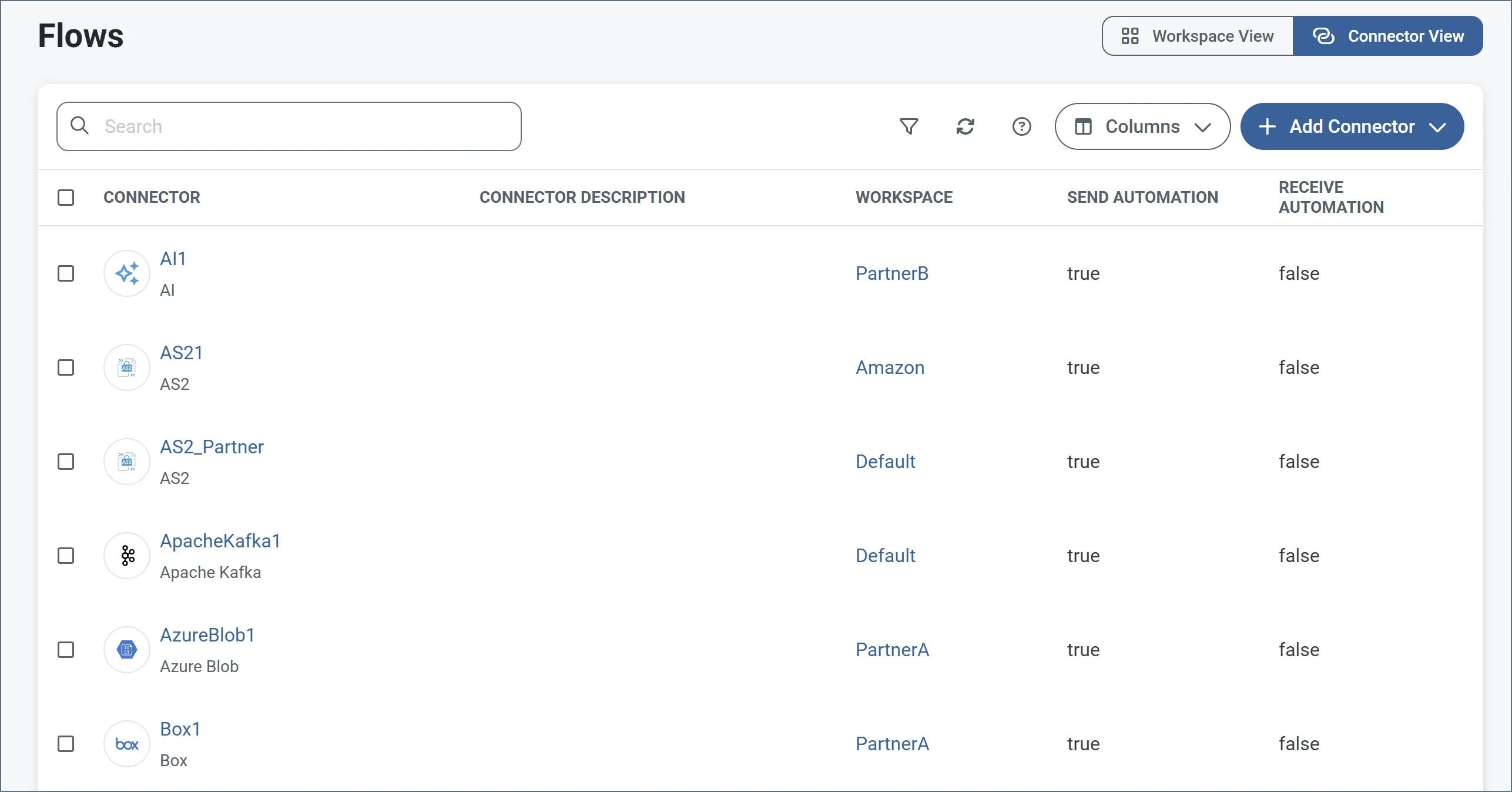 The connector view page enables you to perform the following:
* Search for specific connectors across workspaces
* Use the funnel icon to filter the connectors in a variety of ways
* Choose which columns should appear on the page
* Add new connectors
* Select multiple connectors and perform bulk edits
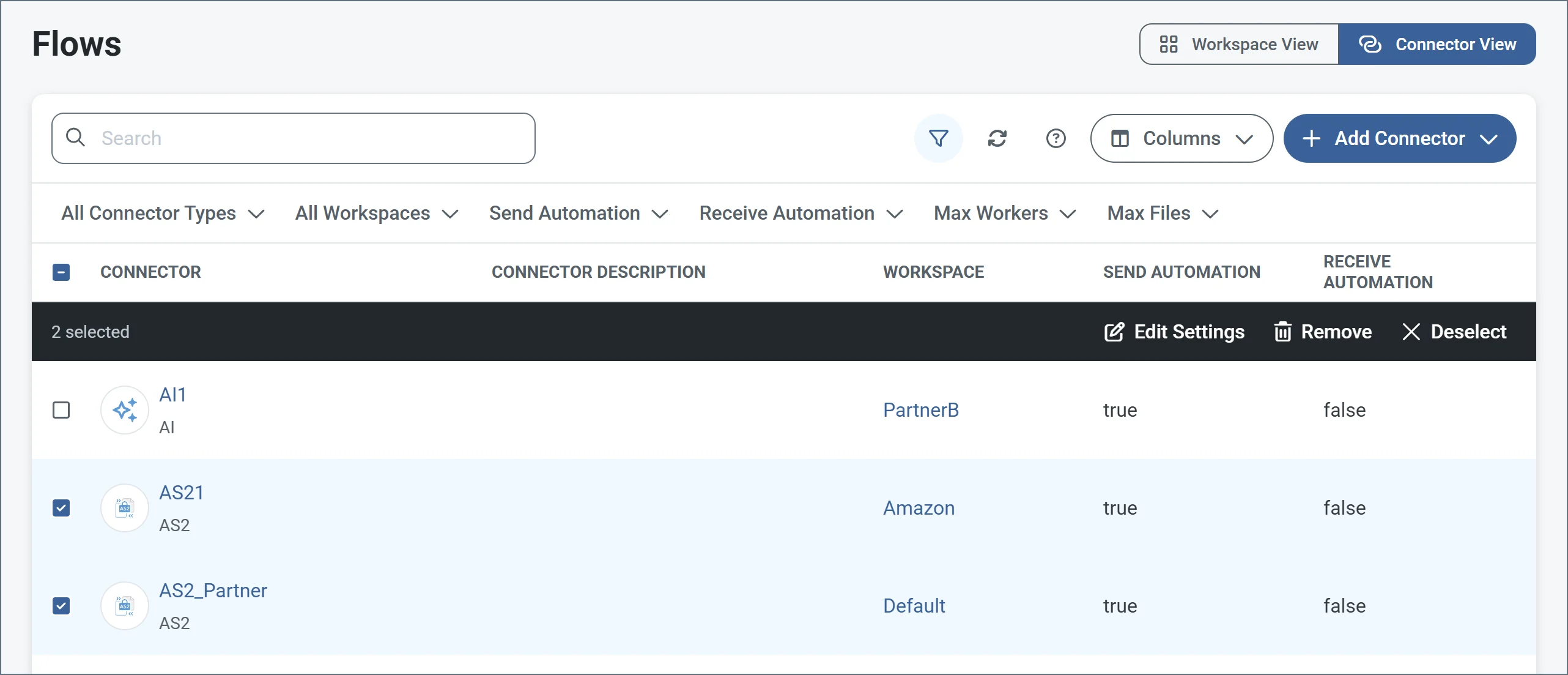
To perform a bulk edit on multiple connectors, use the checkboxes to select the connectors, then select **Edit Settings**.
The connector view page enables you to perform the following:
* Search for specific connectors across workspaces
* Use the funnel icon to filter the connectors in a variety of ways
* Choose which columns should appear on the page
* Add new connectors
* Select multiple connectors and perform bulk edits
To perform a bulk edit on multiple connectors, use the checkboxes to select the connectors, then select **Edit Settings**.
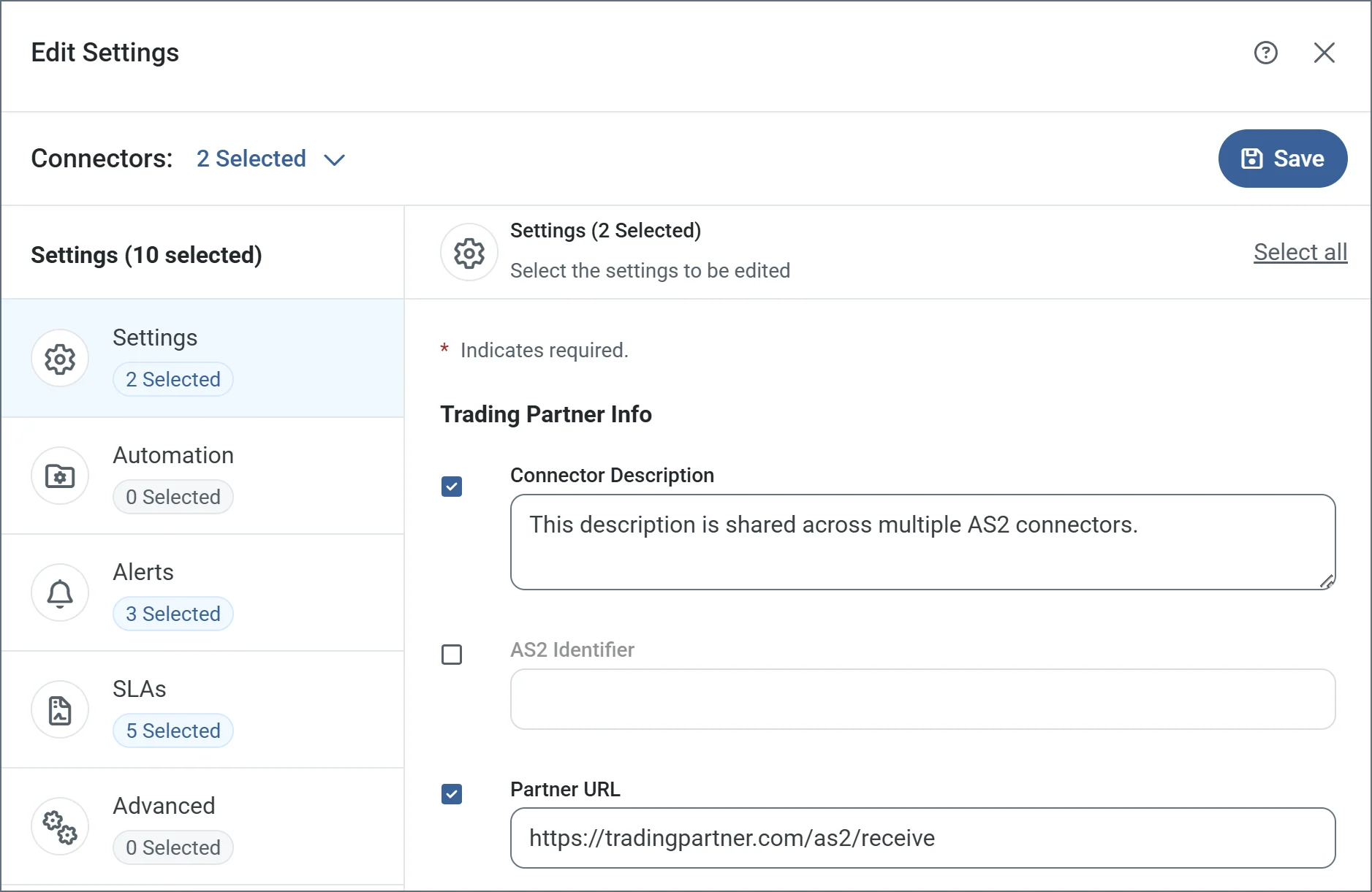
 The **Edit Settings** page is divided into the same tabs you find when you create individual connectors. Use the checkboxes on all the tabs to select which fields to edit, then make your edits. When you are finished, click **Save**. When you save, {siteNameShort} validates your changes and reports any warnings or errors before applying the changes to the selected connectors.