> ## Documentation Index
> Fetch the complete documentation index at: https://docs.arc.cdata.com/llms.txt
> Use this file to discover all available pages before exploring further.
# Connections
> How to configure shared connection parameters for use across multiple connectors in CData Arc.
export const companyName = "CData";
export const siteNameShort = "Arc";
export const siteName = "CData Arc";
The **Connections** tab lists configured connection parameters that can be shared among multiple {siteName} connectors. This allows for centralized connection management and simplified configuration in individual connectors that connect to the same source using the same credentials.
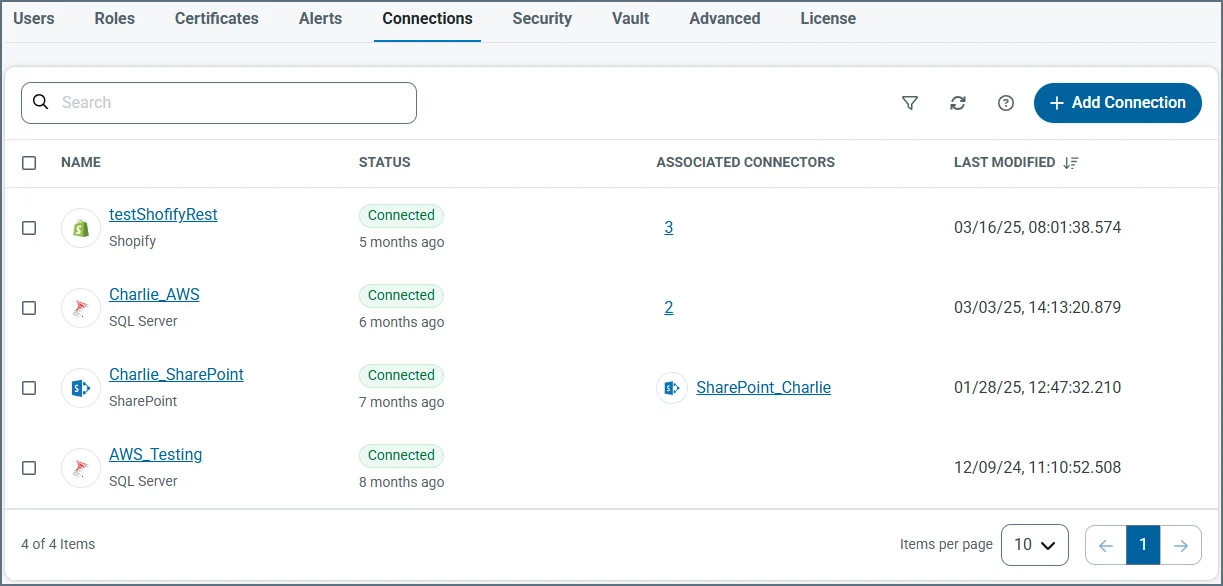 It is useful to understand the difference between {companyName} drivers, API Profiles, and {siteNameShort} connectors. The *drivers* provide the underlying connectivity to external systems, *API Profiles* extend the drivers to add codeless connectivity for REST-based APIs and web services, and *connectors* build on the drivers and API Profiles to handle data exchange, transformation, and routing within {siteNameShort}. You configure the shared driver- and API Profile-level connection details on the **Connections** tab, which connectors then reference so the same connection can be reused consistently across multiple flows.
* Find documentation for drivers at [https://www.cdata.com/kb/help/](https://www.cdata.com/kb/help/). Find the driver you want in the **Drivers & Data Connectors** section of the page, then click the **Online Documentation** link for the **ADO.NET** or **JDBC** editions. This enables you to find information on how to use the {companyName} driver-based connectors.
* Find documentation for API Profiles at [https://www.cdata.com/apidriver/#profiles](https://www.cdata.com/apidriver/#profiles). Find the API Profile you want in the **Pre-configured API Profiles** section of the page, then click the **Docs** link near the top of the page.
## Add a Connection
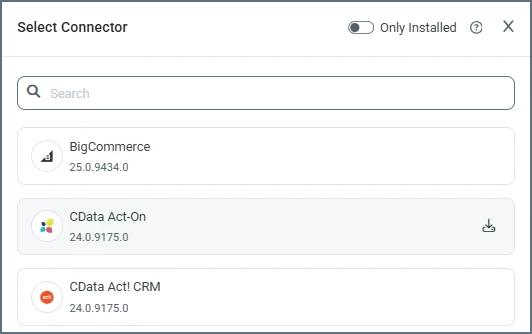
To create a new shared connection, click **Add Connection** and select the connection target. {siteNameShort} ships {companyName} drivers for some connectors with the application, but not all. On the **Select Connector** pane, if there is a download button on the connector you need (the {companyName} Act-On connector in the following image has one), use it to download and install the driver or API Profile, which enables the connector for use.
It is useful to understand the difference between {companyName} drivers, API Profiles, and {siteNameShort} connectors. The *drivers* provide the underlying connectivity to external systems, *API Profiles* extend the drivers to add codeless connectivity for REST-based APIs and web services, and *connectors* build on the drivers and API Profiles to handle data exchange, transformation, and routing within {siteNameShort}. You configure the shared driver- and API Profile-level connection details on the **Connections** tab, which connectors then reference so the same connection can be reused consistently across multiple flows.
* Find documentation for drivers at [https://www.cdata.com/kb/help/](https://www.cdata.com/kb/help/). Find the driver you want in the **Drivers & Data Connectors** section of the page, then click the **Online Documentation** link for the **ADO.NET** or **JDBC** editions. This enables you to find information on how to use the {companyName} driver-based connectors.
* Find documentation for API Profiles at [https://www.cdata.com/apidriver/#profiles](https://www.cdata.com/apidriver/#profiles). Find the API Profile you want in the **Pre-configured API Profiles** section of the page, then click the **Docs** link near the top of the page.
## Add a Connection
To create a new shared connection, click **Add Connection** and select the connection target. {siteNameShort} ships {companyName} drivers for some connectors with the application, but not all. On the **Select Connector** pane, if there is a download button on the connector you need (the {companyName} Act-On connector in the following image has one), use it to download and install the driver or API Profile, which enables the connector for use.
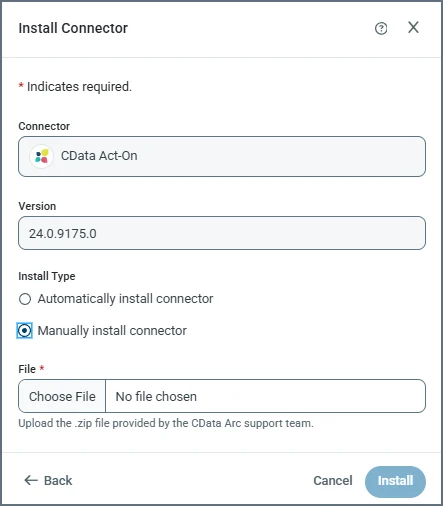
 After you click the download button, the **Install Connector** pane opens and specifies the version number. At this point, it asks whether you want to install manually or automatically. Typically you want to install automatically. However, if {companyName} Support has provided you with a `.zip` file, you can select manual, then use **Choose File** to supply the `.zip` file from them.
 * If you are installing to the [.NET edition](../../installation/windows-edition) and encounter a permission error during driver installation, grant `write` permission to `www\Web.Config` and `www\bin` for the Arc service account (Network Service by default).
* If you are installing to the .NET edition, you are warned that the application must restart.
Once the installation is complete, or if you did not need to download and install the driver or API Profile, you still need to provide the specific connection parameters. These vary by target, and might require OAuth redirection. Click **Add and Test** to save the connection. If the test fails, the connection is still saved, but you can continue to edit it to resolve any errors.
Once the shared connection is created, you can select it from the **Connection** dropdown in connectors that support shared connections.
## Update Versions
Administrators can also use the **Connections** tab to update versions. You can update to a new version when one is available, or select a version that meets your needs. Do this by:
* Clicking **Add Connection**
* Editing an already configured connection by clicking the link to the connection name
When you use the **Add Connection** option, click the download button. This opens the **Update Connector** pane.
* If you are installing to the [.NET edition](../../installation/windows-edition) and encounter a permission error during driver installation, grant `write` permission to `www\Web.Config` and `www\bin` for the Arc service account (Network Service by default).
* If you are installing to the .NET edition, you are warned that the application must restart.
Once the installation is complete, or if you did not need to download and install the driver or API Profile, you still need to provide the specific connection parameters. These vary by target, and might require OAuth redirection. Click **Add and Test** to save the connection. If the test fails, the connection is still saved, but you can continue to edit it to resolve any errors.
Once the shared connection is created, you can select it from the **Connection** dropdown in connectors that support shared connections.
## Update Versions
Administrators can also use the **Connections** tab to update versions. You can update to a new version when one is available, or select a version that meets your needs. Do this by:
* Clicking **Add Connection**
* Editing an already configured connection by clicking the link to the connection name
When you use the **Add Connection** option, click the download button. This opens the **Update Connector** pane.
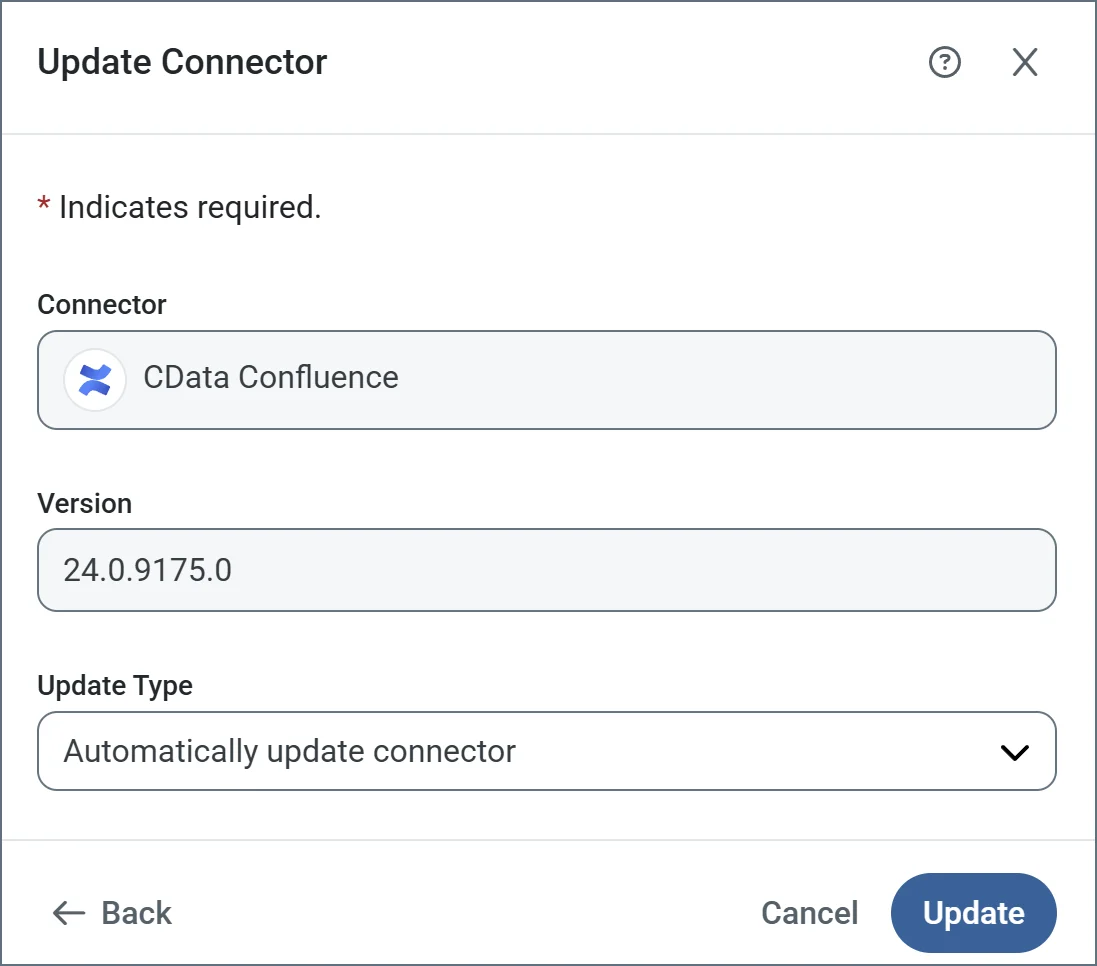 Choose the type of update you want from **Update Type**, then click **Update**. The options are:
* Automatically update connector.
* Manually update connector: If you use this option, use the **File** field to upload the `.zip` file to install.
* Select from available versions (only appears if the currently installed version is not the latest, or if multiple versions are available): If you use this option, use the **Update Version** field to select the version to install.
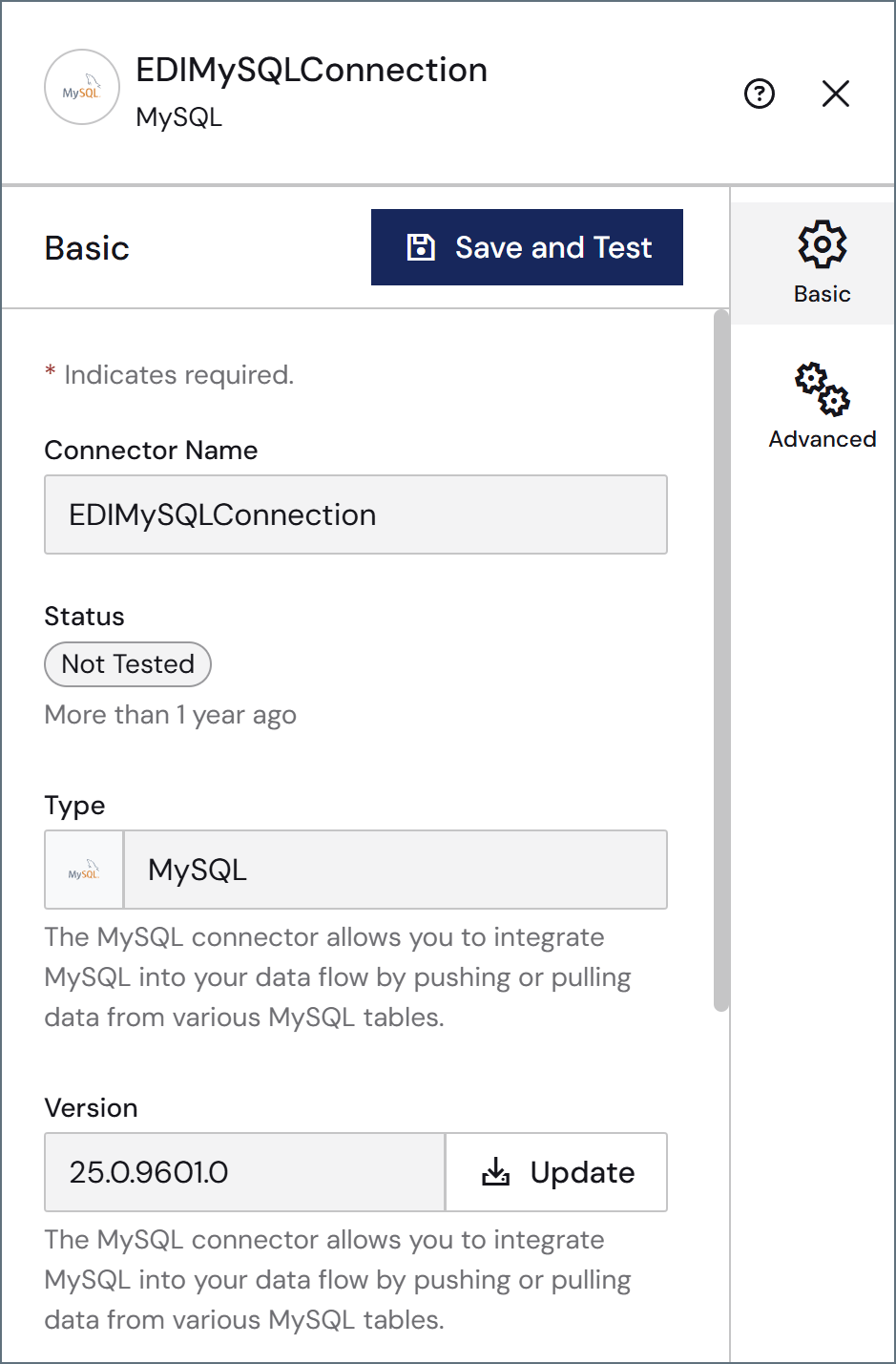
To edit an existing connection, click the link to the connection name. Click **Update** to update the version. The **Update Connector** pane opens with the same set of update options described above.
Choose the type of update you want from **Update Type**, then click **Update**. The options are:
* Automatically update connector.
* Manually update connector: If you use this option, use the **File** field to upload the `.zip` file to install.
* Select from available versions (only appears if the currently installed version is not the latest, or if multiple versions are available): If you use this option, use the **Update Version** field to select the version to install.
To edit an existing connection, click the link to the connection name. Click **Update** to update the version. The **Update Connector** pane opens with the same set of update options described above.