> ## Documentation Index
> Fetch the complete documentation index at: https://docs.arc.cdata.com/llms.txt
> Use this file to discover all available pages before exploring further.
# Alerts
> How to configure monitoring alerts for system health, certificate expirations, processing errors, and critical events in CData Arc.
export const siteNameShort = "Arc";
Use the **Alerts** tab to configure intelligent monitoring that keeps you informed with timely alerts for system health, certificate expirations, processing errors, and critical events before they impact your operations.
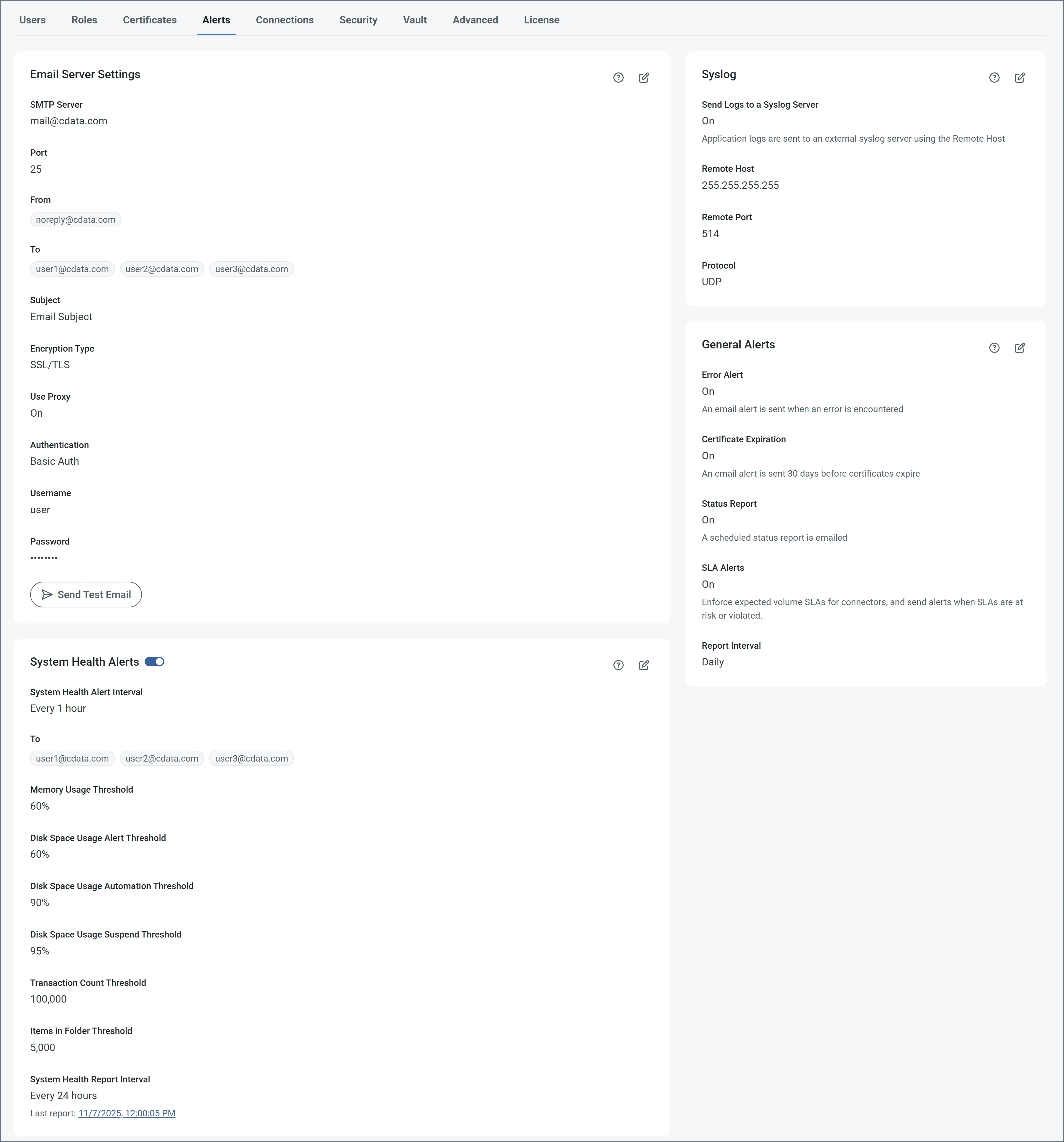 * Click **Configure** in the **Email Settings** portion of the page to enable email alerts or status reports. Complete the **Email Server Settings** fields to configure the email recipients, subject lines, and SMTP authentication options.
* **System Health Alerts** enables you to specify system-related alerting options, including alert intervals, report intervals, and several system threshold settings.
* **Syslog Settings** contains options for sending application logs to an external Syslog server. If you enable this option, use the fields to specify the remote host connection settings.
* **General Alerts** enables you to toggle alerting options, including sending emails about errors and status reports. If you use the .NET edition, you can also choose to log error messages to the Windows Application Event log.
To make changes to any of the alert settings, click the tablet and pencil
* Click **Configure** in the **Email Settings** portion of the page to enable email alerts or status reports. Complete the **Email Server Settings** fields to configure the email recipients, subject lines, and SMTP authentication options.
* **System Health Alerts** enables you to specify system-related alerting options, including alert intervals, report intervals, and several system threshold settings.
* **Syslog Settings** contains options for sending application logs to an external Syslog server. If you enable this option, use the fields to specify the remote host connection settings.
* **General Alerts** enables you to toggle alerting options, including sending emails about errors and status reports. If you use the .NET edition, you can also choose to log error messages to the Windows Application Event log.
To make changes to any of the alert settings, click the tablet and pencil  icon.
### Custom Alerts
You can send a custom alert based on a specific condition when a message is processing. To do this, add the [Notify](../../../connectors/notify) connector to your [flow](../../../flows) and configure it to notify you when a message is received by that connector.
icon.
### Custom Alerts
You can send a custom alert based on a specific condition when a message is processing. To do this, add the [Notify](../../../connectors/notify) connector to your [flow](../../../flows) and configure it to notify you when a message is received by that connector.