> ## Documentation Index
> Fetch the complete documentation index at: https://docs.arc.cdata.com/llms.txt
> Use this file to discover all available pages before exploring further.
# SharePoint Configuration
> Configure the SharePoint connector for sending and receiving files in CData Arc.
export const SlasTab = ({siteName = "CData Arc"}) => <>
Settings related to configuring Service Level Agreements (SLAs).
SLAs enable you to configure the volume you expect connectors in your flow to send or receive, and to set the time frame in which you expect that volume to be met. {siteName} sends emails to warn the user when an SLA is not met, and marks the SLA as At Risk, which means that if the SLA is not met soon, it will be marked as Violated. This gives the user an opportunity to step in and determine the reasons the SLA is not being met, and to take appropriate actions. If the SLA is still not met at the end of the at-risk time period, the SLA is marked as violated, and the user is notified again.
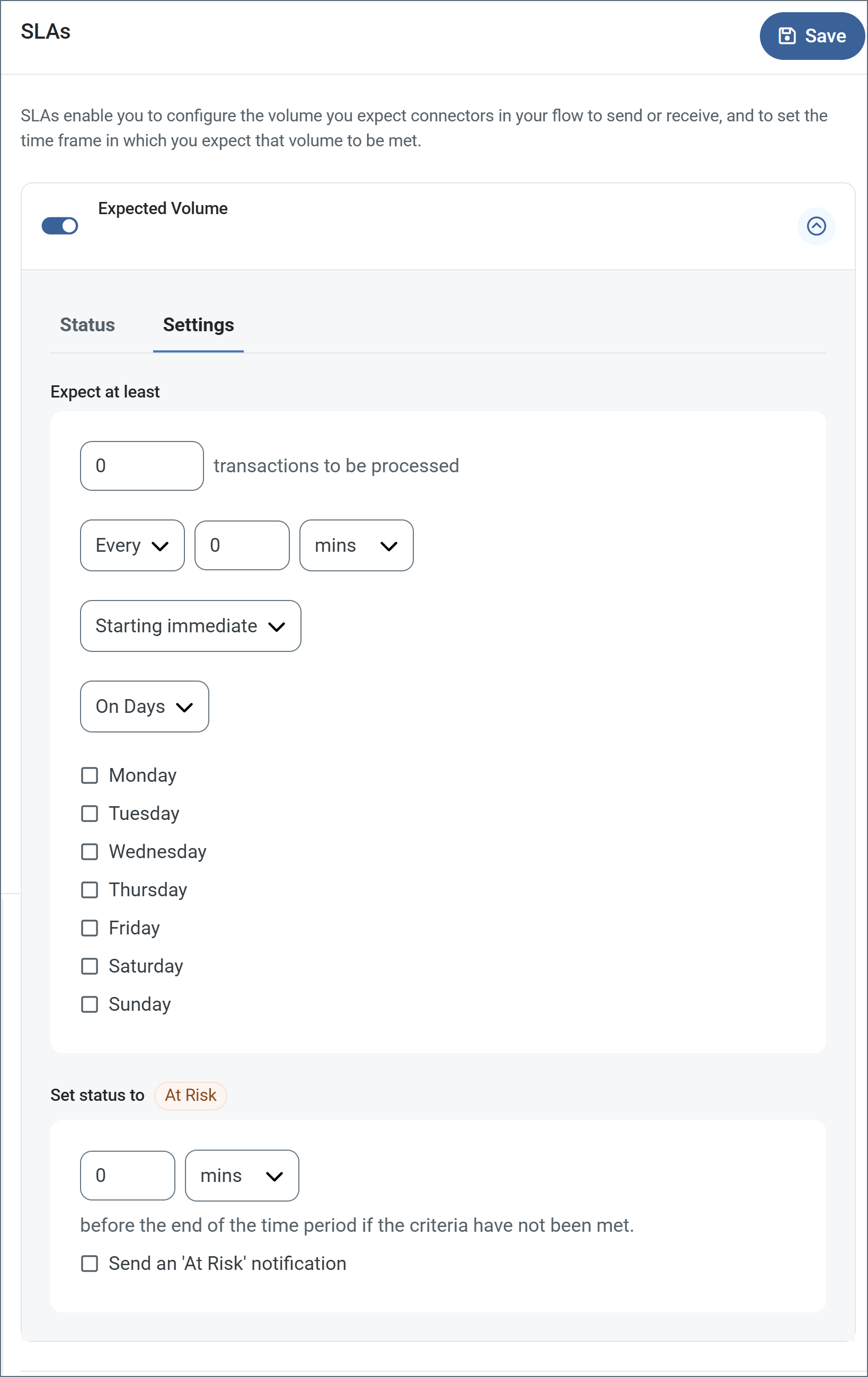
To define an SLA, toggle Expected Volume on, then click the Settings tab.
- If your connector has separate send and receive actions, use the radio buttons to specify which direction the SLA pertains to.
- In the Expect at least portion of the window:
- Set the minimum number of transactions you expect to be processed (the volume)
- Use the Every fields to specify the time frame
- Indicate when the SLA should go into effect. If you choose Starting on, complete the date and time fields.
- Check the boxes for the days of the week that you want the SLA to be in effect. Use the dropdown to choose Everyday if necessary.
- In the Set status to 'At Risk' portion of the window, specify when the SLA should be marked as at risk.
- By default, notifications are not sent until an SLA is in violation. To change that, check Send an 'At Risk' notification.
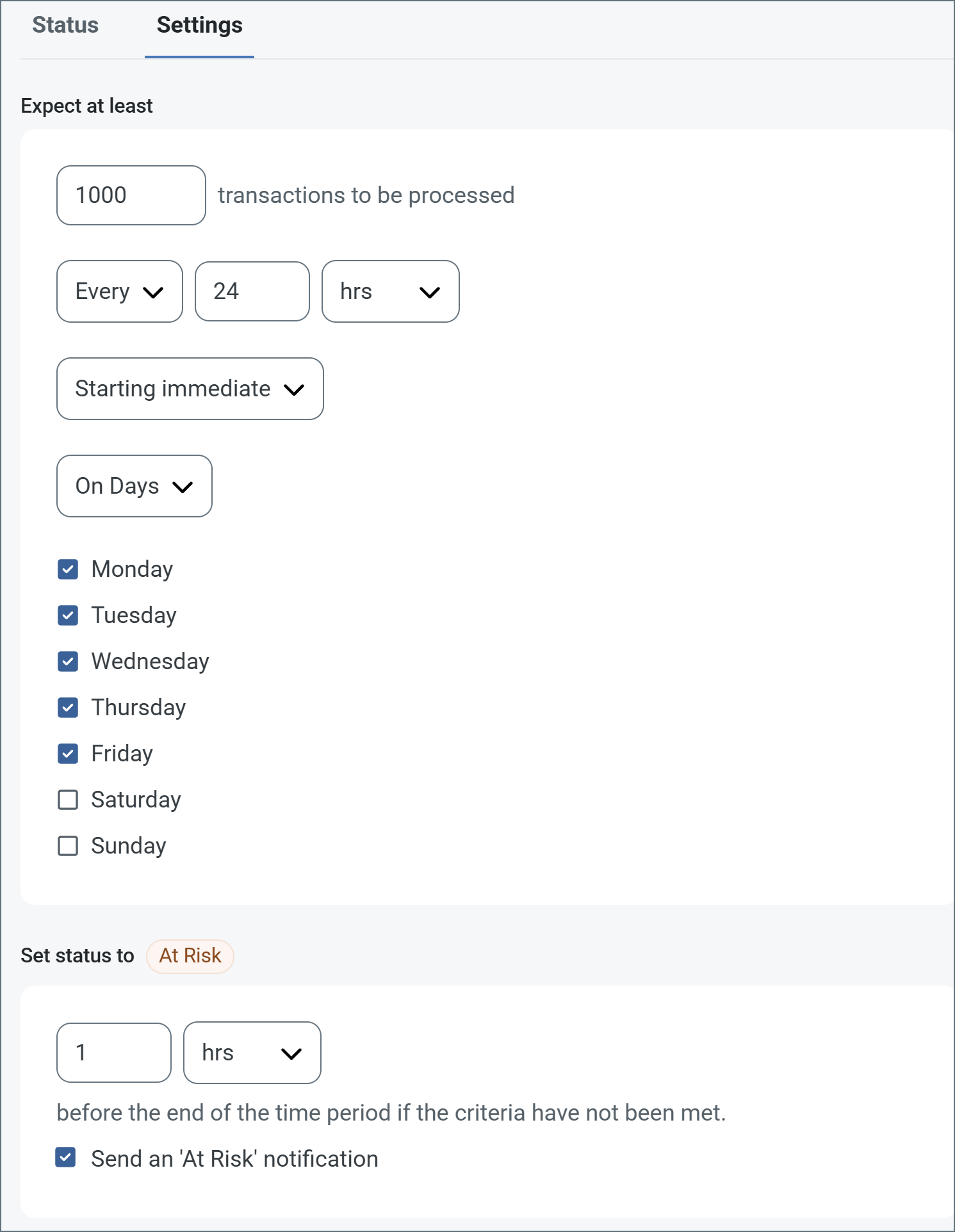
The following example shows an SLA configured for a connector that expects to receive 1000 files every day Monday-Friday. An at-risk notification is sent 1 hour before the end of the time period if the 1000 files have not been received.
 You can turn off SLA alerts if necessary. This can be useful during maintenance windows. Click Settings on the navbar, then navigate to Alerts > General Alerts. Click the tablet and pencil icon to edit, and uncheck the SLA Alerts setting.
;
export const AlertsTab = ({siteNameShort = "Arc"}) => <>
You can turn off SLA alerts if necessary. This can be useful during maintenance windows. Click Settings on the navbar, then navigate to Alerts > General Alerts. Click the tablet and pencil icon to edit, and uncheck the SLA Alerts setting.
;
export const AlertsTab = ({siteNameShort = "Arc"}) => <>
Settings related to configuring alerts.
Before you can execute Service Level Agreements (SLAs), you need to set up email alerts for notifications. By default, {siteNameShort} uses the global settings on the Alerts tab. To use other settings for this connector, toggle Override global setting on.
By default, error alerts are enabled, which means that emails are sent whenever there is an error. To turn them off, uncheck the Enable checkbox.
Enter a Subject (mandatory). Check Allow {siteNameShort}Script in Subject to use {siteNameShort}Script in the Subject field. When you select this, the {siteNameShort}Script Editor button appears ( ).
).
Optionally, enter a comma-separated list of Recipient emails.
;
export const CommonCacheCleanup = () => <>
Arc automatically cleans up the resource cache. This process runs in the background during every receive cycle and removes stale cache entries for files that are no longer present on the remote server. This keeps the cache size manageable without requiring any manual action.
By default, files are retained for 30 days, but you can use the ResourceCacheRetentionDays setting in the Other Settings field on the Advanced tab to adjust it to fit your environment. For example, ResourceCacheRetentionDays=15 retains files for 15 days before removing them.
;
export const siteNameShort = "Arc";
Once you have created a connection to SharePoint, the following sections help you configure the connector so you can send and receive files.
## Connector Configuration
This section contains all of the configurable connector properties.
### Settings Tab
#### Configuration
See [SharePoint Connection Setup](./sharepoint) for detailed instructions on how to create a connection to SharePoint.
#### Send Configuration
Settings related to uploading to the remote storage.
| Setting | Description |
| ------------- | ------------------------------------------------------------------------------------------------------------------------- |
| Remote Folder | Files processed by the connector are uploaded to this folder. Hover over the field to display a list of supported macros. |
| Overwrite | Whether to overwrite or skip existing files. |
#### Receive Configuration
Settings related to downloading from the remote storage.
| Setting | Description |
| ------------- | ---------------------------------------------------------------------------------------------------------- |
| Remote Folder | The remote folder from which files are downloaded. Use a comma-delimited list to specify multiple paths. |
| File Mask | A glob pattern that determines which files in the Remote Path should be downloaded (for example, `*.txt`). |
| Delete | Check this to delete successfully downloaded files from the remote storage. |
#### Caching
Settings related to caching and comparing files between multiple downloads.
| Setting | Description |
| -------------------- | ------------------------------------------------------------------------------------------------------------------------------------------------------------------------------------ |
| File Size Comparison | Check this to keep a record of downloaded file names and sizes. Previously downloaded files are skipped unless the file size is different than the last download. |
| Timestamp Comparison | Check this to keep a record of downloaded file names and last-modified timestamps. Previously downloaded files are skipped unless the timestamp is different than the last download. |
When you enable caching, the file names are case-insensitive. For example, the connector cannot distinguish between TEST.TXT and test.txt.
### Advanced Tab
#### Advanced Settings
Settings not included in the previous categories.
| Setting | Description |
| ----------------------------- | ----------------------------------------------------------------------------------------------------------------------------------------------------------------------------------------------------------------------------------------------------------------------------------------------------------------------------------------------------------------- |
| Recurse Remote Subdirectories | Whether to download files in subfolders of the target remote path. |
| Chunked Upload Configuration | Whether to upload large files in chunks using SharePoint upload sessions (required for files larger than 250MB). |
| Chunk Size | The chunk size (in MB) for uploading large files. The minimum is 1MB and the default is 10MB. |
| Receive Filter | A glob pattern filter to determine which files should be downloaded. You can use negative patterns to indicate files that should not be downloaded (for example, `-*.tmp`). Use this setting when you need multiple **File Mask** patterns. Multiple patterns can be separated by commas, with later filters taking priority except when an exact match is found. |
| Local File Scheme | Instructs the connector to group files in the local folder according to the selected interval. |
| Processing Delay | The amount of time (in seconds) the connector waits before processing a file. |
#### Miscellaneous
| Setting | Description |
| ------- | ----------------------------------------------------------------------------------------------------------- |
| Timeout | The length of time (in seconds) the server waits for a connection response before throwing a timeout error. |
#### Message
The **Save to Sent Folder** and **Sent Folder Scheme** settings are deprecated and hidden by default. They appear only on connectors where they were previously enabled or configured to a non-default value. To retain copies of successfully processed files, right-click the connector in the flow, choose **Show Success Path**, and connect the success path to a [File connector](../file).
| Setting | Description |
| ------------------------------------ | ------------------------------------------------------------------------------------------------------------------------------------------------------ |
| **Save to Sent Folder** (Deprecated) | Copies files processed by the connector to the Sent folder. Disabled by default. Files saved to the Sent folder are not covered by Encryption at Rest. |
| **Sent Folder Scheme** (Deprecated) | Groups files in the Sent folder by the selected time interval. Only relevant when **Save to Sent Folder** is enabled. |
#### Logging
| Setting | Description |
| -------------------- | -------------------------------------------------------------------------------------------------------------------------------------------------------------------------------- |
| Log Level | The verbosity of logs generated by the connector. When you request support, set this to **Debug**. |
| Log Subfolder Scheme | Instructs the connector to group files in the Logs folder according to the selected interval. The **Weekly** option instructs the connector to create a new subfolder each week. |
| Log Messages | Check this to have the log entry for a processed file include a copy of the file itself. |
#### Other Settings
| Setting | Description |
| -------------- | ----------------------------------------------------------------------------------------------------------------------------------------------------------------------------------------------------------------------------- |
| Other Settings | Enables you to configure hidden connector settings in a semicolon-separated list (for example, `setting1=value1;setting2=value2`). Normal connector use cases and functionality should not require the use of these settings. |
### Automation Tab
#### Automation Settings
Settings related to the automatic processing of files by the connector.
| Setting | Description |
| --------------------- | ------------------------------------------------------------------------------------------------------------------------------------------------------------------------------------------ |
| Send | Whether files arriving at the connector are automatically uploaded. |
| Retry Interval | The amount of time before a failed upload is retried. |
| Max Attempts | The maximum number of times the connector processes the input file. If set to 0, retries indefinitely. |
| Receive | Whether the connector should automatically poll the remote download path for files to download. |
| Interval | The interval between automatic download attempts. |
| Minutes Past the Hour | The minutes offset for an hourly schedule. Only applicable when the interval is Hourly. For example, if this value is set to 5, the automation service downloads at 1:05, 2:05, 3:05, etc. |
| Time | The time of day for the attempt. Only applicable when Daily, Weekly, or Monthly. |
| Day | The day for the attempt. Only applicable when Weekly or Monthly. |
| Minutes | The number of minutes to wait. Only applicable when Minute interval. |
| Cron Expression | A five-position cron expression. Only applicable when Advanced interval. |
#### Performance
| Setting | Description |
| ----------- | ------------------------------------------------------------------ |
| Max Workers | The maximum number of worker threads consumed from the threadpool. |
| Max Files | The maximum number of files sent by each thread. |
### Alerts Tab
### SLAs Tab
## Sending and Receiving
### Send Files to SharePoint
To send files, set the **Remote Folder** in the [Send Configuration](#send-configuration) portion of the **Settings** page to the folder where files should be uploaded. Each SharePoint connector uploads to a single folder location.
Use the **Overwrite remote files** option to indicate whether files that already exist in the container should be overwritten or skipped.
After configuration is complete, files placed in the connector **Transactions** tab are uploaded to the remote storage. If **Send Automation** is enabled, the upload happens automatically; otherwise, you can send individual files from the Transactions tab.
### Receive Files from SharePoint
To receive files, set the **Remote Folder** in the [Receive Configuration](#receive-configuration) portion of the **Settings** page to the folder from where files should be downloaded. Use a comma-delimited list to specify multiple folders.
Use the **File Mask** to set a glob filter (for example `*.txt`) that limits the downloads to files matching the filter. To specify multiple filters, use the **Receive Filter** option on the [Advanced tab](#advanced-tab).
Use **Delete** to specify whether successfully downloaded files should be removed from the remote storage.
## Macros
| Macro | Description |
| ------------- | ----------------------------------------------------------------- |
| ConnectorID | The Connector ID of the connector. |
| Ext | The file extension of the file (e.g., `xml`, `csv`). |
| Filename | The original filename of the message. |
| FilenameNoExt | The original filename of the message, without the file extension. |
| MessageId | The unique identifier assigned to the message. |
| RegexFilename | A filename derived from a regex on the original filename. |
| Header | The value from a message header, referenced by name. |
| LongDate | The current date/time in long format. |
| ShortDate | The current date/time in short format. |
| DateFormat | The current date/time in a custom format. |
| Vault | The value from a vault entry, referenced by name. |