> ## Documentation Index
> Fetch the complete documentation index at: https://docs.arc.cdata.com/llms.txt
> Use this file to discover all available pages before exploring further.
# Salesforce Lookup Stored Procedure
> Use a Salesforce stored procedure to look up values and insert them into an Arc message in the flow.
export const DbasaLSPConfiguration = ({datasource = "the data source", siteName = "CData Arc"}) => <>
Follow these steps to configure a stored procedure:
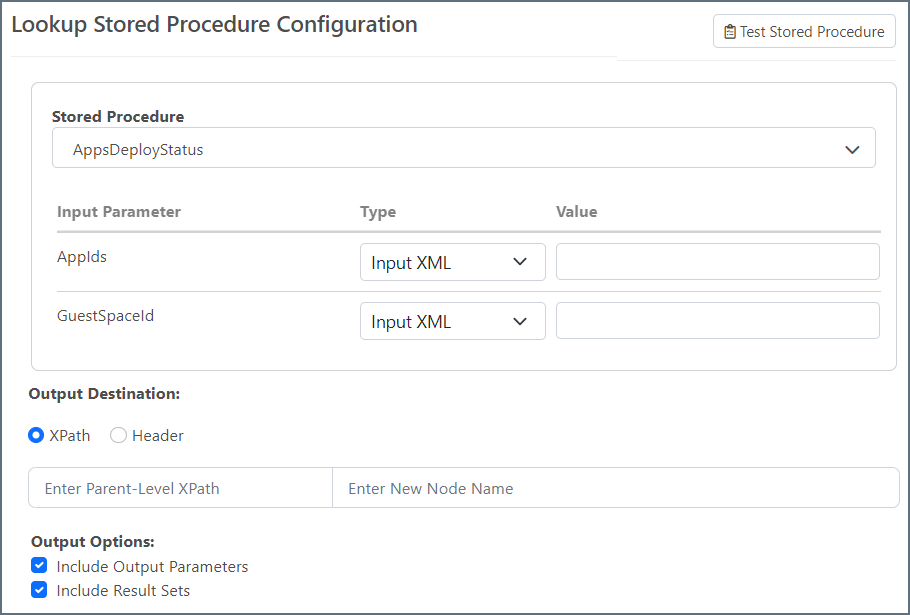
- Select a stored procedure from the drop-down menu. The available stored procedures depend on the connector and cannot be customized from {siteName}.
-
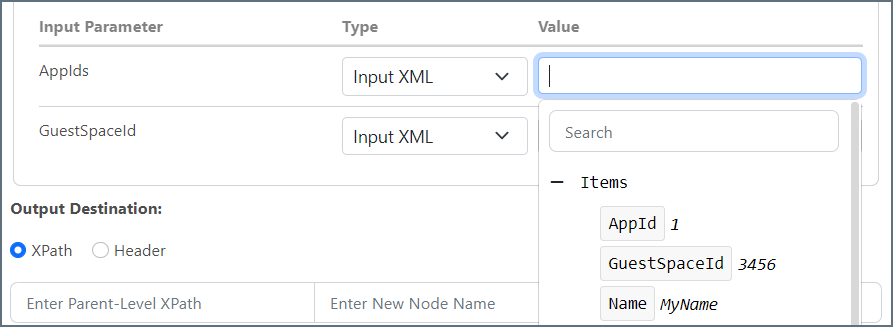
Input Parameter: Add a Value for each input parameter. If you have uploaded a sample file, the editor displays a tree representation of the document so you can easily find the XPath you need, as shown in the following image.
-
Output Destination: select XPath to insert the stored procedure response value into an XML file or Header to insert the stored procedure response value into a message header.
- XPath: When you choose XPath, the destination is in two parts. The Parent-Level XPath should already exist in the XML document. The New Node Name is the name of the node that is injected into the XML document to hold the result of the lookup. Each input parameter value has its own XML element (leaf level) in the XML element provided here.
- Header: When you choose Header, the connector adds one header to the output message for each input parameter. The values are comma-separated for each record that is returned from the database.
-
Output Options: Stored procedure results might include result sets, return values, and/or output parameters. These two checkboxes let you fine-tune what to include in the output.
- Check Include Output Parameters to include the output parameters.
- Check Include Result Sets to include result sets in the output (only applicable when the Output Destination is XPath). Because multiple results sets with varying structures might be returned, result sets are injected into the input XML with an additional level of hierarchy.
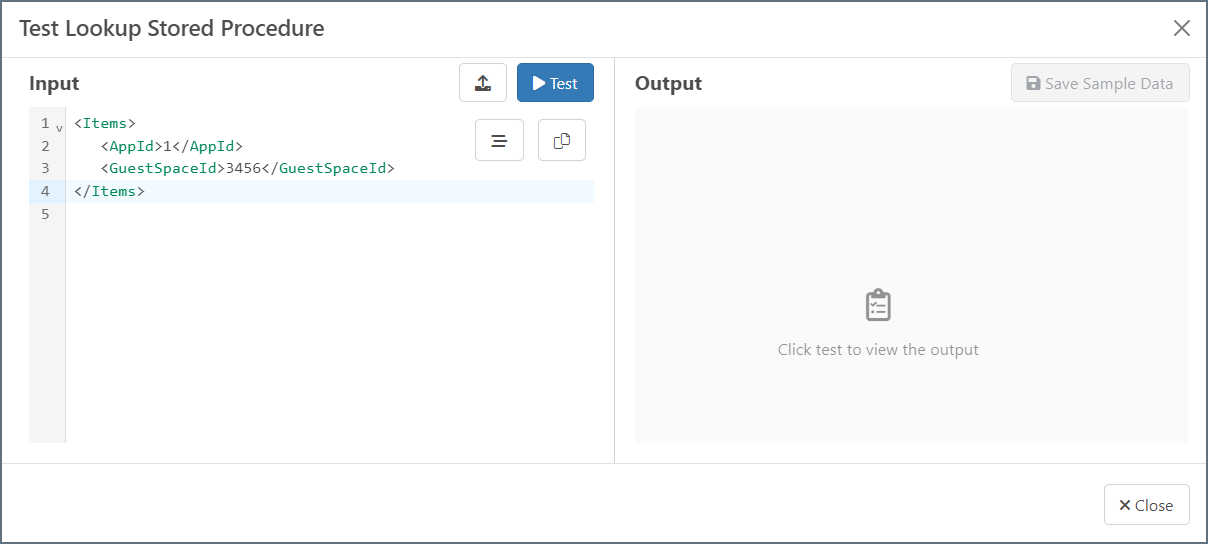
- Click Test Lookup to see what the structure of the input XML should look like.
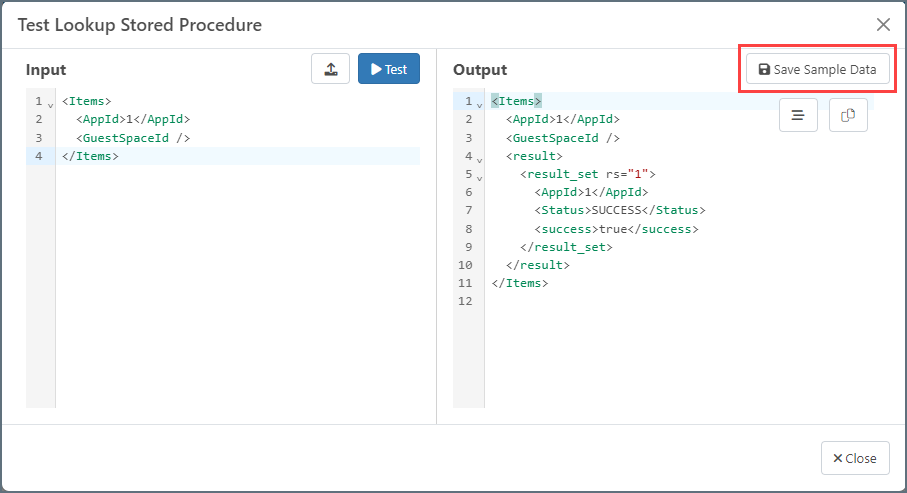
- Click Test to see what output will be generated. When you are satisfied with the test results, you can click Save Sample Data to make the data accessible to other connectors.
;
export const DbasaLSPIntro = ({datasource = "the data source", siteName = "CData Arc", siteNameShort = "Arc"}) => <>
The Lookup Stored Procedure action treats data coming into the {datasource} connector as input
for stored procedures. The connector executes the selected stored procedure, then inserts the
resulting values into an existing Arc message in the flow.
- In the {siteName} flow, drag an arrow from the connector that will provide input to the {datasource} connector.
- Optionally, choose a Sample File. A sample file is recommended because it allows the connector to provide more context about the file structure and makes it easier to select input parameter values.
- Once you have completed the configuration steps below, in the {siteNameShort} flow, drag an arrow from the {datasource} connector to the connector where you want your resulting XML or Header data to go.
;
## Lookup Stored Procedure Configuration