> ## Documentation Index
> Fetch the complete documentation index at: https://docs.arc.cdata.com/llms.txt
> Use this file to discover all available pages before exploring further.
# RSS Connector
> The RSS connector downloads remote RSS and Atom feeds with automatic polling, incremental update support, and multiple authentication schemes.
export const CommonProxySettings = () => <>
These are a collection of settings that identify and authenticate to the proxy through which the connection should be routed. By default, this section uses the global settings on the Proxy Settings portion of the Security Settings page. Clear the checkbox to supply settings specific to your connector.
| Setting | Description |
|---|
| Proxy Type |
The protocol used by a proxy-based firewall. |
| Proxy Host |
The name or IP address of a proxy-based firewall. |
| Proxy Port |
The TCP port for a proxy-based firewall. |
| Proxy User |
The user name to use to authenticate with a proxy-based firewall. |
| Proxy Password |
A password used to authenticate to a proxy-based firewall. |
| Authentication Scheme |
Leave the default None or choose from one of the following authentication schemes: Basic, Digest, Proprietary, or NTLM. |
;
export const CommonCacheCleanup = () => <>
Arc automatically cleans up the resource cache. This process runs in the background during every receive cycle and removes stale cache entries for files that are no longer present on the remote server. This keeps the cache size manageable without requiring any manual action.
By default, files are retained for 30 days, but you can use the ResourceCacheRetentionDays setting in the Other Settings field on the Advanced tab to adjust it to fit your environment. For example, ResourceCacheRetentionDays=15 retains files for 15 days before removing them.
;
export const SlasTab = ({siteName = "CData Arc"}) => <>
Settings related to configuring Service Level Agreements (SLAs).
SLAs enable you to configure the volume you expect connectors in your flow to send or receive, and to set the time frame in which you expect that volume to be met. {siteName} sends emails to warn the user when an SLA is not met, and marks the SLA as At Risk, which means that if the SLA is not met soon, it will be marked as Violated. This gives the user an opportunity to step in and determine the reasons the SLA is not being met, and to take appropriate actions. If the SLA is still not met at the end of the at-risk time period, the SLA is marked as violated, and the user is notified again.
To define an SLA, toggle Expected Volume on, then click the Settings tab.
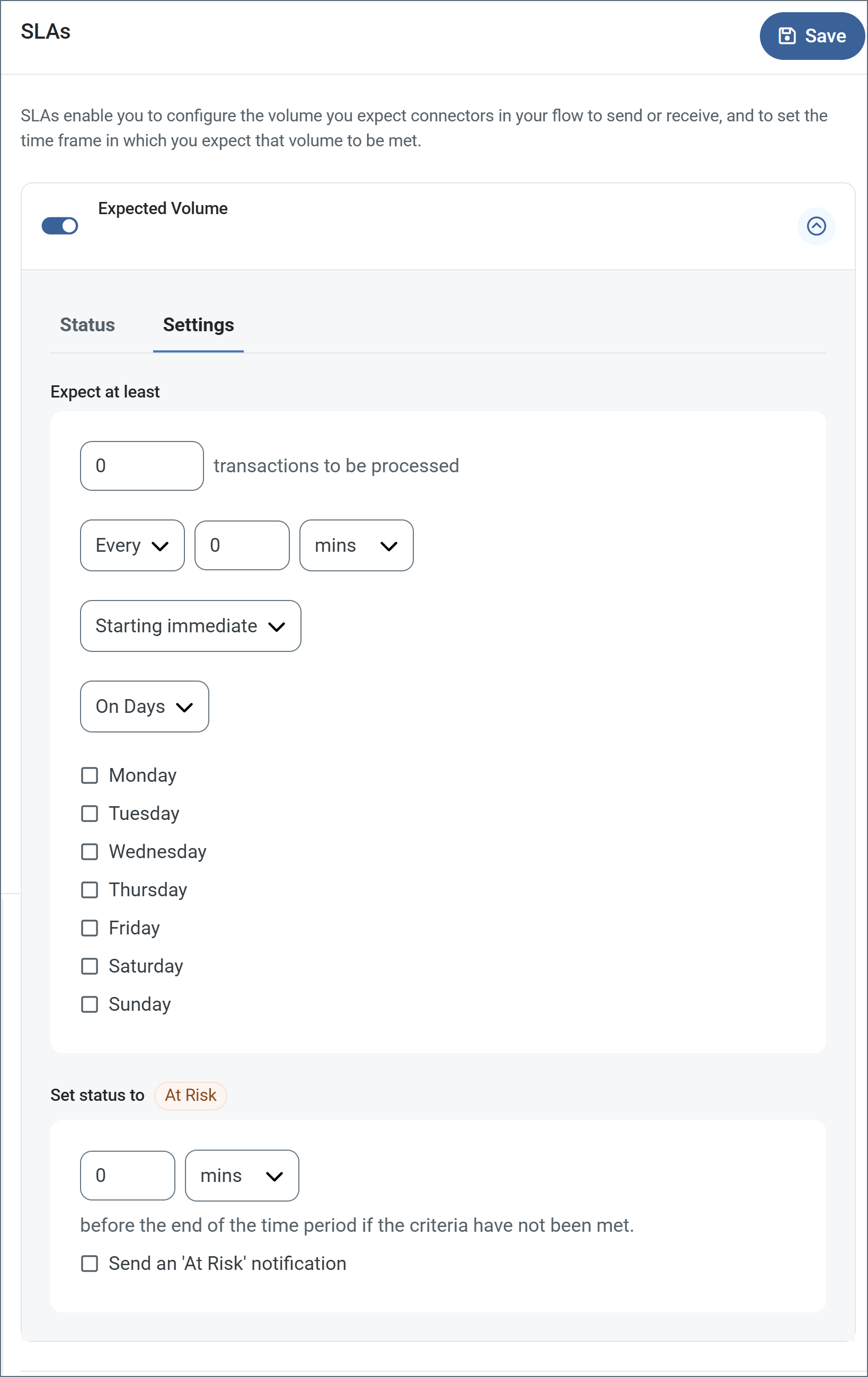
- If your connector has separate send and receive actions, use the radio buttons to specify which direction the SLA pertains to.
- In the Expect at least portion of the window:
- Set the minimum number of transactions you expect to be processed (the volume)
- Use the Every fields to specify the time frame
- Indicate when the SLA should go into effect. If you choose Starting on, complete the date and time fields.
- Check the boxes for the days of the week that you want the SLA to be in effect. Use the dropdown to choose Everyday if necessary.
- In the Set status to 'At Risk' portion of the window, specify when the SLA should be marked as at risk.
- By default, notifications are not sent until an SLA is in violation. To change that, check Send an 'At Risk' notification.
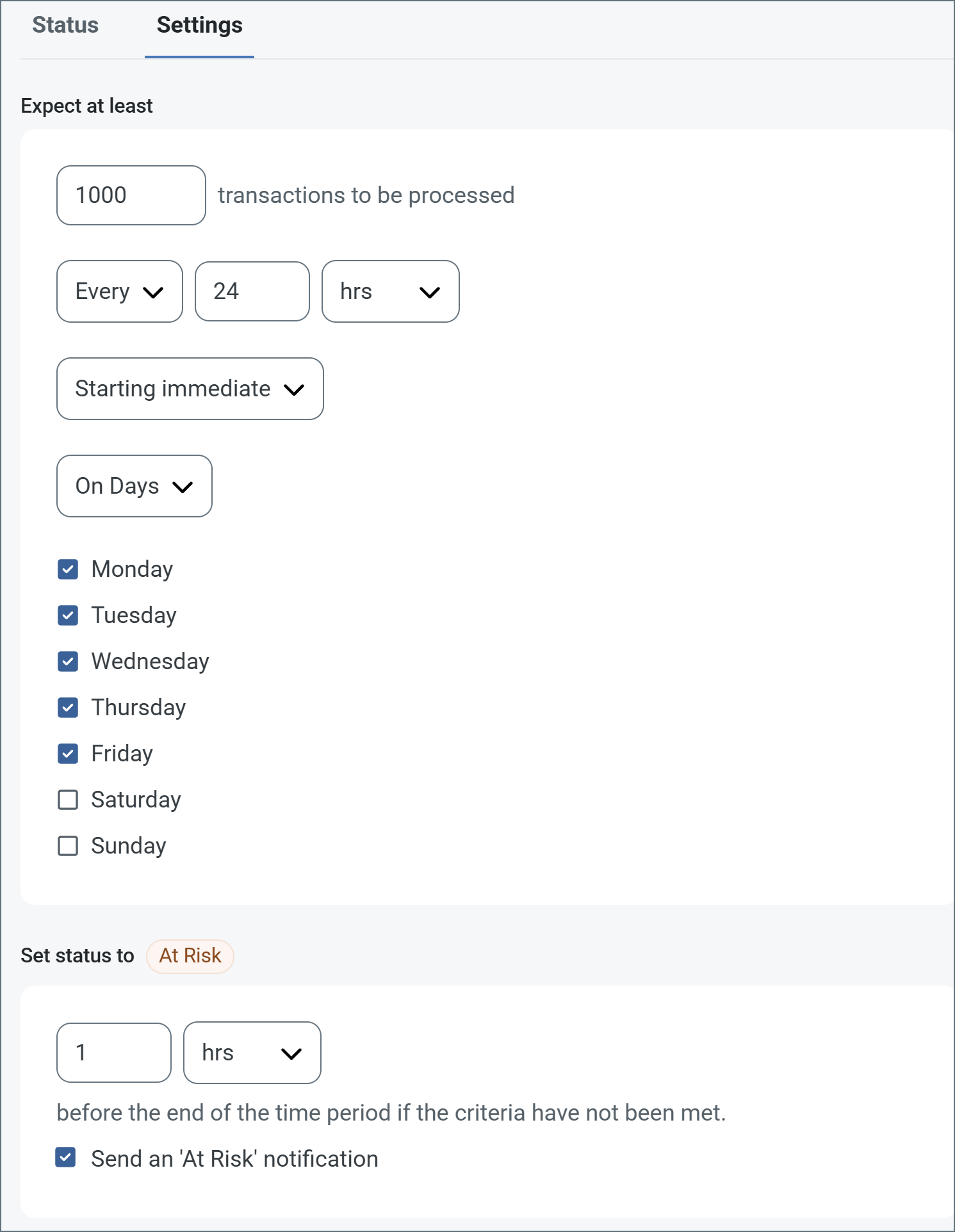
The following example shows an SLA configured for a connector that expects to receive 1000 files every day Monday-Friday. An at-risk notification is sent 1 hour before the end of the time period if the 1000 files have not been received.
 You can turn off SLA alerts if necessary. This can be useful during maintenance windows. Click Settings on the navbar, then navigate to Alerts > General Alerts. Click the tablet and pencil icon to edit, and uncheck the SLA Alerts setting.
;
export const AlertsTab = ({siteNameShort = "Arc"}) => <>
You can turn off SLA alerts if necessary. This can be useful during maintenance windows. Click Settings on the navbar, then navigate to Alerts > General Alerts. Click the tablet and pencil icon to edit, and uncheck the SLA Alerts setting.
;
export const AlertsTab = ({siteNameShort = "Arc"}) => <>
Settings related to configuring alerts.
Before you can execute Service Level Agreements (SLAs), you need to set up email alerts for notifications. By default, {siteNameShort} uses the global settings on the Alerts tab. To use other settings for this connector, toggle Override global setting on.
By default, error alerts are enabled, which means that emails are sent whenever there is an error. To turn them off, uncheck the Enable checkbox.
Enter a Subject (mandatory). Check Allow {siteNameShort}Script in Subject to use {siteNameShort}Script in the Subject field. When you select this, the {siteNameShort}Script Editor button appears ( ).
).
Optionally, enter a comma-separated list of Recipient emails.
;
export const Message = () => <>
Message settings determine how the connector searches for messages and manages them after processing.
Note: The settings below are deprecated and hidden by default. They appear only on connectors where they were previously enabled or configured to a non-default value. To retain copies of successfully processed files, right-click the connector in the flow, choose Show Success Path, and connect the success path to a File connector.
| Setting | Description |
|---|
| Save to Sent Folder (Deprecated) |
Copies files processed by the connector to the Sent folder. Disabled by default. Files saved to the Sent folder are not covered by Encryption at Rest. |
| Sent Folder Scheme (Deprecated) |
Groups files in the Sent folder by the selected time interval. Only relevant when Save to Sent Folder is enabled. |
;
export const MiscConnector = () => <>
Miscellaneous settings are for specific use cases.
| Setting |
Description |
| Other Settings |
Enables you to configure hidden connector settings in a semicolon-separated list (for example, setting1=value1;setting2=value2). Normal connector use cases and functionality should not require the use of these settings. |
;
export const Logging = () => <>
Settings that govern the creation and storage of logs.
| Setting |
Description |
| Log Level |
The verbosity of logs generated by the connector. When you request support, set this to Debug. |
| Log Subfolder Scheme |
Instructs the connector to group files in the Logs folder according to the selected interval. The Weekly option (which is the default) instructs the connector to create a new subfolder each week and store all logs for the week in that folder. Leaving this setting blank tells the connector to save all logs directly in the Logs folder. For connectors that process many transactions, using subfolders helps keep logs organized and improves performance. |
| Log Messages |
Check this to have the log entry for a processed file include a copy of the file itself. If you disable this, you might not be able to download a copy of the file from the Transactions tab. |
;
export const siteNameShort = "Arc";
export const siteName = "CData Arc";
RSS Connectors support downloading remote RSS and Atom feeds.
## Key Capabilities
* RSS and Atom feed consumption with automatic polling and multiple authentication schemes
* Incremental update support using If-Modified-Since headers and ETag-based duplicate detection
* Configurable response header promotion for metadata extraction
## Overview
RSS connectors expose a simple interface to automatically poll for downloadable content from a specific RSS or Atom feed. The connector can be configured to only process new and updated content, and can perform both HTTP and TLS authentication to the remote service.
## Connector Settings
### Settings Tab
#### Configuration
*Settings related to the core configuration of the connector.*
| Setting | Description |
| ------------------------- | ---------------------------------------------------------------------------------------------------------------------------------------------------------------------------------------------------------------------------------------------------------------------------------------------------------------- |
| **Connector Id** | The static, unique identifier for the connector. |
| **Connector Type** | Displays the connector name and a description of what it does. |
| **Connector Description** | An optional field to provide a free-form description of the connector and its role in the flow. |
| **Feed URL** | The HTTP or HTTPS endpoint from where RSS content should be downloaded. |
| **Feed Type** | Whether the remote URL is an RSS or Atom feed. |
| **Use If-Modified-Since** | When enabled, the connector includes an If-Modified-Since header in the outgoing request that equals the latest publication date and time from the previous download attempt. This causes the server to filter responses based on what content is new or has been modified recently. |
| **Process New Items** | When enabled, the connector stores the last modified date from previous downloads, and filters out results that are not new or modified since that date. The result is the same as **Use If-Modified-Since**, but the filtering is done on the client-side rather than sending a filter condition to the server. |
#### Authentication
*Settings related to authenticating with the RSS service.*
| Setting | Description |
| ---------------------- | ---------------------------------------------------------------------------------------------------------------------- |
| **Authorization Type** | The type of authentication to use with the RSS service. See the [Authentication](#authentication) section for details. |
#### TLS Server Authentication
*Settings related to verifying the TLS server's identity.*
| Setting | Description |
| -------------------------- | ------------------------------------------------------------------------------------------------------------------------------------------------------------------------------------------------------------------------------------------------------------------------------------------------------------------------------------------------------------------------------ |
| **TLS Server Certificate** | The public key certificate used to verify the identity of a TLS server. You can upload a certificate, leave the field blank to allow the underlying OS/JVM to perform certificate validation, or set it to `Any Certificate` to trust the target server's identity. Use Any Certificate with caution: the certificate verifies that you are connecting to the intended server. |
### Advanced Tab
#### Advanced Settings
*Settings not included in the previous categories.*
| Setting | Description |
| ------------------------- | ------------------------------------------------------------------------------------------------------------------------------------------------------------------------------------------------------------------------------------------------------------------------------------------------------------ |
| **Include Channel** | Whether to include data about the RSS channel in the output. |
| **TLS Enabled Protocols** | The list of TLS/SSL protocols supported when establishing outgoing connections. Best practice is to only use TLS protocols. Some obsolete operating systems do not support TLS 1.2. |
| **Skip Processed Items** | When enabled, the connector maintains a checksum of each item downloaded, and does not download the same content more than once. |
| **Timeout** | The duration in seconds to wait for a response from the RSS server before throwing a timeout error. |
| **Processing Delay** | The amount of time (in seconds) by which the processing of files placed in the **Transactions** tab is delayed. This is a legacy setting. Best practice is to [use a File connector](../flows/designing-a-flow#interacting-with-the-local-file-system) to manage local file systems instead of this setting. |
| **Use ETag** | Servers might include a checksum of the RSS content as the ETag (entity tag). Enable this setting to have the connector include the ETag from the previous response as the If-None-Match header in the outgoing request. |
#### Proxy Settings
#### Message
#### Logging
#### Miscellaneous
### Automation Tab
#### Automation Settings
*Settings related to the automatic processing of files by the connector.*
| Setting | Description |
| ------------------------- | ----------------------------------------------------------------------------------------------------------------------------------------------------------------------------------------------------------------- |
| **Receive** | Whether the connector should automatically send RSS download requests according to a specified interval. |
| **Interval** | The interval between automatic requests. |
| **Minutes Past the Hour** | The minutes offset for an hourly schedule. Only applicable when the interval setting above is set to *Hourly*. For example, if this value is set to 5, the automation service downloads at 1:05, 2:05, 3:05, etc. |
| **Time** | The time of day that the attempt should occur. Only applicable when the interval setting above is set to *Daily*, *Weekly*, or *Monthly*. |
| **Day** | The day on which the attempt should occur. Only applicable when the interval setting above is set to *Weekly* or *Monthly*. |
| **Minutes** | The number of minutes to wait before attempting the download. Only applicable when the interval setting above is set to *Minute*. |
| **Cron Expression** | A five-position string representing a cron expression that determines when the attempt should occur. Only applicable when the interval setting above is set to *Advanced*. |
### Alerts Tab
### SLAs Tab
## Establishing a Connection
A valid target **Feed URL** is required to establish a connection to any RSS service. Some services might also require authentication or a set of custom headers in order to consume the service.
The connector silently supports both HTTP and HTTPS target URLs. If the target URL is an HTTPS URL, set the **TLS Server Certificate** to the public key certificate identifying the server. To implicitly trust the target endpoint, set the field to `Any Certificate`.
### Authentication
The RSS connector supports HTTP authentication in the following formats:
* Basic (plain text)
* Digest (encrypted)
* NTLM
* Negotiate
* Proprietary
The connector provides the credentials specified in **Username** and **Password** with each request to the remote RSS service.
## Automatic Cache Cleanup