> ## Documentation Index
> Fetch the complete documentation index at: https://docs.arc.cdata.com/llms.txt
> Use this file to discover all available pages before exploring further.
# Connectors
> Connectors are the modular building blocks used to create automated data processing flows in Arc.
export const siteNameShort = "Arc";
export const siteName = "CData Arc";
Connectors are the building blocks for creating a process flow of data through {siteNameShort}. Each connector performs one of the following tasks:
* Transfers files to and from external destinations using a standard network protocol (AS2, AS4, FTP, SFTP, OFTP, etc)
* Integrates with a back-end system like a database or cloud application
* Consumes or exposes a RESTful web API
* Transforms data from one format to another
* Compresses/decompresses or encrypts/decrypts data
* Modifies the content or headers of a file
* Routes files using conditional logic to create a sophisticated data flow
Connectors are connected together to create an automatic data-processing flow. After each connector performs its specific task, any files received or processed are passed along to the next connector in the flow.
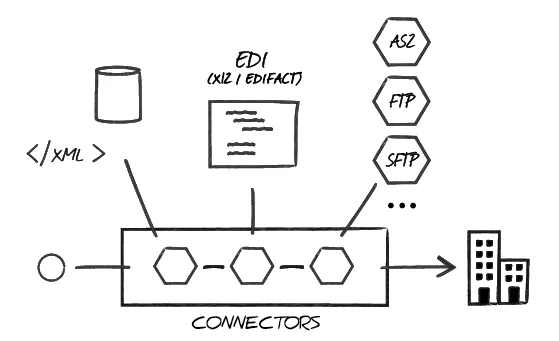
This modular approach allows {siteNameShort} to handle business tasks with a wide range of complexity. The following image displays how a set of {siteNameShort} connectors can generate outbound EDI documents using data retrieved as XML from a back-end data source:
 ### Configuration
Each connector has a series of tabs that you use to configure settings for the tasks the connector performs. The tabs include:
* **Settings** to manage connection and authentication parameters
* **Advanced** for additional connector-specific settings and message and logging information
* **Automation** to specify how the connector should automatically process files, poll for files to download, retry failed messages, and so on
* **Alerts** if you need to override the global [alert settings](../getting-started/administration/settings/alerts)
* **SLAs** to configure the volume you expect connectors in your flow to send or receive, and to set the time frame in which you expect that volume to be met
* **Transactions** that govern where the connectors interface with the local file system
* **Events** scripts for executing custom logic at certain points during connector processing
Some connectors, like AS2 and AS4, also require you to configure a local Profile to receive inbound connections.
### Logging
When a connector sends, receives, or processes a file, it logs this operation as a transaction. You can view transactions for a specific connector in the connector's **Transactions** tab, and you can view transactions for *all* connectors on the **Transactions** tab of the Activity page.
See the Activity documentation for details on what information is captured for each transaction entry.
Date/Time entries are always localized to the local time zone and date format settings of your browser, so even when you browse to a server hosted in a different time zone, the displayed timestamps reflect the local time.
### Messages
When connectors process files, they can optionally add metadata to the file. This information is captured as Messages, and it is stored with a special .eml file extension in the application database. See the [Messages Tab](../getting-started/administration/activity#messages-tab) documentation for details on what information is captured on each Message.
### Categories
Connectors are grouped into categories: Core, MFT, EDI, Database, and Other. Every connector belongs to one of these categories.
* [Core connectors](./core-connectors) provide the foundational functionality for building data workflows.
* [MFT connectors](./mft-connectors) extend {siteNameShort}'s ability to send and receive files using secure file transfer protocols.
* [EDI connectors](./edi-connectors) support transforming and manipulating EDI documents to integrate these documents with back-end systems or other aspects of a {siteNameShort} flow.
* [Database connectors](./database-connectors) provide the ability to connect to a variety of databases.
* [Other connectors](./other-connectors) include various connectors that don't fit into the other categories. They are licensed separately from the rest of the application.
In addition to the categories above, each connector in a flow is also assigned one of three behavior categories: Trigger, Transform and Terminal. The configuration of the connector's actions and its location in the flow determine its category.
* Trigger connectors start a flow by **Receive Automation** pulling or creating a file or, for connectors that support passive receive, when the connector receives a file from an external client. Examples include [AS2](./as2), [Email Receive](./email-receive), or [SFTP](./sftp).
* Transform connectors are connectors that reside in the middle of a flow and are responsible for performing work on the message (modifying it in some way). Examples include [X12](./x12), [XML Map](./xml-map/xml-map), or [CSV](./csv).
* Terminal connectors are the end of a flow, where {siteNameShort} hands the message off to the underlying disk or where the message is consumed by the connector during its send action and no output is generated. Examples include [File](./file), [MySQL](./mysql/mysql), or any database connector configured for Upsert.
- Many connectors, such as [File](./file), [FTP](./ftp), and [SOAP](./soap) can serve as either trigger or terminal connectors, depending on the configured [action](../flows/designing-a-flow#specifying-actions) and where in the flow they appear.
- The [Script](./script), [REST](./rest), and any of the [Database](./database-connectors) connectors can serve as any of the three, again depending on the configured action and where in the flow they appear.
### Bulk Editing Connectors
The **Connector View** is accessed by clicking Flows on the navbar, then selecting **Connector View** on the top right. It displays a list of all connectors in your application, enabling users to efficiently locate and manage connectors at scale. If you have connector management permissions, you can use this view to perform bulk edits on connectors. See [Connector View and Bulk Editing Connectors](./bulk-edit-connectors) for details.
### Connector Backoff
When a connector repeatedly fails to send files, {siteNameShort} automatically enters a backoff state, temporarily pausing automation to prevent resource exhaustion and excessive logging. The connector displays a status indicator when it is in backoff, showing the reason and when automation is scheduled to resume. See [Connector Backoff](./connector-backoff) for details.
### Configuration
Each connector has a series of tabs that you use to configure settings for the tasks the connector performs. The tabs include:
* **Settings** to manage connection and authentication parameters
* **Advanced** for additional connector-specific settings and message and logging information
* **Automation** to specify how the connector should automatically process files, poll for files to download, retry failed messages, and so on
* **Alerts** if you need to override the global [alert settings](../getting-started/administration/settings/alerts)
* **SLAs** to configure the volume you expect connectors in your flow to send or receive, and to set the time frame in which you expect that volume to be met
* **Transactions** that govern where the connectors interface with the local file system
* **Events** scripts for executing custom logic at certain points during connector processing
Some connectors, like AS2 and AS4, also require you to configure a local Profile to receive inbound connections.
### Logging
When a connector sends, receives, or processes a file, it logs this operation as a transaction. You can view transactions for a specific connector in the connector's **Transactions** tab, and you can view transactions for *all* connectors on the **Transactions** tab of the Activity page.
See the Activity documentation for details on what information is captured for each transaction entry.
Date/Time entries are always localized to the local time zone and date format settings of your browser, so even when you browse to a server hosted in a different time zone, the displayed timestamps reflect the local time.
### Messages
When connectors process files, they can optionally add metadata to the file. This information is captured as Messages, and it is stored with a special .eml file extension in the application database. See the [Messages Tab](../getting-started/administration/activity#messages-tab) documentation for details on what information is captured on each Message.
### Categories
Connectors are grouped into categories: Core, MFT, EDI, Database, and Other. Every connector belongs to one of these categories.
* [Core connectors](./core-connectors) provide the foundational functionality for building data workflows.
* [MFT connectors](./mft-connectors) extend {siteNameShort}'s ability to send and receive files using secure file transfer protocols.
* [EDI connectors](./edi-connectors) support transforming and manipulating EDI documents to integrate these documents with back-end systems or other aspects of a {siteNameShort} flow.
* [Database connectors](./database-connectors) provide the ability to connect to a variety of databases.
* [Other connectors](./other-connectors) include various connectors that don't fit into the other categories. They are licensed separately from the rest of the application.
In addition to the categories above, each connector in a flow is also assigned one of three behavior categories: Trigger, Transform and Terminal. The configuration of the connector's actions and its location in the flow determine its category.
* Trigger connectors start a flow by **Receive Automation** pulling or creating a file or, for connectors that support passive receive, when the connector receives a file from an external client. Examples include [AS2](./as2), [Email Receive](./email-receive), or [SFTP](./sftp).
* Transform connectors are connectors that reside in the middle of a flow and are responsible for performing work on the message (modifying it in some way). Examples include [X12](./x12), [XML Map](./xml-map/xml-map), or [CSV](./csv).
* Terminal connectors are the end of a flow, where {siteNameShort} hands the message off to the underlying disk or where the message is consumed by the connector during its send action and no output is generated. Examples include [File](./file), [MySQL](./mysql/mysql), or any database connector configured for Upsert.
- Many connectors, such as [File](./file), [FTP](./ftp), and [SOAP](./soap) can serve as either trigger or terminal connectors, depending on the configured [action](../flows/designing-a-flow#specifying-actions) and where in the flow they appear.
- The [Script](./script), [REST](./rest), and any of the [Database](./database-connectors) connectors can serve as any of the three, again depending on the configured action and where in the flow they appear.
### Bulk Editing Connectors
The **Connector View** is accessed by clicking Flows on the navbar, then selecting **Connector View** on the top right. It displays a list of all connectors in your application, enabling users to efficiently locate and manage connectors at scale. If you have connector management permissions, you can use this view to perform bulk edits on connectors. See [Connector View and Bulk Editing Connectors](./bulk-edit-connectors) for details.
### Connector Backoff
When a connector repeatedly fails to send files, {siteNameShort} automatically enters a backoff state, temporarily pausing automation to prevent resource exhaustion and excessive logging. The connector displays a status indicator when it is in backoff, showing the reason and when automation is scheduled to resume. See [Connector Backoff](./connector-backoff) for details.