> ## Documentation Index
> Fetch the complete documentation index at: https://docs.arc.cdata.com/llms.txt
> Use this file to discover all available pages before exploring further.
# SharePoint Configuration
> Configure the SharePoint connector for sending and receiving files in CData Arc.
export const SlasTab = ({siteName = "CData Arc"}) => <>
サービスレベルアグリーメント(SLA)の設定に関する設定です。
SLA を使用すると、フロー内のコネクタが送受信すると見込まれるボリュームを設定し、そのボリュームを達成すると見込まれる期間を設定できます。{siteName} は、SLA が達成されない場合にユーザーへ警告するメールを送信し、SLA をAt Risk としてマークします。これは、SLA が間もなく達成されない場合にViolated としてマークされることを意味します。これにより、ユーザーは介入してSLA が達成されない理由を特定し、適切な対応を取る機会を得られます。At Risk 期間の終了時点でもSLA が達成されない場合、SLA はviolated としてマークされ、ユーザーに再度通知されます。
SLA を定義するには、Expected Volume をオンに切り替え、Settings タブをクリックします。
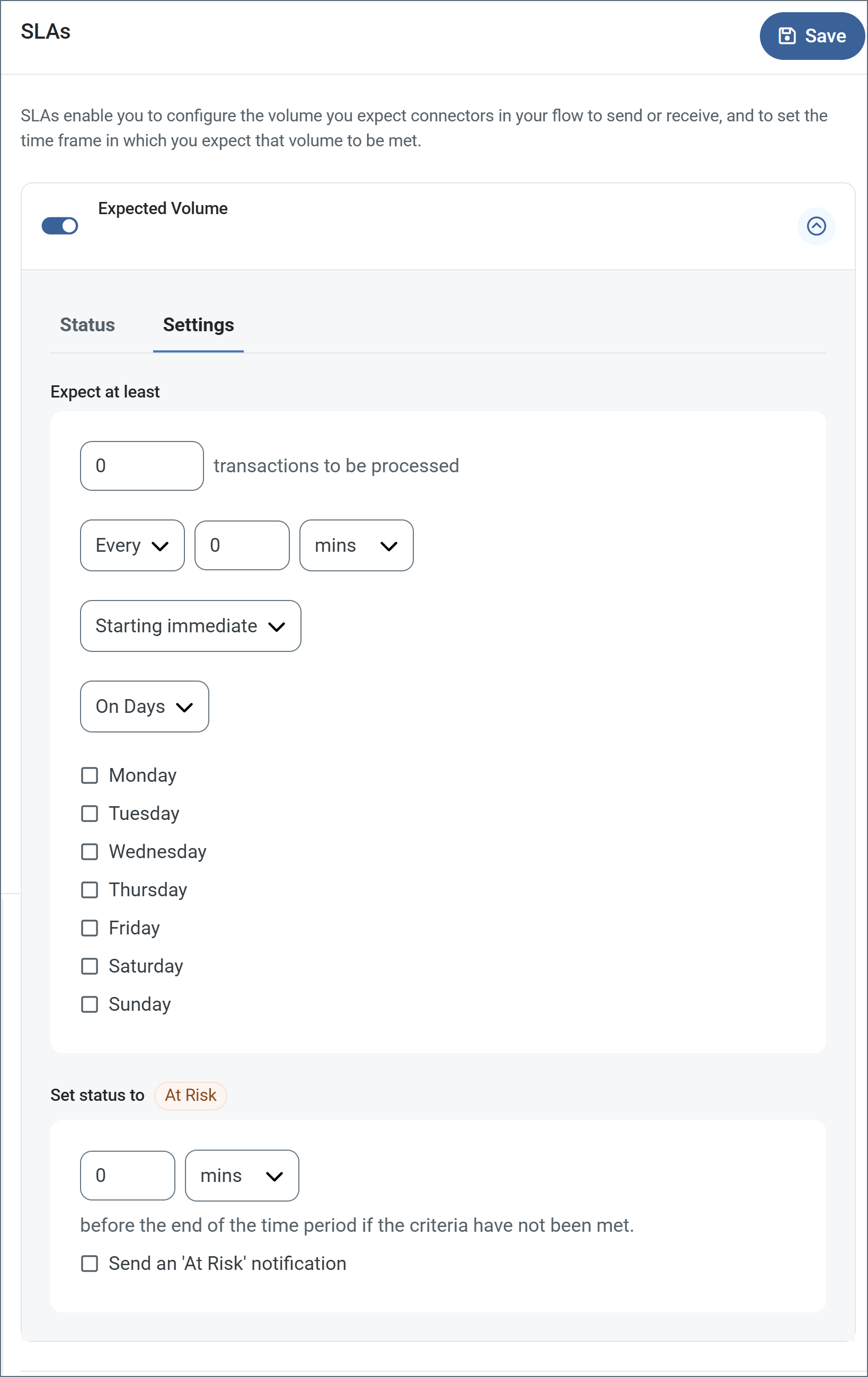
- コネクタに送信と受信の個別のアクションがある場合は、ラジオボタンを使用してSLA がどちらの方向に適用されるかを指定します。
- ウィンドウのExpect at least 部分で、次を設定します。
- 処理を見込む最小トランザクション数(ボリューム)を設定します。
- Every フィールドを使用して期間を指定します。
- SLA を有効にするタイミングを指定します。Starting on を選択した場合は、日付および時刻フィールドを入力します。
- SLA を有効にしたい曜日のチェックボックスをオンにします。必要に応じて、ドロップダウンでEveryday を選択します。
- ウィンドウのSet status to 'At Risk' 部分で、SLA をAt Risk としてマークするタイミングを指定します。
- デフォルトでは、SLA が違反状態になるまで通知は送信されません。これを変更するには、Send an 'At Risk' notification をオンにします。
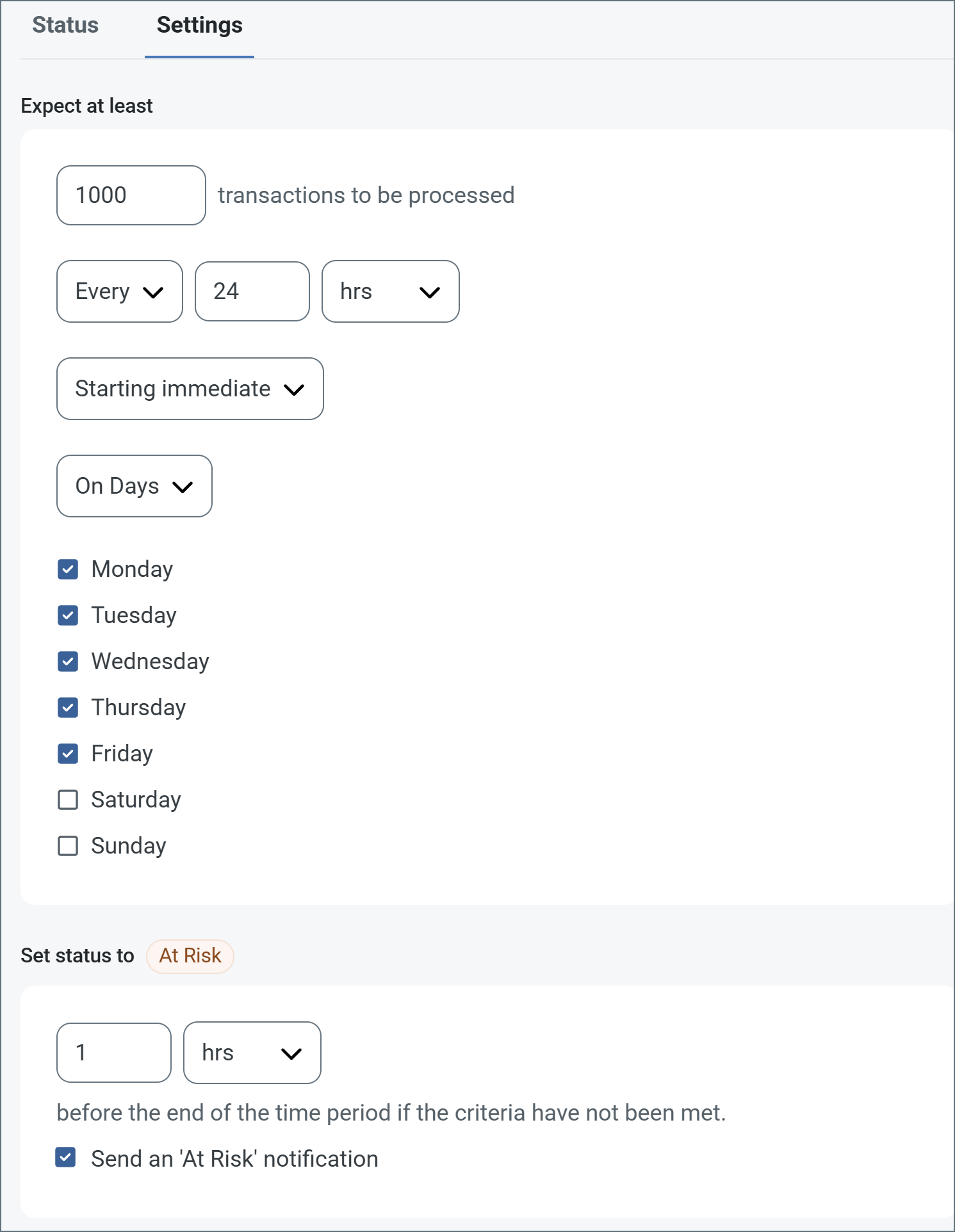
次の例は、月曜日から金曜日まで毎日1000 件のファイルを受信すると見込むコネクタ向けに設定されたSLA を示しています。1000 件のファイルが受信されていない場合、期間の終了の1時間前にAt Risk 通知が送信されます。
 必要に応じてSLA アラートをオフにすることができます。これはメンテナンスウィンドウ中に役立ちます。navbar でSettings をクリックし、Alerts > General Alerts に移動します。タブレットと鉛筆のアイコンをクリックして編集し、SLA Alerts 設定のチェックを外します。
;
export const AlertsTab = ({siteNameShort = "Arc"}) => <>
必要に応じてSLA アラートをオフにすることができます。これはメンテナンスウィンドウ中に役立ちます。navbar でSettings をクリックし、Alerts > General Alerts に移動します。タブレットと鉛筆のアイコンをクリックして編集し、SLA Alerts 設定のチェックを外します。
;
export const AlertsTab = ({siteNameShort = "Arc"}) => <>
アラートの設定に関する設定です。
サービスレベルアグリーメント(SLA)を実行する前に、通知用のメールアラートをセットアップする必要があります。デフォルトでは、{siteNameShort} はAlerts タブのグローバル設定を使用します。このコネクタに別の設定を使用するには、Override global setting をオンに切り替えます。
デフォルトではエラーアラートが有効になっており、エラーが発生するたびにメールが送信されます。これをオフにするには、Enable チェックボックスのチェックを外します。
Subject(必須)を入力します。Allow {siteNameShort}Script in Subject をチェックすると、Subject フィールドで{siteNameShort}Script を使用できます。これを選択すると、{siteNameShort}Script エディタボタンが表示されます( )。
)。
必要に応じてRecipient のメールアドレスをカンマ区切りのリストで入力します。
;
export const CommonCacheCleanup = () => <>
Arc はリソースキャッシュを自動的にクリーンアップします。この処理はすべての受信サイクルの間にバックグラウンドで実行され、リモートサーバー上にすでに存在しないファイルの古いキャッシュエントリを削除します。これにより、手動での操作を必要とせずにキャッシュサイズを管理可能な状態に保ちます。
デフォルトでは、ファイルは30 日間保持されますが、Advanced タブのOther Settings フィールドにあるResourceCacheRetentionDays 設定を使用して、お使いの環境に合わせて調整できます。例えば、ResourceCacheRetentionDays=15 とすると、ファイルは削除されるまで15 日間保持されます。
;
export const siteNameShort = "Arc";
Once you have created a connection to SharePoint, the following sections help you configure the connector so you can send and receive files.
## Connector Configuration
This section contains all of the configurable connector properties.
### Settings Tab
#### Configuration
See [SharePoint Connection Setup](./sharepoint) for detailed instructions on how to create a connection to SharePoint.
#### Send Configuration
Settings related to uploading to the remote storage.
| Setting | Description |
| ------------- | ------------------------------------------------------------------------------------------------------------------------- |
| Remote Folder | Files processed by the connector are uploaded to this folder. Hover over the field to display a list of supported macros. |
| Overwrite | Whether to overwrite or skip existing files. |
#### Receive Configuration
Settings related to downloading from the remote storage.
| Setting | Description |
| ------------- | ---------------------------------------------------------------------------------------------------------- |
| Remote Folder | The remote folder from which files are downloaded. Use a comma-delimited list to specify multiple paths. |
| File Mask | A glob pattern that determines which files in the Remote Path should be downloaded (for example, `*.txt`). |
| Delete | Check this to delete successfully downloaded files from the remote storage. |
#### Caching
Settings related to caching and comparing files between multiple downloads.
| Setting | Description |
| -------------------- | ------------------------------------------------------------------------------------------------------------------------------------------------------------------------------------ |
| File Size Comparison | Check this to keep a record of downloaded file names and sizes. Previously downloaded files are skipped unless the file size is different than the last download. |
| Timestamp Comparison | Check this to keep a record of downloaded file names and last-modified timestamps. Previously downloaded files are skipped unless the timestamp is different than the last download. |
When you enable caching, the file names are case-insensitive. For example, the connector cannot distinguish between TEST.TXT and test.txt.
### Advanced Tab
#### Advanced Settings
Settings not included in the previous categories.
| Setting | Description |
| ----------------------------- | ----------------------------------------------------------------------------------------------------------------------------------------------------------------------------------------------------------------------------------------------------------------------------------------------------------------------------------------------------------------- |
| Recurse Remote Subdirectories | Whether to download files in subfolders of the target remote path. |
| Chunked Upload Configuration | Whether to upload large files in chunks using SharePoint upload sessions (required for files larger than 250MB). |
| Chunk Size | The chunk size (in MB) for uploading large files. The minimum is 1MB and the default is 10MB. |
| Receive Filter | A glob pattern filter to determine which files should be downloaded. You can use negative patterns to indicate files that should not be downloaded (for example, `-*.tmp`). Use this setting when you need multiple **File Mask** patterns. Multiple patterns can be separated by commas, with later filters taking priority except when an exact match is found. |
| Local File Scheme | Instructs the connector to group files in the local folder according to the selected interval. |
| Processing Delay | The amount of time (in seconds) the connector waits before processing a file. |
#### Miscellaneous
| Setting | Description |
| ------- | ----------------------------------------------------------------------------------------------------------- |
| Timeout | The length of time (in seconds) the server waits for a connection response before throwing a timeout error. |
#### Logging
| Setting | Description |
| -------------------- | -------------------------------------------------------------------------------------------------------------------------------------------------------------------------------- |
| Log Level | The verbosity of logs generated by the connector. When you request support, set this to **Debug**. |
| Log Subfolder Scheme | Instructs the connector to group files in the Logs folder according to the selected interval. The **Weekly** option instructs the connector to create a new subfolder each week. |
| Log Messages | Check this to have the log entry for a processed file include a copy of the file itself. |
#### Other Settings
| Setting | Description |
| -------------- | ----------------------------------------------------------------------------------------------------------------------------------------------------------------------------------------------------------------------------- |
| Other Settings | Enables you to configure hidden connector settings in a semicolon-separated list (for example, `setting1=value1;setting2=value2`). Normal connector use cases and functionality should not require the use of these settings. |
### Automation Tab
#### Automation Settings
Settings related to the automatic processing of files by the connector.
| Setting | Description |
| --------------------- | ------------------------------------------------------------------------------------------------------------------------------------------------------------------------------------------ |
| Send | Whether files arriving at the connector are automatically uploaded. |
| Retry Interval | The amount of time before a failed upload is retried. |
| Max Attempts | The maximum number of times the connector processes the input file. If set to 0, retries indefinitely. |
| Receive | Whether the connector should automatically poll the remote download path for files to download. |
| Interval | The interval between automatic download attempts. |
| Minutes Past the Hour | The minutes offset for an hourly schedule. Only applicable when the interval is Hourly. For example, if this value is set to 5, the automation service downloads at 1:05, 2:05, 3:05, etc. |
| Time | The time of day for the attempt. Only applicable when Daily, Weekly, or Monthly. |
| Day | The day for the attempt. Only applicable when Weekly or Monthly. |
| Minutes | The number of minutes to wait. Only applicable when Minute interval. |
| Cron Expression | A five-position cron expression. Only applicable when Advanced interval. |
#### Performance
| Setting | Description |
| ----------- | ------------------------------------------------------------------ |
| Max Workers | The maximum number of worker threads consumed from the threadpool. |
| Max Files | The maximum number of files sent by each thread. |
### Alerts Tab
### SLAs Tab
## Sending and Receiving
### Send Files to SharePoint
To send files, set the **Remote Folder** in the [Send Configuration](#send-configuration) portion of the **Settings** page to the folder where files should be uploaded. Each SharePoint connector uploads to a single folder location.
Use the **Overwrite remote files** option to indicate whether files that already exist in the container should be overwritten or skipped.
After configuration is complete, files placed in the connector **Transactions** tab are uploaded to the remote storage. If **Send Automation** is enabled, the upload happens automatically; otherwise, you can send individual files from the Transactions tab.
### Receive Files from SharePoint
To receive files, set the **Remote Folder** in the [Receive Configuration](#receive-configuration) portion of the **Settings** page to the folder from where files should be downloaded. Use a comma-delimited list to specify multiple folders.
Use the **File Mask** to set a glob filter (for example `*.txt`) that limits the downloads to files matching the filter. To specify multiple filters, use the **Receive Filter** option on the [Advanced tab](#advanced-tab).
Use **Delete** to specify whether successfully downloaded files should be removed from the remote storage.
## Macros
| Macro | Description |
| ------------- | ----------------------------------------------------------------- |
| ConnectorID | The Connector ID of the connector. |
| Ext | The file extension of the file (e.g., `xml`, `csv`). |
| Filename | The original filename of the message. |
| FilenameNoExt | The original filename of the message, without the file extension. |
| MessageId | The unique identifier assigned to the message. |
| RegexFilename | A filename derived from a regex on the original filename. |
| Header | The value from a message header, referenced by name. |
| LongDate | The current date/time in long format. |
| ShortDate | The current date/time in short format. |
| DateFormat | The current date/time in a custom format. |
| Vault | The value from a vault entry, referenced by name. |