> ## Documentation Index
> Fetch the complete documentation index at: https://docs.arc.cdata.com/llms.txt
> Use this file to discover all available pages before exploring further.
# Batch Create Connector
> Group individual messages into Batch Groups for collective processing using the CData Arc Batch Create connector.
export const NameDescription = ({extraRows}) =>
| 設定 |
説明 |
| Connector Id |
コネクタの静的で一意の識別子です。 |
| Connector Type |
コネクタ名とその機能の説明を表示します。 |
| Connector Description |
コネクタおよびフロー内でのその役割について自由形式の説明を提供するためのオプションフィールドです。 |
{extraRows}
;
export const CommonInfoBatch = () => CData Arc では、データは本文(body)とメタデータヘッダーで構成されるメッセージとしてフロー内を移動します。例えば、あるコネクタが別のコネクタにファイルを渡す場合、そのファイルは本文にファイルを含み、ヘッダーにファイルや関連コネクタに関するメタデータを含むメッセージとして送信されます。メッセージはバッチグループにまとめることができ、これにより複数のメッセージが単一の単位としてまとめて移動できます。バッチグループの用途には、システム間でのデータ移動や、複数の発注書の一括処理などがあります。メッセージがバッチグループの一部である場合、それはバッチメッセージと呼ばれます。
;
export const SlasTab = ({siteName = "CData Arc"}) => <>
サービスレベルアグリーメント(SLA)の設定に関する設定です。
SLA を使用すると、フロー内のコネクタが送受信すると見込まれるボリュームを設定し、そのボリュームを達成すると見込まれる期間を設定できます。{siteName} は、SLA が達成されない場合にユーザーへ警告するメールを送信し、SLA をAt Risk としてマークします。これは、SLA が間もなく達成されない場合にViolated としてマークされることを意味します。これにより、ユーザーは介入してSLA が達成されない理由を特定し、適切な対応を取る機会を得られます。At Risk 期間の終了時点でもSLA が達成されない場合、SLA はviolated としてマークされ、ユーザーに再度通知されます。
SLA を定義するには、Expected Volume をオンに切り替え、Settings タブをクリックします。
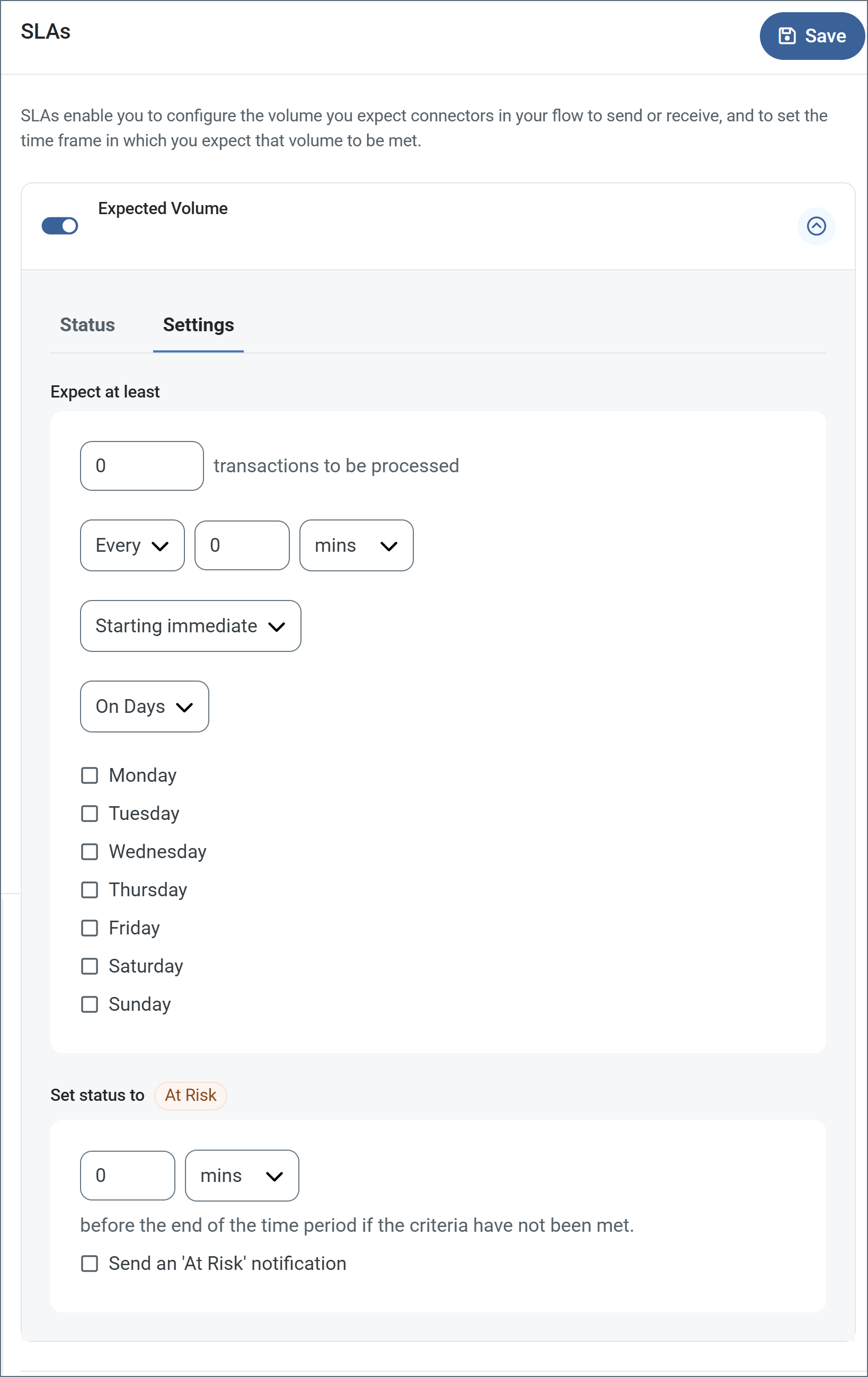
- コネクタに送信と受信の個別のアクションがある場合は、ラジオボタンを使用してSLA がどちらの方向に適用されるかを指定します。
- ウィンドウのExpect at least 部分で、次を設定します。
- 処理を見込む最小トランザクション数(ボリューム)を設定します。
- Every フィールドを使用して期間を指定します。
- SLA を有効にするタイミングを指定します。Starting on を選択した場合は、日付および時刻フィールドを入力します。
- SLA を有効にしたい曜日のチェックボックスをオンにします。必要に応じて、ドロップダウンでEveryday を選択します。
- ウィンドウのSet status to 'At Risk' 部分で、SLA をAt Risk としてマークするタイミングを指定します。
- デフォルトでは、SLA が違反状態になるまで通知は送信されません。これを変更するには、Send an 'At Risk' notification をオンにします。
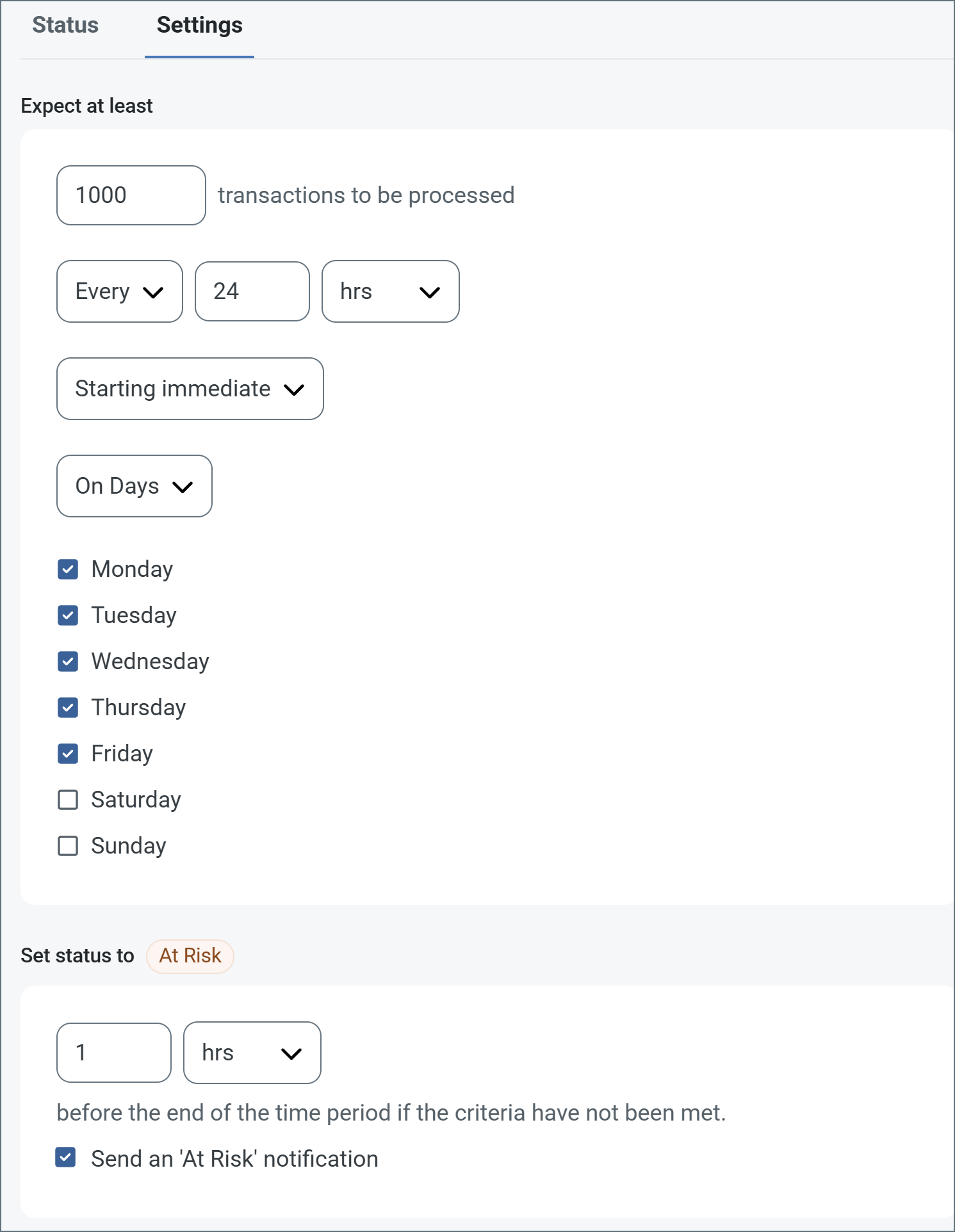
次の例は、月曜日から金曜日まで毎日1000 件のファイルを受信すると見込むコネクタ向けに設定されたSLA を示しています。1000 件のファイルが受信されていない場合、期間の終了の1時間前にAt Risk 通知が送信されます。
 必要に応じてSLA アラートをオフにすることができます。これはメンテナンスウィンドウ中に役立ちます。navbar でSettings をクリックし、Alerts > General Alerts に移動します。タブレットと鉛筆のアイコンをクリックして編集し、SLA Alerts 設定のチェックを外します。
;
export const AlertsTab = ({siteNameShort = "Arc"}) => <>
必要に応じてSLA アラートをオフにすることができます。これはメンテナンスウィンドウ中に役立ちます。navbar でSettings をクリックし、Alerts > General Alerts に移動します。タブレットと鉛筆のアイコンをクリックして編集し、SLA Alerts 設定のチェックを外します。
;
export const AlertsTab = ({siteNameShort = "Arc"}) => <>
アラートの設定に関する設定です。
サービスレベルアグリーメント(SLA)を実行する前に、通知用のメールアラートをセットアップする必要があります。デフォルトでは、{siteNameShort} はAlerts タブのグローバル設定を使用します。このコネクタに別の設定を使用するには、Override global setting をオンに切り替えます。
デフォルトではエラーアラートが有効になっており、エラーが発生するたびにメールが送信されます。これをオフにするには、Enable チェックボックスのチェックを外します。
Subject(必須)を入力します。Allow {siteNameShort}Script in Subject をチェックすると、Subject フィールドで{siteNameShort}Script を使用できます。これを選択すると、{siteNameShort}Script エディタボタンが表示されます( )。
)。
必要に応じてRecipient のメールアドレスをカンマ区切りのリストで入力します。
;
export const MiscConnector = () => <>
Miscellaneous 設定は、特定のユースケース向けの設定です。
| 設定 |
説明 |
| Other Settings |
非表示のコネクタ設定をセミコロン区切りのリストで設定できます(例:setting1=value1;setting2=value2)。通常のコネクタのユースケースや機能では、これらの設定の使用は必要ありません。 |
;
export const Logging = () => <>
ログの作成と保存を制御する設定です。
| 設定 |
説明 |
| Log Level |
コネクタが生成するログの詳細度です。サポートを依頼する際は、これをDebug に設定してください。 |
| Log Subfolder Scheme |
選択した間隔に従って、コネクタがLogs フォルダ内のファイルをグループ化するよう指示します。Weekly オプション(デフォルト)は、コネクタが毎週新しいサブフォルダを作成し、その週のすべてのログをそのフォルダに保存するよう指示します。この設定を空白のままにすると、コネクタはすべてのログをLogs フォルダに直接保存します。多数のトランザクションを処理するコネクタでは、サブフォルダを使用することでログを整理しやすくなり、パフォーマンスが向上します。 |
| Log Messages |
処理したファイルのログエントリにファイル自体のコピーを含めるには、これをオンにします。これを無効にすると、Transactions タブからファイルのコピーをダウンロードできなくなる場合があります。 |
;
export const Performance = () => <>
コネクタへのリソースの割り当てに関する設定です。
;
export const siteNameShort = "Arc";
export const siteName = "CData Arc";
## Key Capabilities
* Intelligent message grouping based on correlation IDs and batch size limits
* Configurable minimum and maximum batch sizes for optimal processing
* Scheduled and immediate batch creation modes
* Support for custom correlation headers for advanced grouping logic
## Overview
The Batch Create connector produces Batch Groups based on Messages that arrive in the Send folder (the **Transactions** tab of the connector settings pane). When a Batch Group is created, it is passed down the flow through the **Transactions** tab, where it can be processed by other connectors as needed.
The Batch Create connector can only accept individual messages as inputs. If the connector receives an existing Batch Group as an input, it throws an error message.
## Connector Configuration
This section contains all of the configurable connector properties.
### Settings Tab
#### Configuration
*Settings that determine how the connector can be accessed.*
#### Advanced Settings
*Settings that specify Batch Grouping options.*
| Setting | Description |
| ------------------------- | ---------------------------------------------------------------------------------------------------------------------------------------------------------------------------------------------------------------------------------------------------------------------------------------------------------------------------------------- |
| **Correlation Id Header** | The connector looks for headers that match the header name you enter, then groups messages according to the values they have assigned to that header. See [Correlation Id Header Example](#correlation-id-header-example) for details. |
| **Max Batch Size** | The maximum number of messages to include in a Batch Group. Any messages in excess of this number wait until the next sending interval. For example, if this is set to 5, and seven messages arrive in the send folder, the connector creates one Batch Group of five messages and adds the final two to the next scheduled Batch Group. |
| **Min Batch Size** | The minimum number of messages that must be present to create a Batch Group. For example, if this is set to five, and three messages arrive in the Send folder, the connector does not create a Batch Group from those messages (even if the specified sending interval passes) until at least two more messages arrive. |
### Advanced Tab
#### Logging
#### Other Settings
| Setting | Description |
| -------------------- | ---------------------------------------------------------------------------------------------------------------------------------------------------------------------------------------------------------------------------------------------------------------------------------------- |
| **Processing Delay** | The amount of time (in seconds) by which the processing of files placed in the **Transactions** tab is delayed. This is a legacy setting. Best practice is to [use a File connector](../flows/designing-a-flow#ローカルファイルシステムとのやり取り) to manage local file systems instead of this setting. |
#### Miscellaneous
### Automation Tab
#### Automation Settings
*Settings related to the creation and sending of Batch Groups.*
| Setting | Description |
| ------------------------- | ----------------------------------------------------------------------------------------------------------------------------------------------------------------------------------------------------------------- |
| **Enable automation** | If selected, the connector automatically creates Batch Groups following the settings below. If cleared, the connector does not create Batch Groups until you manually trigger it. |
| **Send** | If selected, the connector automatically creates Batch Groups from messages as soon as they arrive in the Send folder (**Transactions** tab) as long as other set criteria are met. |
| **Scheduled Send** | If selected, the connector uses a scheduled interval to create Batch Groups from messages that arrive in the Send folder. |
| **Send Interval** | The interval at which to create Batch Groups. Only available if **Scheduled Send** is enabled. |
| **Minutes Past the Hour** | The minutes offset for an hourly schedule. Only applicable when the interval setting above is set to *Hourly*. For example, if this value is set to 5, the automation service downloads at 1:05, 2:05, 3:05, etc. |
| **Time** | The time of day that the attempt should occur. Only applicable when the interval setting above is set to *Daily*, *Weekly*, or *Monthly*. |
| **Day** | The day on which the attempt should occur. Only applicable when the interval setting above is set to *Weekly* or *Monthly*. |
| **Minutes** | The number of minutes to wait before attempting the download. Only applicable when the interval setting above is set to *Minute*. |
| **Cron Expression** | A five-position string representing a cron expression that determines when the attempt should occur. Only applicable when the interval setting above is set to *Advanced*. |
#### Performance
### Alerts Tab
### SLAs Tab
## Correlation Id Header Example
When you enter a header name in the **Correlation Id Header** field, the connector looks for headers that match the name you enter, then groups messages according to the values they have assigned to that header. For example, the following table displays six incoming messages:
| MessageId | Filename | Header | Header Value |
| --------- | --------- | -------------------- | ------------ |
| 1 | test1.txt | Batch-Correlation-Id | 001 |
| 2 | test2.txt | Batch-Correlation-Id | 001 |
| 3 | test3.txt | Batch-Correlation-Id | 002 |
| 4 | test4.txt | Batch-Correlation-Id | 002 |
| 5 | test5.txt | | |
| 6 | test6.txt | | |
If you enter **Batch-Correlation-Id** in the **Correlation Id Header** field, the connector creates three Batch Groups of these messages:
* The first batch group contains the messages with **MessageId** 1 and 2, since they both have the value `001` for the Batch-Correlation-Id header.
* The second batch group contains messages with **MessageId** 3 and 4, since they both have the value `002` for the header.
* The third batch group contains messages 5 and 6, since neither of them has the Batch-Correlation-Id header.