> ## Documentation Index
> Fetch the complete documentation index at: https://docs.arc.cdata.com/llms.txt
> Use this file to discover all available pages before exploring further.
# Backup or Migrate CData Arc
> Migrate or back up CData Arc configuration, data, and licensing using automated migration or manual directory copy.
export const companyName = "CData";
export const siteNameShort = "Arc";
export const siteName = "CData Arc";
You can migrate or backup {siteName} using the following methods:
* Migrate your global application data to a new instance of {siteNameShort} on a new server. This migration includes global configuration data and settings. You can export your data by using the {siteNameShort} [Migration](../getting-started/administration/settings/migration) feature. The migration process is automatic, which means there is less chance of errors, and it is faster. {companyName} recommends you use this method because it resides in the {siteNameShort} application.
* Backup all your data by copying and moving the application directory and application database manually to a new server. This method moves configuration data as well as the full working set of other data (logs, files that are pending processing or that are already processed, and so on). This method is simple, but it is slower and more error-prone.
By default, {siteNameShort} secures sensitive values with an encryption key that is specific to each instance. When you manually copy or move configuration files containing these sensitive values, you must ensure that the same key is used in the new instance. See [Defining a Custom Master Key](../getting-started/installation/custom-master-key#understanding-data-encryption-keys-and-master-keys) for details.
The following sections explain how to use these methods to migrate or backup your data.
## Migration
Navigate to **Settings > Advanced** and locate the **Migration** section on the **Advanced** page. Click **Export**, then choose the **Export all workspaces and settings** option to perform a full [export](../getting-started/administration/importing-exporting-flows#exporting-multiple-workspaces-and-global-application-configuration-data) of your application, including all of the global application data and settings.
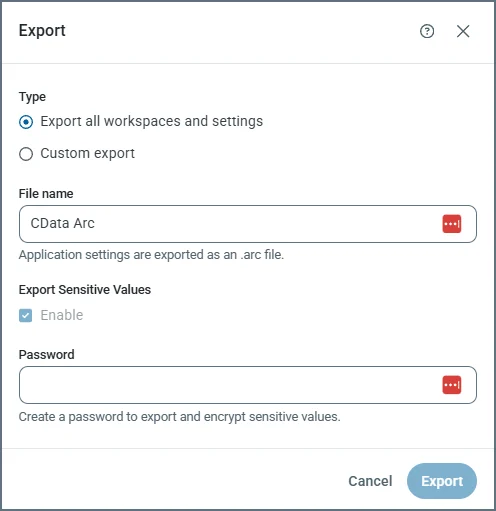 This exports your data into a file with a `.arc` extension. This file type stores global application data such as multiple workspaces and settings as well as users, [EDI TPMC](../tpmc/tpmc) partners and documents, reports, and other global data.
For details on using the **Migration** tab to export your application configuration, see [Exporting Multiple Workspaces and Global Application Configuration Data](../getting-started/administration/importing-exporting-flows#exporting-multiple-workspaces-and-global-application-configuration-data).
## Manual Backup
{siteNameShort} interfaces with your local system in two ways:
* Using the application directory folder. This is a folder on disk that stores the configuration data.
* Using the application database. This database stores metadata for transactions that are processed by the application.
To perform a manual backup, you need to copy and move the application directory and application database directly. While this method is simple and less costly, be aware that it can be time-consuming and that human error is always a possibility.
### Application Directory
{siteNameShort} stores all profile, certificate, and connector configuration data in files located in the application directory folder. Therefore, backing up or recreating a {siteNameShort} configuration is simply a matter of copying the full contents of the folder and moving it. You can move it to a new server to recreate a {siteNameShort} configuration in a new instance.
#### Copying the Application Directory
By default, the application directory refers to the following directories:
* **Java**: `/opt/arc`
* **.NET**: `C:\ProgramData\CData\Arc`
If {siteNameShort} is installed over an existing installation of a previous version of the application, the application might reuse the old folder structure. In this case, the application directory might be located in one of these directories instead:
* **Java**: `~/arc/data` (where `~` resolves to the home directory for the user who is running the server that hosts {siteNameShort})
* **.NET ({siteNameShort})**: `C:\Program Files\CData\Arc`
* **.NET ({siteNameShort}ESB)**: `C:\Program Files\ArcESB`
* **.NET (RSSBus Connect)**: `C:\Program Files\RSSBus\RSSBusConnect`
To back up the application, maintain a copy of this application directory in a convenient location. To migrate {siteNameShort} to a new server, place a copy of the application directory folder in the same respective path on the new server.
#### Configuring the Application Directory
This section is relevant only when you migrate {siteNameShort} to a new server and when the default location for the application directory is overwritten with a custom path.
Some {siteNameShort} setups might use a non-default location for the application directory (for example, hosting the application directory on a shared network file system). In this case, simply configure the new instance of {siteNameShort} to use the same network folder for the application directory that the previous instance used.
To configure a non-default application directory, see the documentation for your edition of {siteNameShort}:
* **Java:** [Find and Configure the Application Directory](../getting-started/installation/cross-platform-edition#find-and-configure-the-application-directory)
* **.NET:** [Configuring the Application Directory](../getting-started/installation/windows-edition#configuring-the-application-directory)
### Application Database
By default, {siteNameShort} uses a SQLite (.NET) or H2 (Java) database to store data about the transactions processed by the application. You can also configure an external database like PostgreSQL, SQL Server, or MySQL, as described in [Installation and Configuration](../getting-started/installation/installation-configuration).
If {siteNameShort} uses an external database, the connection string for this database must be configured in the configuration file for the server that hosts the application (the Web.Config file in .NET and the arc.properties file in Java). Backing up an external database is outside of the scope of {siteNameShort} and should be accomplished directly through the database. Migrating {siteNameShort} to a new machine simply requires configuring the new instance to read from and write to the same external database.
To configure the application database, see the appropriate documentation for your edition of {siteNameShort}:
* **Java:** [Configure the Application Database](../getting-started/installation/cross-platform-edition#configure-the-application-database)
* **.NET:** [Configuring the Application Database](../getting-started/installation/windows-edition#configuring-the-application-database)
### Licensing
{siteNameShort} licenses—with the exception of the Cloud License special-license tier—are tied to a specific machine name. The license is contained in a .lic file in the application directory. Backing up the license is simply a matter of copying the license file, as explained below.
Migrating the license file to a new machine without updating the license for the new machine results in license errors. However, you can reapply a license on a new server through the application interface as long as you use the License Transfer Request form to alert the {companyName} licensing team about the move, as explained in the next section.
#### Backing Up the License
##### .NET Edition
In the .NET edition, by default the license file is in the following folder: `C:\ProgramData\CData\Arc`
If {siteNameShort} is installed over an RSSBus Connect installation and the RSSBus folder paths are reused, the corresponding location is: `C:\Program Files\RSSBus\RSSBus Connect\www\app_data`
Create a copy of the .lic file in this folder to back up the license.
##### Java Edition
In the Java edition, by default the license file is in the following folder: `/opt/arc`
If {siteNameShort} is installed over an RSSBus Connect installation and the RSSBus folder paths are reused, the corresponding location is: `~/rssbus/connect`
Create a copy of the .lic file at this location to back up the license.
#### Migrating the License
You can use the License Transfer Request form to alert the {companyName} licensing system that you are moving a license from one machine to another. Using this form prevents the license from being marked as one that is being overused (by installing the same license on multiple machines). After you fill out the form, you can use the same product key on the new machine without waiting for confirmation from the licensing team. In the event of any blocks or restrictions on the license, contact the {companyName} licensing team at **[arcsales@cdata.com](mailto:arcsales@cdata.com)**.
Server migration can be a time-intensive process, so {companyName} allows a 30-day overlap period where the license is active on two machines. By the end of these 30 days, you must remove the application from the old machine. However, if you need more time, contact the CData licensing team at **[arcsales@cdata.com](mailto:arcsales@cdata.com)** to revise that timeline.
This exports your data into a file with a `.arc` extension. This file type stores global application data such as multiple workspaces and settings as well as users, [EDI TPMC](../tpmc/tpmc) partners and documents, reports, and other global data.
For details on using the **Migration** tab to export your application configuration, see [Exporting Multiple Workspaces and Global Application Configuration Data](../getting-started/administration/importing-exporting-flows#exporting-multiple-workspaces-and-global-application-configuration-data).
## Manual Backup
{siteNameShort} interfaces with your local system in two ways:
* Using the application directory folder. This is a folder on disk that stores the configuration data.
* Using the application database. This database stores metadata for transactions that are processed by the application.
To perform a manual backup, you need to copy and move the application directory and application database directly. While this method is simple and less costly, be aware that it can be time-consuming and that human error is always a possibility.
### Application Directory
{siteNameShort} stores all profile, certificate, and connector configuration data in files located in the application directory folder. Therefore, backing up or recreating a {siteNameShort} configuration is simply a matter of copying the full contents of the folder and moving it. You can move it to a new server to recreate a {siteNameShort} configuration in a new instance.
#### Copying the Application Directory
By default, the application directory refers to the following directories:
* **Java**: `/opt/arc`
* **.NET**: `C:\ProgramData\CData\Arc`
If {siteNameShort} is installed over an existing installation of a previous version of the application, the application might reuse the old folder structure. In this case, the application directory might be located in one of these directories instead:
* **Java**: `~/arc/data` (where `~` resolves to the home directory for the user who is running the server that hosts {siteNameShort})
* **.NET ({siteNameShort})**: `C:\Program Files\CData\Arc`
* **.NET ({siteNameShort}ESB)**: `C:\Program Files\ArcESB`
* **.NET (RSSBus Connect)**: `C:\Program Files\RSSBus\RSSBusConnect`
To back up the application, maintain a copy of this application directory in a convenient location. To migrate {siteNameShort} to a new server, place a copy of the application directory folder in the same respective path on the new server.
#### Configuring the Application Directory
This section is relevant only when you migrate {siteNameShort} to a new server and when the default location for the application directory is overwritten with a custom path.
Some {siteNameShort} setups might use a non-default location for the application directory (for example, hosting the application directory on a shared network file system). In this case, simply configure the new instance of {siteNameShort} to use the same network folder for the application directory that the previous instance used.
To configure a non-default application directory, see the documentation for your edition of {siteNameShort}:
* **Java:** [Find and Configure the Application Directory](../getting-started/installation/cross-platform-edition#find-and-configure-the-application-directory)
* **.NET:** [Configuring the Application Directory](../getting-started/installation/windows-edition#configuring-the-application-directory)
### Application Database
By default, {siteNameShort} uses a SQLite (.NET) or H2 (Java) database to store data about the transactions processed by the application. You can also configure an external database like PostgreSQL, SQL Server, or MySQL, as described in [Installation and Configuration](../getting-started/installation/installation-configuration).
If {siteNameShort} uses an external database, the connection string for this database must be configured in the configuration file for the server that hosts the application (the Web.Config file in .NET and the arc.properties file in Java). Backing up an external database is outside of the scope of {siteNameShort} and should be accomplished directly through the database. Migrating {siteNameShort} to a new machine simply requires configuring the new instance to read from and write to the same external database.
To configure the application database, see the appropriate documentation for your edition of {siteNameShort}:
* **Java:** [Configure the Application Database](../getting-started/installation/cross-platform-edition#configure-the-application-database)
* **.NET:** [Configuring the Application Database](../getting-started/installation/windows-edition#configuring-the-application-database)
### Licensing
{siteNameShort} licenses—with the exception of the Cloud License special-license tier—are tied to a specific machine name. The license is contained in a .lic file in the application directory. Backing up the license is simply a matter of copying the license file, as explained below.
Migrating the license file to a new machine without updating the license for the new machine results in license errors. However, you can reapply a license on a new server through the application interface as long as you use the License Transfer Request form to alert the {companyName} licensing team about the move, as explained in the next section.
#### Backing Up the License
##### .NET Edition
In the .NET edition, by default the license file is in the following folder: `C:\ProgramData\CData\Arc`
If {siteNameShort} is installed over an RSSBus Connect installation and the RSSBus folder paths are reused, the corresponding location is: `C:\Program Files\RSSBus\RSSBus Connect\www\app_data`
Create a copy of the .lic file in this folder to back up the license.
##### Java Edition
In the Java edition, by default the license file is in the following folder: `/opt/arc`
If {siteNameShort} is installed over an RSSBus Connect installation and the RSSBus folder paths are reused, the corresponding location is: `~/rssbus/connect`
Create a copy of the .lic file at this location to back up the license.
#### Migrating the License
You can use the License Transfer Request form to alert the {companyName} licensing system that you are moving a license from one machine to another. Using this form prevents the license from being marked as one that is being overused (by installing the same license on multiple machines). After you fill out the form, you can use the same product key on the new machine without waiting for confirmation from the licensing team. In the event of any blocks or restrictions on the license, contact the {companyName} licensing team at **[arcsales@cdata.com](mailto:arcsales@cdata.com)**.
Server migration can be a time-intensive process, so {companyName} allows a 30-day overlap period where the license is active on two machines. By the end of these 30 days, you must remove the application from the old machine. However, if you need more time, contact the CData licensing team at **[arcsales@cdata.com](mailto:arcsales@cdata.com)** to revise that timeline.