> ## Documentation Index
> Fetch the complete documentation index at: https://docs.arc.cdata.com/llms.txt
> Use this file to discover all available pages before exploring further.
# Flows
> Overview of the CData Arc Flows page, workspace grid, and flow canvas.
The flows page enables you to create data-processing workflows by linking connectors together in logical sequences. Click **Flows** on the navbar to open the workspaces grid. It is composed of [workspace cards](./workspaces#workspace-cards) for each workspace you have access to. To work in a specific workspace, click the card to open the flow canvas for that workspace.
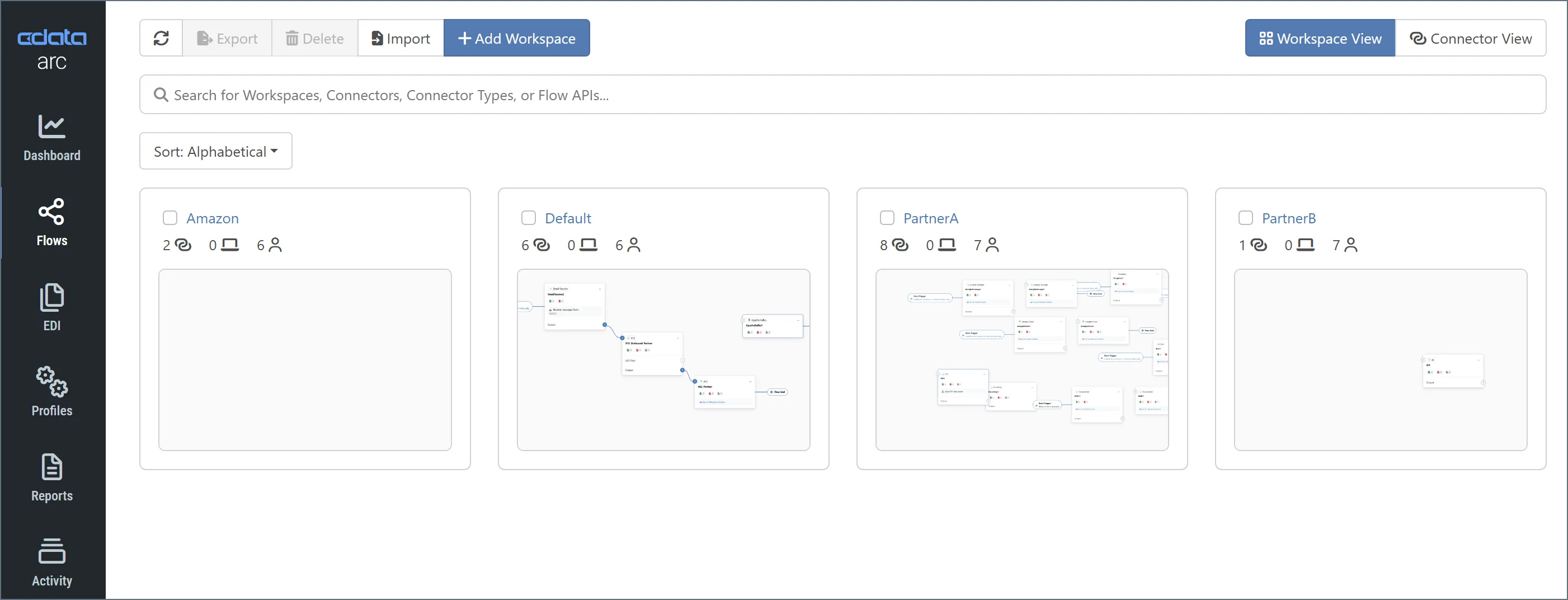 You can toggle between two types of connector displays:
* **Workspace View** displays the workspace cards that enable you to design your flows. The previous image is of the workspace view.
* **Connector View** displays a list of all connectors in your application. Use this view to perform bulk edits on connectors. See [Connector View and Bulk Editing Connectors](../connectors/bulk-edit-connectors) for details.
### Flow Canvas Example
The following image shows a simple flow canvas that links a trigger **AS2\_Amazon** connector to a terminal **File\_Dropoff** connector (see [Connector Categories](../connectors#categories) for more information about trigger and terminal connectors):
You can toggle between two types of connector displays:
* **Workspace View** displays the workspace cards that enable you to design your flows. The previous image is of the workspace view.
* **Connector View** displays a list of all connectors in your application. Use this view to perform bulk edits on connectors. See [Connector View and Bulk Editing Connectors](../connectors/bulk-edit-connectors) for details.
### Flow Canvas Example
The following image shows a simple flow canvas that links a trigger **AS2\_Amazon** connector to a terminal **File\_Dropoff** connector (see [Connector Categories](../connectors#categories) for more information about trigger and terminal connectors):
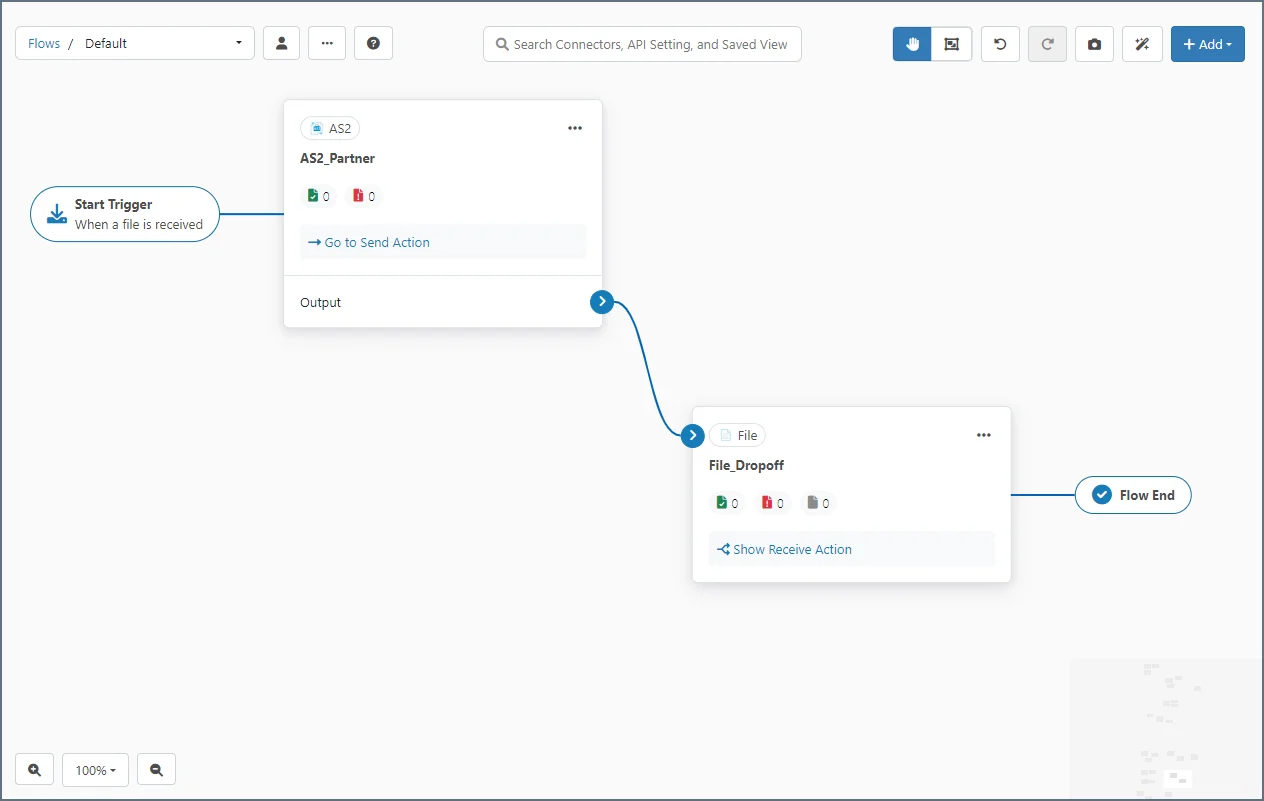 With this connection in place, any files that the **AS2\_Amazon** connector processes are automatically passed to the **File\_Dropoff** connector as the final step of the flow. The File connector drops off files to the underlying disk. See [Designing a Flow](./designing-a-flow) for more information about how to link connectors in a flow.
You can revert to the classic flow designer UI by navigating to [Settings](../getting-started/administration/settings/settings-page) > **Advanced** and checking the **Classic Flow Designer UI** checkbox.
With this connection in place, any files that the **AS2\_Amazon** connector processes are automatically passed to the **File\_Dropoff** connector as the final step of the flow. The File connector drops off files to the underlying disk. See [Designing a Flow](./designing-a-flow) for more information about how to link connectors in a flow.
You can revert to the classic flow designer UI by navigating to [Settings](../getting-started/administration/settings/settings-page) > **Advanced** and checking the **Classic Flow Designer UI** checkbox.