> ## Documentation Index
> Fetch the complete documentation index at: https://docs.arc.cdata.com/llms.txt
> Use this file to discover all available pages before exploring further.
# Advanced
> Use custom ArcScript in the XML Map connector for complex transformations beyond the mapping editor.
export const siteNameShort = "Arc";
export const siteName = "CData Arc";
The XML Map connector is designed to perform as much of the mapping as possible through the [Mapping Editor](./xml-map-designer). However there might be situations where scripting is required to handle custom use cases.
## Custom Scripts
To access additional operations beyond the formatters provided in the [Node Value Editor](../../mapping/mapping-node-value-editor), click the angle brackets  adjacent to a destination element to open a custom script window for that element.
The custom script editor supports all the features of {siteNameShort}Script found in the [Scripting](../../scripting/scripting) section. As with other sections of {siteNameShort}Script in {siteNameShort}, the code block contains an `arc:info` section where the input parameters available to the script are defined. There is also an output element `result.text` that can be set to return the results of the custom script. The value returned in `result.text` is the value used to populate the destination element.
For example, you can use a script to determine the SKU for an item based on the item's name. A simple way to accomplish this is to use a select/case statement in combination with the XPath formatter to check the `ItemName` element of the input XML:
adjacent to a destination element to open a custom script window for that element.
The custom script editor supports all the features of {siteNameShort}Script found in the [Scripting](../../scripting/scripting) section. As with other sections of {siteNameShort}Script in {siteNameShort}, the code block contains an `arc:info` section where the input parameters available to the script are defined. There is also an output element `result.text` that can be set to return the results of the custom script. The value returned in `result.text` is the value used to populate the destination element.
For example, you can use a script to determine the SKU for an item based on the item's name. A simple way to accomplish this is to use a select/case statement in combination with the XPath formatter to check the `ItemName` element of the input XML:
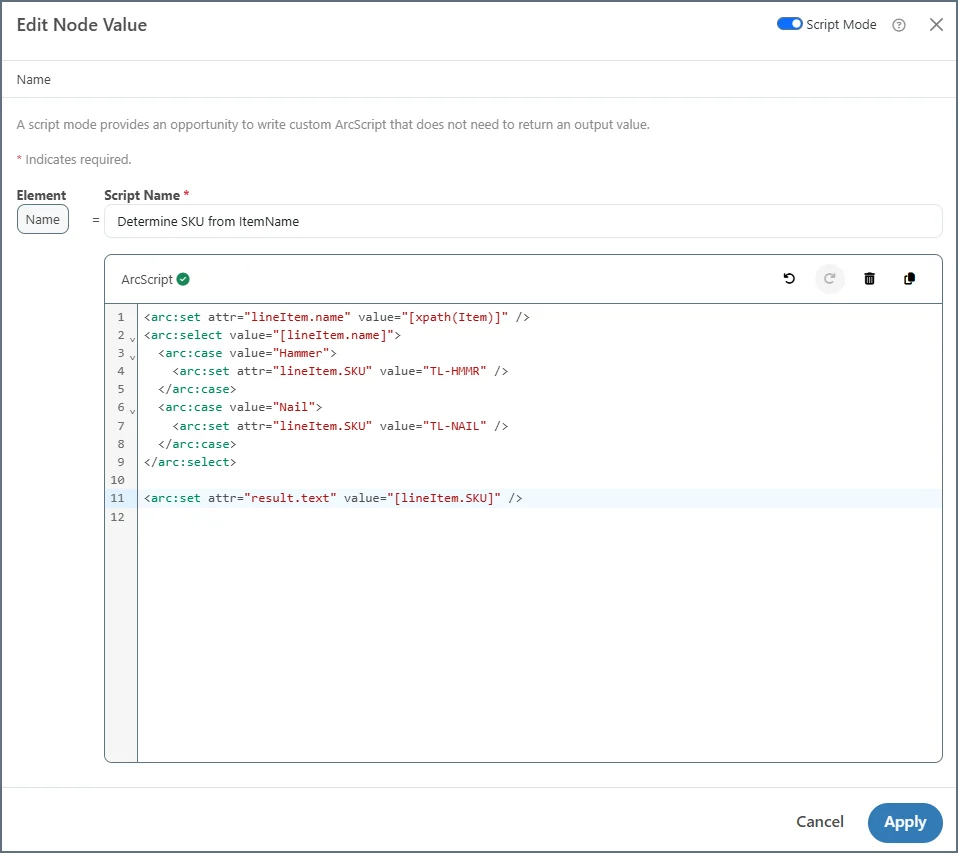 The editor validates your script as you type. If you see an Invalid Script message, you have some sort of syntax issue.
## {siteNameShort}Script Operations
{siteNameShort}Script, including all [Operations](../../scripting/operations/operations), is fully available in the code view. For example, your source XML might contain an item ID and the SKU for that item must be retrieved from a database; in this case you can use the [dbQuery](../../scripting/operations/op-db-query) operation to look up the SKU for the ID.
## Conditional Logic
{siteNameShort}Script also supports performing conditional logic in a mapping template. The [arc:if](../../scripting/keyword-reference/op-arc-if) keyword is one of many keywords available to assist in performing conditional logic in templates. For example:
```xml theme={null}
[paidInFull]
```
## Foreach Loop Index
When an element mapping is in a Foreach loop, the index of the current loop is always available in a custom script. The `_index` attribute is reserved for the current index of the innermost Foreach loop that contains the current element.
For example, imagine mapping a `LineItem` element that exists in two Foreach loops: one loop for each order in the document, and another loop (in the first loop) for each item in an order. Referencing `[_index]` in the `LineItem` element mapping returns the number of times the inner loop (the 'item' loop) has looped so far. This value is 1-indexed.
## Map Item
It can be useful to set scripting variables in one place in the mapping then reference those variables again in other parts of the mapping. This is supported by creating variables in the [Node Value Editor](../../mapping/mapping-node-value-editor) and/or by using the `_map` item described below.
The `_map` item is just like any other {siteNameShort}Script item, except that its scope encompasses an entire document processed by the XML Map connector. Any attributes of the `_map` item persist throughout the mapping and are only cleared when the XML Map connector finishes processing a file.
For example, a mapping project might require tallying up the total cost of multiple line items in a purchase order (perhaps the mapping includes some number of *LineItemCost* elements and also a *TotalCost* element). You could use {siteNameShort}Script to keep track of the running total by setting an attribute of the `_map` item like the following:
```xml theme={null}
```
The line above adds the value of the *LineItemCost* element to the current value of `_map.sum_cost` (with a default value of 0 if `_map.sum_cost` does not yet exist). If this code is included in an element in the Foreach loop that loops over all of the line items, the value of `_map.sum_cost` is be the *TotalCost* when the Foreach loop exits.
Since the attributes of `_map` are preserved, this same `_map.sum_cost` value can be referenced later in the *TotalCost* element mapping. For example:
```xml theme={null}
[_map.sum_cost]
```
The editor validates your script as you type. If you see an Invalid Script message, you have some sort of syntax issue.
## {siteNameShort}Script Operations
{siteNameShort}Script, including all [Operations](../../scripting/operations/operations), is fully available in the code view. For example, your source XML might contain an item ID and the SKU for that item must be retrieved from a database; in this case you can use the [dbQuery](../../scripting/operations/op-db-query) operation to look up the SKU for the ID.
## Conditional Logic
{siteNameShort}Script also supports performing conditional logic in a mapping template. The [arc:if](../../scripting/keyword-reference/op-arc-if) keyword is one of many keywords available to assist in performing conditional logic in templates. For example:
```xml theme={null}
[paidInFull]
```
## Foreach Loop Index
When an element mapping is in a Foreach loop, the index of the current loop is always available in a custom script. The `_index` attribute is reserved for the current index of the innermost Foreach loop that contains the current element.
For example, imagine mapping a `LineItem` element that exists in two Foreach loops: one loop for each order in the document, and another loop (in the first loop) for each item in an order. Referencing `[_index]` in the `LineItem` element mapping returns the number of times the inner loop (the 'item' loop) has looped so far. This value is 1-indexed.
## Map Item
It can be useful to set scripting variables in one place in the mapping then reference those variables again in other parts of the mapping. This is supported by creating variables in the [Node Value Editor](../../mapping/mapping-node-value-editor) and/or by using the `_map` item described below.
The `_map` item is just like any other {siteNameShort}Script item, except that its scope encompasses an entire document processed by the XML Map connector. Any attributes of the `_map` item persist throughout the mapping and are only cleared when the XML Map connector finishes processing a file.
For example, a mapping project might require tallying up the total cost of multiple line items in a purchase order (perhaps the mapping includes some number of *LineItemCost* elements and also a *TotalCost* element). You could use {siteNameShort}Script to keep track of the running total by setting an attribute of the `_map` item like the following:
```xml theme={null}
```
The line above adds the value of the *LineItemCost* element to the current value of `_map.sum_cost` (with a default value of 0 if `_map.sum_cost` does not yet exist). If this code is included in an element in the Foreach loop that loops over all of the line items, the value of `_map.sum_cost` is be the *TotalCost* when the Foreach loop exits.
Since the attributes of `_map` are preserved, this same `_map.sum_cost` value can be referenced later in the *TotalCost* element mapping. For example:
```xml theme={null}
[_map.sum_cost]
```