> ## Documentation Index
> Fetch the complete documentation index at: https://docs.arc.cdata.com/llms.txt
> Use this file to discover all available pages before exploring further.
# Workspace Send Connector
> Transport Arc messages between workspaces with metadata preservation, supporting static and dynamic delivery modes with header-based routing.
export const NameDescription = ({extraRows}) =>
| Setting |
Description |
| Connector Id |
The static, unique identifier for the connector. |
| Connector Type |
Displays the connector name and a description of what it does. |
| Connector Description |
An optional field to provide a free-form description of the connector and its role in the flow. |
{extraRows}
;
export const SlasTab = ({siteName = "CData Arc"}) => <>
Settings related to configuring Service Level Agreements (SLAs).
SLAs enable you to configure the volume you expect connectors in your flow to send or receive, and to set the time frame in which you expect that volume to be met. {siteName} sends emails to warn the user when an SLA is not met, and marks the SLA as At Risk, which means that if the SLA is not met soon, it will be marked as Violated. This gives the user an opportunity to step in and determine the reasons the SLA is not being met, and to take appropriate actions. If the SLA is still not met at the end of the at-risk time period, the SLA is marked as violated, and the user is notified again.
To define an SLA, toggle Expected Volume on, then click the Settings tab.
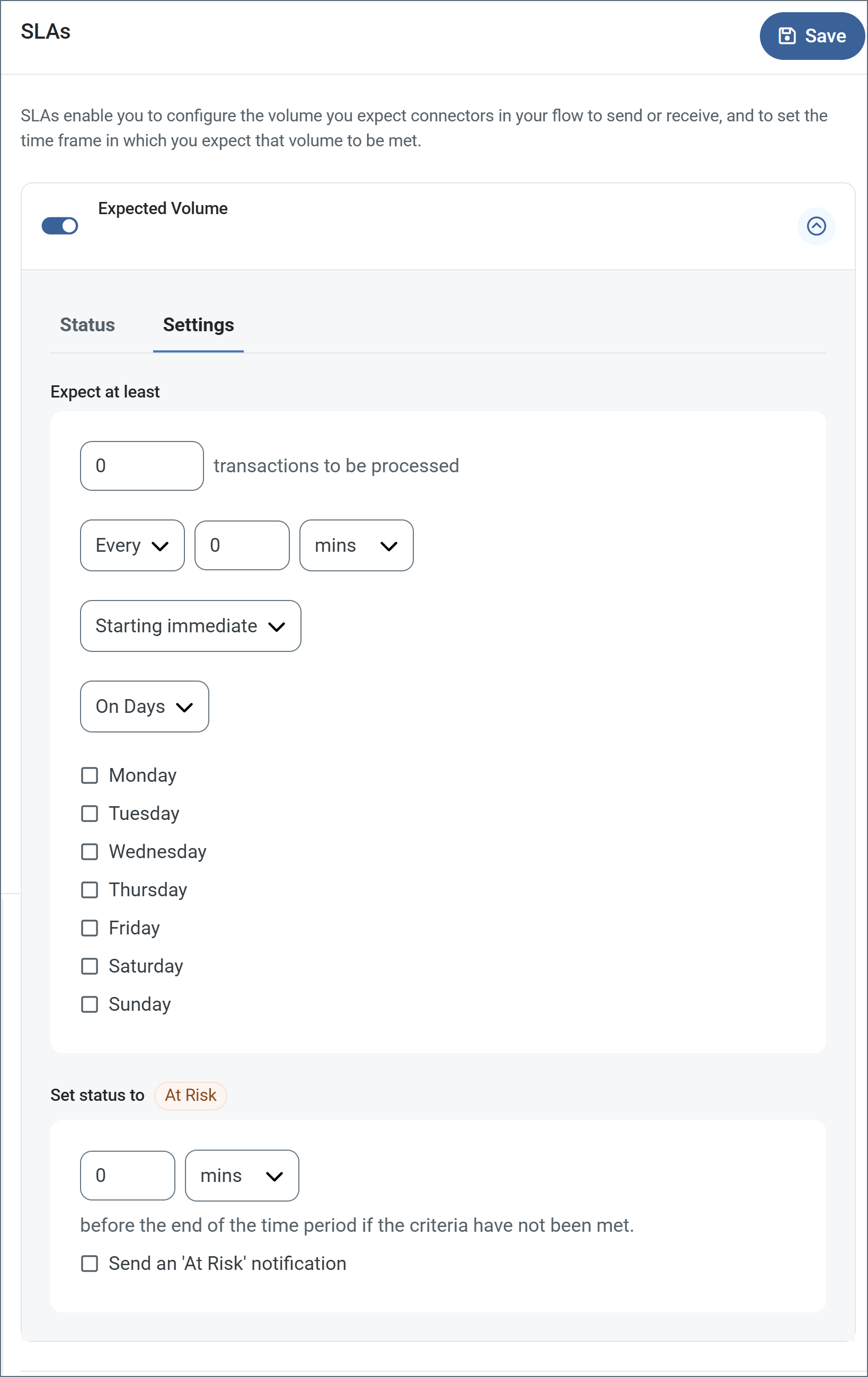
- If your connector has separate send and receive actions, use the radio buttons to specify which direction the SLA pertains to.
- In the Expect at least portion of the window:
- Set the minimum number of transactions you expect to be processed (the volume)
- Use the Every fields to specify the time frame
- Indicate when the SLA should go into effect. If you choose Starting on, complete the date and time fields.
- Check the boxes for the days of the week that you want the SLA to be in effect. Use the dropdown to choose Everyday if necessary.
- In the Set status to 'At Risk' portion of the window, specify when the SLA should be marked as at risk.
- By default, notifications are not sent until an SLA is in violation. To change that, check Send an 'At Risk' notification.
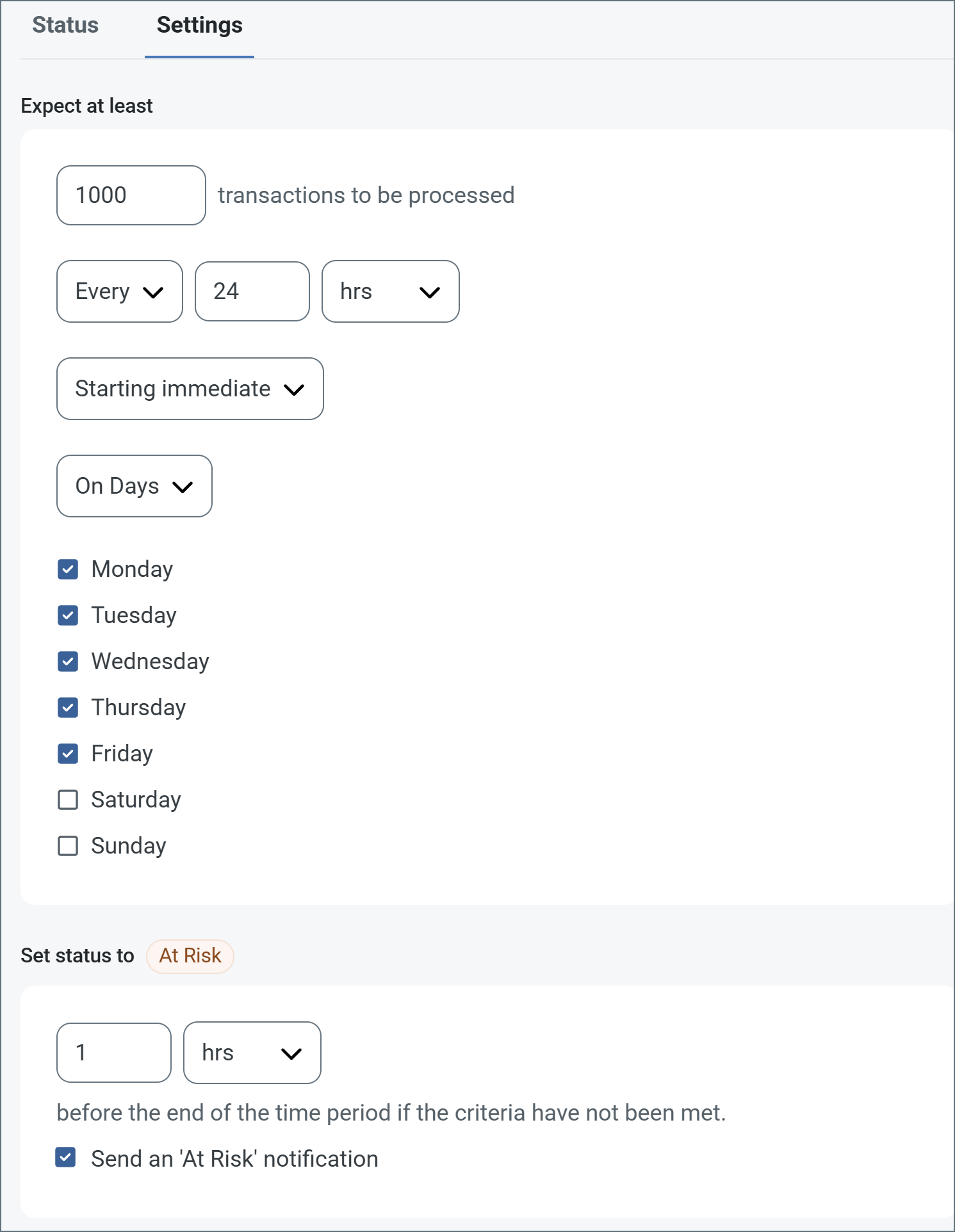
The following example shows an SLA configured for a connector that expects to receive 1000 files every day Monday-Friday. An at-risk notification is sent 1 hour before the end of the time period if the 1000 files have not been received.
 You can turn off SLA alerts if necessary. This can be useful during maintenance windows. Click Settings on the navbar, then navigate to Alerts > General Alerts. Click the tablet and pencil icon to edit, and uncheck the SLA Alerts setting.
;
export const AlertsTab = ({siteNameShort = "Arc"}) => <>
You can turn off SLA alerts if necessary. This can be useful during maintenance windows. Click Settings on the navbar, then navigate to Alerts > General Alerts. Click the tablet and pencil icon to edit, and uncheck the SLA Alerts setting.
;
export const AlertsTab = ({siteNameShort = "Arc"}) => <>
Settings related to configuring alerts.
Before you can execute Service Level Agreements (SLAs), you need to set up email alerts for notifications. By default, {siteNameShort} uses the global settings on the Alerts tab. To use other settings for this connector, toggle Override global setting on.
By default, error alerts are enabled, which means that emails are sent whenever there is an error. To turn them off, uncheck the Enable checkbox.
Enter a Subject (mandatory). Check Allow {siteNameShort}Script in Subject to use {siteNameShort}Script in the Subject field. When you select this, the {siteNameShort}Script Editor button appears ( ).
).
Optionally, enter a comma-separated list of Recipient emails.
;
export const MiscConnector = () => <>
Miscellaneous settings are for specific use cases.
| Setting |
Description |
| Other Settings |
Enables you to configure hidden connector settings in a semicolon-separated list (for example, setting1=value1;setting2=value2). Normal connector use cases and functionality should not require the use of these settings. |
;
export const Logging = () => <>
Settings that govern the creation and storage of logs.
| Setting |
Description |
| Log Level |
The verbosity of logs generated by the connector. When you request support, set this to Debug. |
| Log Subfolder Scheme |
Instructs the connector to group files in the Logs folder according to the selected interval. The Weekly option (which is the default) instructs the connector to create a new subfolder each week and store all logs for the week in that folder. Leaving this setting blank tells the connector to save all logs directly in the Logs folder. For connectors that process many transactions, using subfolders helps keep logs organized and improves performance. |
| Log Messages |
Check this to have the log entry for a processed file include a copy of the file itself. If you disable this, you might not be able to download a copy of the file from the Transactions tab. |
;
export const Performance = () => <>
Settings related to the allocation of resources to the connector.
| Setting |
Description |
| Max Workers |
The maximum number of worker threads consumed from the threadpool to process files on this connector. If set, this overrides the default setting on the Performance Settings portion of the Advanced Settings page. |
| Max Files |
The maximum number of files sent by each thread assigned to the connector. If set, this overrides the default setting on the Performance Settings portion of the Advanced Settings page. |
;
export const siteNameShort = "Arc";
export const siteName = "CData Arc";
The Workspace Send connector transports {siteName} messages between workspaces.
## Key Capabilities
* Inter-workspace message transport with metadata preservation for cross-workspace flows
* Static and dynamic delivery modes with header-based workspace routing
* Paired with [Workspace Receive](./workspace-receive) connector for seamless workspace-to-workspace communication
## Overview
The Workspace Send connector ensures that message metadata persists as messages are passed from one workspace to another. Since {siteNameShort} uses message metadata to track files through the flow, this helps ensure that files are logged, monitored, and processed correctly.
This connector has very simple configuration because each Workspace Send connector is paired with one Workspace Receive connector. Primary configuration is simply a matter of setting the appropriate workspace and the name of the Workspace Receive Connector in that workspace.
## Connector Configuration
This section contains all of the configurable connector properties.
### Settings Tab
#### Configuration Settings
*Settings related to the basic operation of the connector.*
#### Destination
*Settings related to the Workspace destination where files are sent.*
| Setting | Description |
| ----------------------- | -------------------------------------------------------------------------------------------------------------------------------------------------------------------------------------------------------------------------------------------- |
| **Delivery Mode** | Specifies how the destination workspace is determined for messages. Choose **Static** when all messages should be sent to the same workspace, and **Dynamic** when the destination workspace should be determined by headers on the message. |
| **Workspace Id** | The workspace to send messages to. Applicable when **Delivery Mode** is set to **Static**. |
| **Connector Id** | The name of the Workspace Receive connector in the target workspace where files are sent. Applicable when **Delivery Mode** is set to **Static**. |
| **Workspace Id Header** | The name of the header that specifies the destination workspace for messages. Applicable when **Delivery Mode** is set to **Dynamic**. |
| **Connecter Id Header** | The name of the header that specifies the destination connector for messages. Applicable when **Delivery Mode** is set to **Dynamic**. |
### Advanced Tab
#### Logging
#### Other Settings
| Setting | Description |
| -------------------- | ------------------------------------------------------------------------------------------------------------------------------------------------------------------------------------------------------------------------------------------------------------------------------------------------------------ |
| **Processing Delay** | The amount of time (in seconds) by which the processing of files placed in the **Transactions** tab is delayed. This is a legacy setting. Best practice is to [use a File connector](../flows/designing-a-flow#interacting-with-the-local-file-system) to manage local file systems instead of this setting. |
#### Miscellaneous
### Automation Tab
#### Automation Settings
*Settings related to the automatic processing of files by the connector.*
| Setting | Description |
| -------- | -------------------------------------------------------------------------------------- |
| **Send** | Whether files arriving at the connector are automatically sent to the other workspace. |
#### Performance
### Alerts Tab
### SLAs Tab