

Tables and Columns
If you choose Select for the CData connector, you must select a target table (or tables) from CData. Click the Add button above the Tables pane.
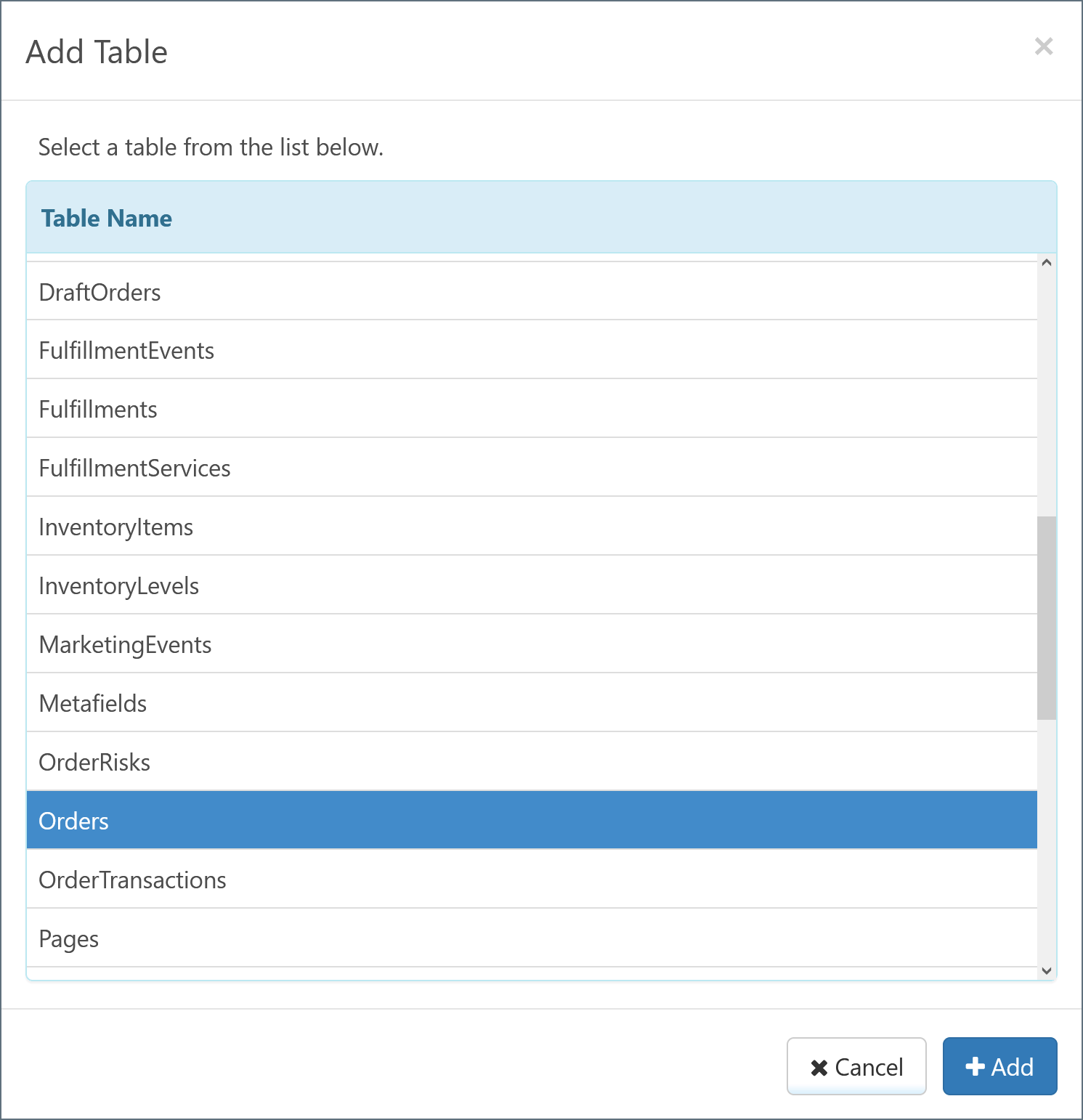
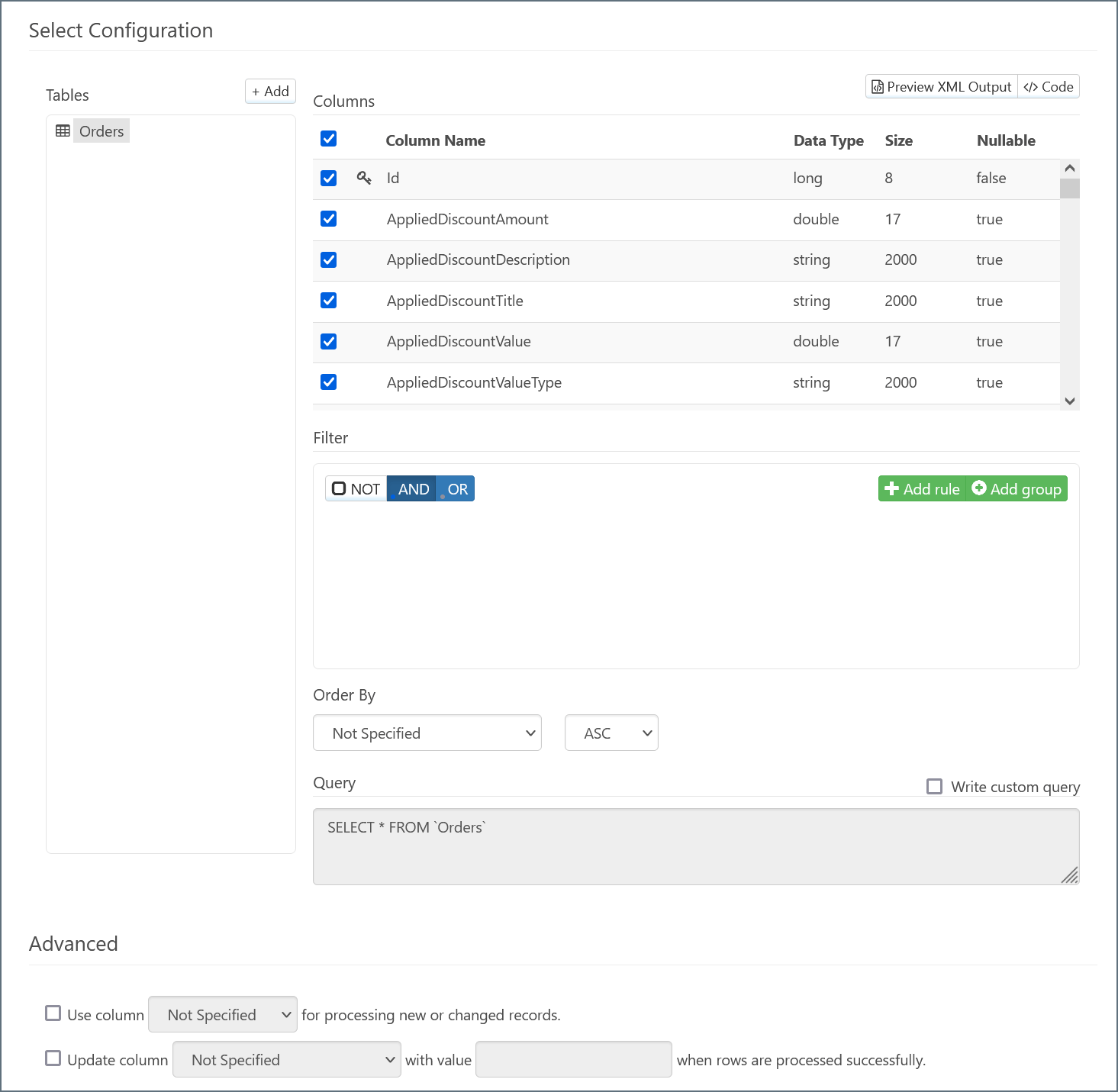
You can select more tables by clicking Add and repeating this process. See Child Tables for more information.
Selecting from Multiple Tables
The CData connector supports Selecting multiple tables with a single action. You can accomplish this in two ways:- Assign extra tables as children of a parent table. See Child Tables for more information.
- Create multiple Select-configured CData connectors, assign each of them a different table, and connect them all to the same connector in the flow.
Filters
After you select a table, you can optionally use the Filter pane to filter the data that the connector selects. The connector translates your filter rules into query syntax, and the syntax appears in the Query pane at the bottom of the connector configuration page.You do not need to apply a filter to your data if it does not suit your use case.
Creating a Filter Rule
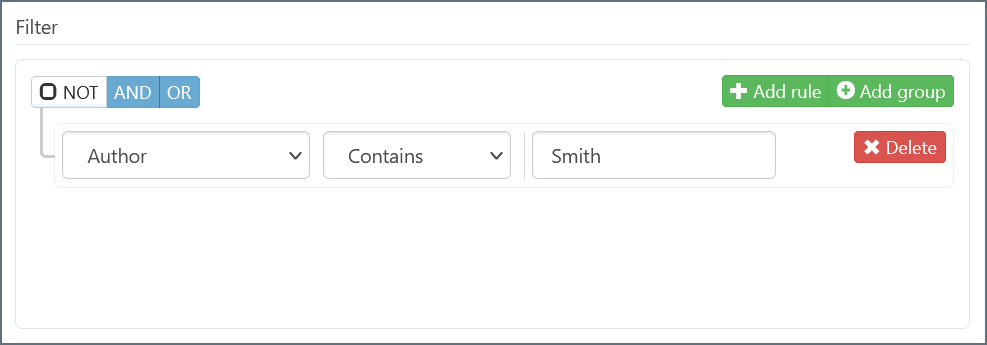
To create a filter rule, follow these steps:- Click Add rule.
- In the drop-down list for the new rule, choose the column that you want to filter.
- Two new fields appear. In the new drop-down list, choose the filtering condition.
- The available filtering conditions depend on the data type for the column you select. For example, a
longdata type has the condition Greater Than, whereas astringdata type does not.
- The available filtering conditions depend on the data type for the column you select. For example, a
- If your filtering condition requires a value, enter that value in the blank value field. If your filtering condition does not require a value (for example, if you choose Is Null), the value field disappears.
- When your filter rule is complete, its background changes from red to white.
Filter Groups
You can apply multiple filter rules to your connector by clicking Add rule and creating more rules. Filter rules are separated by groups, and all filters belong to the same group by default. You can create multiple groups to separate filter rules by clicking Add group. Each filter rule in a group interacts with the others based on the options you select at the top of the group:- Check the NOT box to invert the filter conditions. For example, in the Author filter shown above, checking the NOT box instructs the connector to select Author values that do not contain Smith.
- Select either AND or OR to determine the group logic for multiple filters.
- If you select AND, every filter rule in the group must be true for the filter conditions to be met.
- If you select OR, at least one filter rule in the group must be true for the filter conditions to be met.
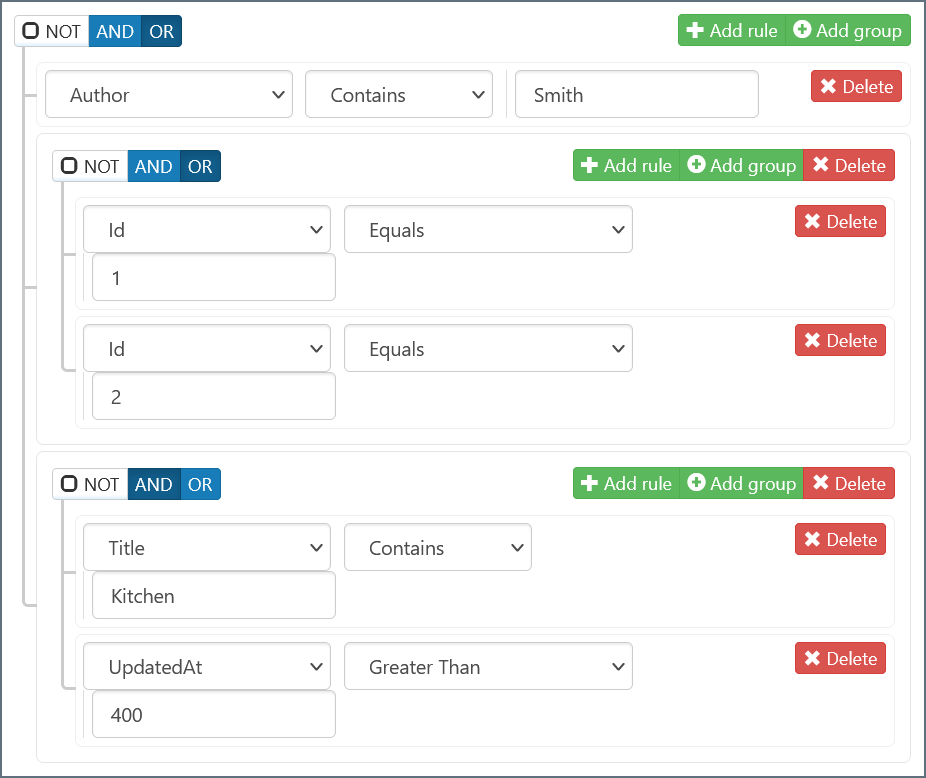
- The Author column contains the value Smith
- The Id column equals 1 or 2
- The Title column contains the value Kitchen and the UpdatedAt column is greater than 400