> ## Documentation Index
> Fetch the complete documentation index at: https://docs.arc.cdata.com/llms.txt
> Use this file to discover all available pages before exploring further.
# Tally Connector Setup
> Connect Arc to Tally for data integration and synchronization
The Tally connector allows you to integrate Tally into your data flow by pushing or pulling data from Tally.
## Key Capabilities
* Accounting software integration for financial data exchange with Tally-specific data format support
* Standard database operations (Select, Lookup, Upsert, and Stored Procedure) for data manipulation
Follow the steps below to connect Arc to Tally.
## Establish a Connection
To allow Arc to use data from Tally, you must first establish a connection to Tally. There are two ways to establish this connection:
* Add a Tally connector to your flow. Then, in the **Settings** tab, click **Create** next to the Connection drop-down list.
* Open the Arc **Settings** page, then open the **Connections** tab. Click **Add**, select **Tally**, and click **Next**.
- The login process is only required the first time the connection is created.
- Connections to Tally can be re-used across multiple Tally connectors.
### Enter Connection Settings
After opening a new connection dialogue, follow these steps:
1. Provide the requested information:
* **Name** — The static name of the connection.
* **Type** — This is always set to Tally.
* **URL** — The URL of the Tally server.
2. Optionally, click **Advanced** to open the drop-down menu of advanced connection settings. In most cases, you should not need these.
3. Click **Test Connection** to ensure that Arc can connect to Tally with the provided information. If an error occurs, check all fields and try again.
4. Click **Add Connection** to finalize the connection.
5. In the **Connection** drop-down list of the connector configuration pane, select the newly-created connection.
6. Click **Save Changes**.
There are also data source-specific authentication and configuration options on the **Advanced** tab. They are not all described in this documentation, but you can find detailed information for your data source on the [Online Help Files](https://www.cdata.com/kb/help/) page of the CData website.
## Select an Action
After establishing a connection to Tally, you must choose the action that the Tally connector will perform. The table below outlines each action and where it belongs in an Arc flow.
| Action | Description | Position in Flow |
| ---------------------------------------- | ------------------------------------------------------------------------------------------------------------------------------------------------------------------------------------------------------------------------------------------------------------------------------------------------------------ | ------------------- |
| [Lookup](./tally-lookup) | Retrieves values from Tally and inserts those values into an already-existing Arc message in the flow.
The **Lookup Query** determines what value the connector will retrieve from Tally. It should be formatted as a SQL query against the Tally tables. | Middle |
| [Lookup Stored Procedure](./tally-lsp) | Treats data coming into the connector as input for a stored procedure, then inserts the result into an existing Arc message in the flow.
You can click the **Show Sample Data** button in the **Test Lookup** modal to provide sample inputs to the selected Stored Procedure and preview the results. | Middle |
| [Select](./tally-select) | Retrieves data from Tally and brings it into Arc.
You can use the **Filter** panel to add filters to the Select. These filters function similarly to *WHERE* clauses in SQL. | Beginning |
| [Execute Stored Procedures](./tally-esp) | Treats data coming into the connector as input for a stored procedure, then passes the result down the flow.
You can click the **Show Sample Data** button in the **Test Execute Stored Procedure** modal to provide sample inputs to the selected Stored Procedure and preview the results. | Middle |
| [Export Report](./tally-export-report) | Retrieves a report from Tally and places it in the Transactions tab of the connector. | Beginning or Middle |
## Advanced Tab
Many of the settings on the **Advanced** tab are dynamically loaded from the data source you are working with, so they are not covered in this documentation. You can find detailed information for your data source on the [Online Help Files](https://www.cdata.com/kb/help/) page of the CData website.
The options described below are available for all data sources.
### Message
| Setting | Description |
| ----------------------- | ---------------------------------------------------------------------------------------------------------------------------------------------------------------------------------------------------------------------------------------------------------------------------------------------------------------------------------------------------------------------------------------------------------------------------------------------------------------- |
| **Save to Sent Folder** | Check this to copy files processed by the connector to the Sent folder for the connector. |
| **Sent Folder Scheme** | Instructs the connector to group messages in the Sent folder according to the selected interval. For example, the **Weekly** option instructs the connector to create a new subfolder each week and store all messages for the week in that folder. The blank setting tells the connector to save all messages directly in the Sent folder. For connectors that process many messages, using subfolders helps keep messsages organized and improves performance. |
### Advanced Settings
*Advanced settings* are common settings for connectors that rely on arbitrary database drivers (for example, Database, CData, and API connectors) in order to make connections to various data sources.
| Setting | Description |
| ---------------------------------- | ----------------------------------------------------------------------------------------------------------------------------------------------------------------------------------------------------------------------------------------------------------------------------------------------------------------------------------------------------------------------------------------------------------------------------------------------------------------------------------------------------------------------------------------------------------------------------------------------------------------------------------------------------------- |
| **Auto Truncate** | When enabled, the connector automatically truncates any string or binary column values that are longer than the allowed limit. |
| **Command Timeout** | The command execution timeout duration in seconds. |
| **Last Inserted Id Query** | Provide a query to execute to retrieve the auto-increased Id for the last inserted record. |
| **Log Level** | The verbosity of logs generated by the connector. When you request support, set this to **Debug**. |
| **Local File Scheme** | A scheme for assigning filenames to messages that are output by the connector. You can use macros in your filenames dynamically to include information such as identifiers and timestamps. For more information, see [Macros](#macros). |
| **Log Messages** | When checked, the connector keeps a copy of the message next to the logs for the message in the Logs directory. If you disable this, you might not be able to download a copy of the file from the **Input** or **Output** tabs. |
| **Max Failed Records** | The maximum number of records that are allowed to fail during insertion to allow processing to continue. The default value of 0 means that any errors cause the input message to be marked as an Error, and any uncommitted transactions are rolled back. A value of -1 means that all errors are ignored and the connector continues attempting to insert subsequent records. A positive value means that the connector continues attempting to insert records until the threshold is reached. |
| **Output File Format** | The format in which output data is represented. The default value (XML) causes the connector to output an XML file for every record that is processed, while optionally combining multiple records into a single data structure (depending on the value of **Max Records**). The CSV and TSV options output data in their respective file formats. This option is not available for complex table structures that include child tables. |
| **Process Changes Interval Unit** | Applicable to Select action only. When **Use column *columnname* for processing new or changed records** is checked in the **Advanced** portion of the **Select Configuration** section of the **Settings** tab, this controls how to interpret the **Process Changes Interval** setting (for example, Hours, Days, or Weeks). See [Only Process New or Changed Records](./tally-ac#only-process-new-or-changed-records) for details on this and the following two settings. |
| **Process Changes Interval** | When **Use column *columnname* for processing new or changed records** is checked on the **Select Configuration** section of the **Settings** tab, this controls how much historical data Arc attempts to process on the first attempt. For example, keeping the default of 180 (Days) means Arc only attempts to process data that has been created or modified in the last 180 days. |
| **Process Changes Start Date** | When **Use column *columnname* for processing new or changed records** is checked on the **Select Configuration** section of the **Settings** tab, this controls the start date of the data to retrieve. |
| **Reset History** | Resets the cache stored when **Use column *columnname* for processing new or changed records** is checked. |
| **Batch Input Size** | The maximum number of queries in a batch if batches are supported by the data source. |
| **Batch Size** | The maximum number of batch messages in a batch group. |
| **Max Records** | The maximum number of records to include in a single output message. Use -1 to indicate that all output records should be put in a single file, and use 0 to indicate that the connector can decide based on the configured **Output File Format**. By default, XML outputs one record per file, and flat file formats include all records in one file. |
| **Transaction Size** | The maximum number of queries in a transaction. |
| **Processing Delay** | The amount of time (in seconds) by which the processing of files placed in the Input folder is delayed. This is a legacy setting. Best practice is to [use a File connector](../../flows/designing-a-flow#ローカルファイルシステムとのやり取り) to manage local file systems instead of this setting. |
| **Insert Empty** | When left unchecked (the default), the connector skips empty XML elements when building INSERT and UPDATE statements. This causes the database to use the default column value for INSERT statements, and for column values to remain unchanged for UPDATE statements. When checked, the connector includes empty XML elements in INSERT and UPDATE statements, using an empty string as the value for the column. |
| **Insert Null** | When left unchecked (the default), the connector skips null XML elements (indicated by the `xsi:nil="true"` attribute) when building INSERT and UPDATE statements. This causes the database to use the default column value for INSERT statements, and for column values to remain unchanged for UPDATE statements. When checked, the connector includes null XML elements in INSERT and UPDATE statements, using null as the value for the column. The cases which are treated as null are: `Not exist`, ``, ``, ``, ``, and ``. |
| **Lookup Caching** | Check **Enable lookup cache** to perform queries against a local cache before they are executed directly against the data source (when no records are returned from the cache). When left unchecked (the default), queries are performed directly against the data source. The following lookup cache options are only available when **Enable lookup cache** is checked. |
| **Lookup Cache Provider** | Specify which driver to use to facilitate the connection to the cache database. |
| **Lookup Cache Connection String** | When set, the connector uses the database specified here for caching. |
| **Lookup Cache Tolerance** | Specify how often the connector should query the data source to refresh the cache. Used in conjunction with the **Tolerance Unit** option. |
| **Lookup Cache Tolerance Unit** | Select **Minute**, **Hour**, or **Day**. |
| **Log Subfolder Scheme** | Instructs the connector to group files in the `Logs` folder according to the selected interval. For example, the **Weekly** option instructs the connector to create a new subfolder each week and store all logs for the week in that folder. The blank setting tells the connector to save all logs directly in the `Logs` folder. For connectors that process many transactions, using subfolders can help keep logs organized and improve performance. |
### Miscellaneous
*Miscellaneous settings* are for specific use cases.
| Setting | Description |
| ------------------ | ----------------------------------------------------------------------------------------------------------------------------------------------------------------------------------------------------------------------------- |
| **Other Settings** | Enables you to configure hidden connector settings in a semicolon-separated list (for example, `setting1=value1;setting2=value2`). Normal connector use cases and functionality should not require the use of these settings. |
## Automation Tab
### Automation Settings
*Settings related to the automatic processing of files by the connector.*
| Setting | Description |
| ------------------------- | ----------------------------------------------------------------------------------------------------------------------------------------------------------------------------------------------------------------- |
| **Send** | Whether files arriving at the connector are automatically sent. |
| **Retry Interval** | The number of minutes before a failed send is retried. |
| **Max Attempts** | The maximum number of times the connector processes the file. Success is measured based on a successful server acknowledgement. If you set this to 0, the connector retries the file indefinitely. |
| **Receive** | Whether the connector should automatically query the data source. |
| **Interval** | The interval between automatic query attempts. |
| **Minutes Past the Hour** | The minutes offset for an hourly schedule. Only applicable when the interval setting above is set to *Hourly*. For example, if this value is set to 5, the automation service downloads at 1:05, 2:05, 3:05, etc. |
| **Time** | The time of day that the attempt should occur. Only applicable when the interval setting above is set to *Daily*, *Weekly*, or *Monthly*. |
| **Day** | The day on which the attempt should occur. Only applicable when the interval setting above is set to *Weekly* or *Monthly*. |
| **Minutes** | The number of minutes to wait before attempting the download. Only applicable when the interval setting above is set to *Minute*. |
| **Cron Expression** | A five-position string representing a cron expression that determines when the attempt should occur. Only applicable when the interval setting above is set to *Advanced*. |
### Performance
*Settings related to the allocation of resources to the connector.*
| Setting | Description |
| --------------- | ------------------------------------------------------------------------------------------------------------------------------------------------------------------------------------------------------------------------------------------------------------------------------------------------------------------------------------------------------------ |
| **Max Workers** | The maximum number of worker threads consumed from the threadpool to process files on this connector. If set, this overrides the default setting on the [Performance Settings](../../getting-started/administration/settings/performance-settings) portion of the [Advanced Settings](../../getting-started/administration/settings/advanced-settings) page. |
| **Max Files** | The maximum number of files sent by each thread assigned to the connector. If set, this overrides the default setting on the [Performance Settings](../../getting-started/administration/settings/performance-settings) portion of the [Advanced Settings](../../getting-started/administration/settings/advanced-settings) page. |
## Alerts Tab
*Settings related to configuring alerts.*
Before you can execute Service Level Agreements (SLAs), you need to set up email alerts for notifications. By default, Arc uses the global settings on the [Alerts](../../getting-started/administration/settings/alerts) tab. To use other settings for this connector, toggle **Override global setting** on.
By default, error alerts are enabled, which means that emails are sent whenever there is an error. To turn them off, uncheck the **Enable** checkbox.
Enter a **Subject** (mandatory), then optionally enter a comma-separated list of **Recipient** emails.
## SLAs Tab
*Settings related to configuring Service Level Agreements (SLAs).*
SLAs enable you to configure the volume you expect connectors in your flow to send or receive, and to set the time frame in which you expect that volume to be met. Arc sends emails to warn the user when an SLA is not met, and marks the SLA as *At Risk*, which means that if the SLA is not met soon, it will be marked as *Violated*. This gives the user an opportunity to step in and determine the reasons the SLA is not being met, and to take appropriate actions. If the SLA is still not met at the end of the at-risk time period, the SLA is marked as violated, and the user is notified again.
To define an SLA, toggle **Expected Volume** on, then click the **Settings** tab.
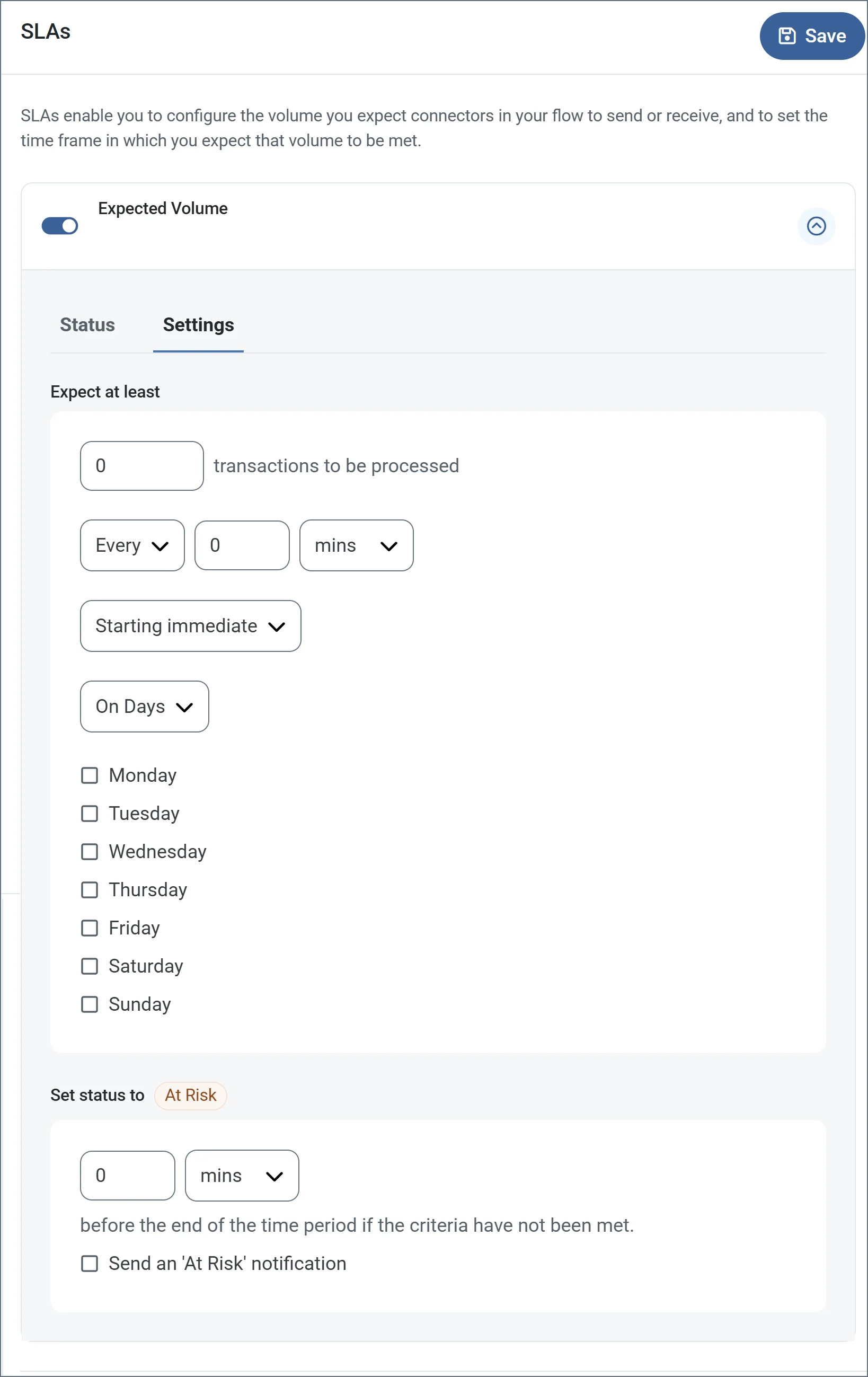 * If your connector has separate send and receive actions, use the radio buttons to specify which direction the SLA pertains to.
* In the **Expect at least** portion of the window:
* Set the minimum number of transactions you expect to be processed (the volume)
* Use the **Every** fields to specify the time frame
* Indicate when the SLA should go into effect. If you choose **Starting on**, complete the date and time fields.
* Check the boxes for the days of the week that you want the SLA to be in effect. Use the dropdown to choose **Everyday** if necessary.
* In the **Set status to 'At Risk'** portion of the window, specify when the SLA should be marked as at risk.
* By default, notifications are not sent until an SLA is in violation. To change that, check **Send an 'At Risk' notification**.
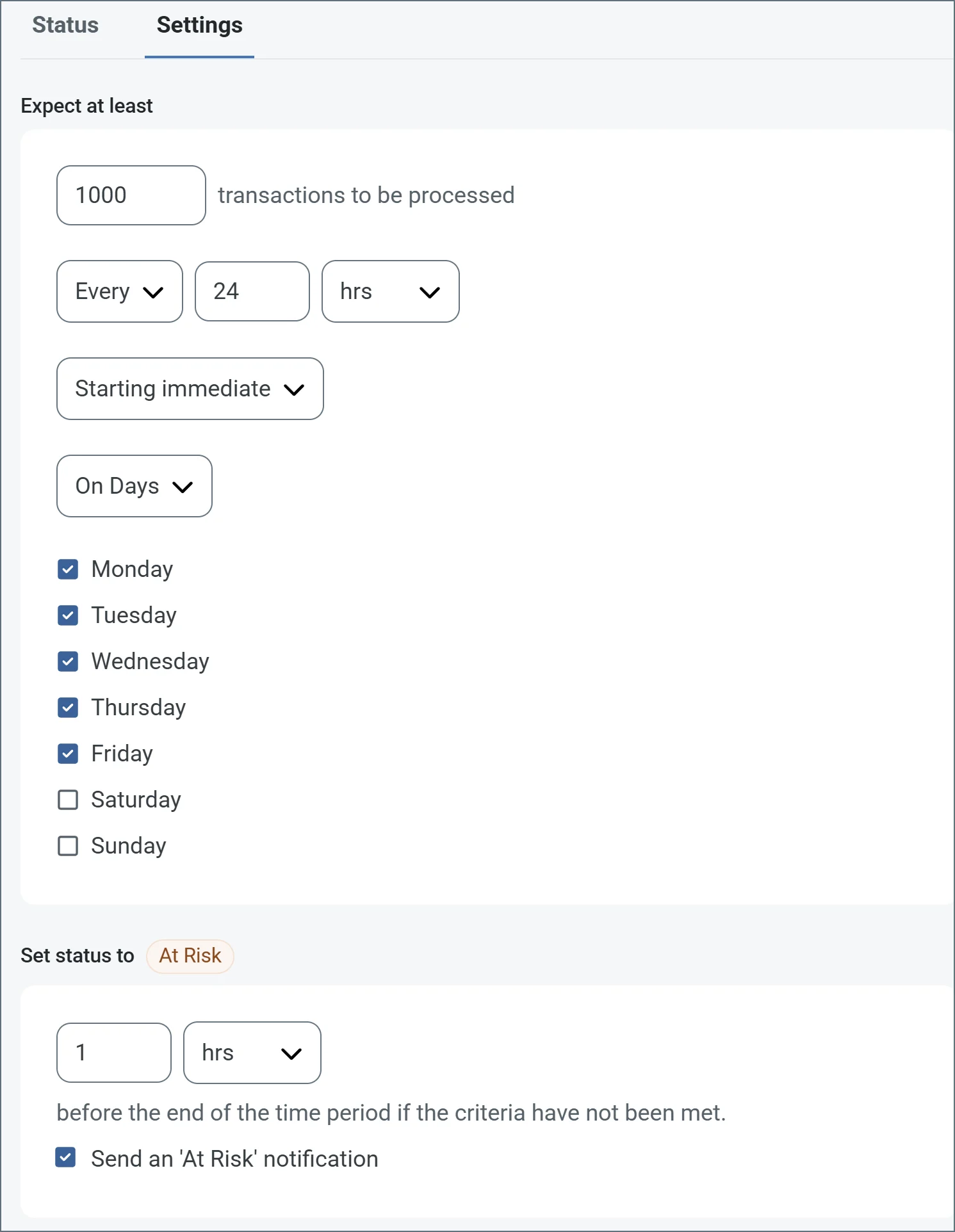
The following example shows an SLA configured for a connector that expects to receive 1000 files every day Monday-Friday. An at-risk notification is sent 1 hour before the end of the time period if the 1000 files have not been received.
* If your connector has separate send and receive actions, use the radio buttons to specify which direction the SLA pertains to.
* In the **Expect at least** portion of the window:
* Set the minimum number of transactions you expect to be processed (the volume)
* Use the **Every** fields to specify the time frame
* Indicate when the SLA should go into effect. If you choose **Starting on**, complete the date and time fields.
* Check the boxes for the days of the week that you want the SLA to be in effect. Use the dropdown to choose **Everyday** if necessary.
* In the **Set status to 'At Risk'** portion of the window, specify when the SLA should be marked as at risk.
* By default, notifications are not sent until an SLA is in violation. To change that, check **Send an 'At Risk' notification**.
The following example shows an SLA configured for a connector that expects to receive 1000 files every day Monday-Friday. An at-risk notification is sent 1 hour before the end of the time period if the 1000 files have not been received.
 You can turn off SLA alerts if necessary. This can be useful during maintenance windows. Click **Settings** on the navbar, then navigate to **Alerts > General Alerts**. Click the tablet and pencil icon to edit, and uncheck the **SLA Alerts** setting.
## Macros
Using macros in file naming strategies can enhance organizational efficiency and contextual understanding of data. By incorporating macros into filenames, you can dynamically include relevant information such as identifiers, timestamps, and header information, providing valuable context to each file. This helps ensure that filenames reflect details important to your organization.
Arc supports these macros, which all use the following syntax: `%Macro%`.
| Macro | Description |
| ----------------------- | ---------------------------------------------------------------------------------------------------------------------------------------------------------------------------------------------------------------------- |
| ConnectorID | Evaluates to the ConnectorID of the connector. |
| Ext | Evaluates to the file extension of the file currently being processed by the connector. |
| Filename | Evaluates to the filename (extension included) of the file currently being processed by the connector. |
| FilenameNoExt | Evaluates to the filename (without the extension) of the file currently being processed by the connector. |
| MessageId | Evaluates to the MessageId of the message being output by the connector. |
| RegexFilename:*pattern* | Applies a RegEx pattern to the filename of the file currently being processed by the connector. |
| Header:*headername* | Evaluates to the value of a targeted header (`headername`) on the current message being processed by the connector. |
| LongDate | Evaluates to the current datetime of the system in long-handed format (for example, Wednesday, January 24, 2024). |
| ShortDate | Evaluates to the current datetime of the system in a yyyy-MM-dd format (for example, 2024-01-24). |
| DateFormat:*format* | Evaluates to the current datetime of the system in the specified format (`format`). See [Sample Date Formats](../../scripting/date-formatters#date-formats-with-literal-characters) for the available datetime formats |
| Vault:*vaultitem* | Evaluates to the value of the specified vault item. |
### Examples
Some macros, such as %Ext% and %ShortDate%, do not require an argument, but others do. All macros that take an argument use the following syntax: `%Macro:argument%`
Here are some examples of the macros that take an argument:
* %Header:headername%: Where `headername` is the name of a header on a message.
* %Header:mycustomheader% resolves to the value of the `mycustomheader` header set on the input message.
* %Header:ponum% resolves to the value of the `ponum` header set on the input message.
* %RegexFilename:pattern%: Where `pattern` is a regex pattern. For example, `%RegexFilename:^([\w][A-Za-z]+)%` matches and resolves to the first word in the filename and is case insensitive (`test_file.xml` resolves to `test`).
* %Vault:vaultitem%: Where `vaultitem` is the name of an item in the [vault](../../getting-started/administration/settings/global-settings-vault). For example, `%Vault:companyname%` resolves to the value of the `companyname` item stored in the vault.
* %DateFormat:format%: Where `format` is an accepted date format (see [Sample Date Formats](../../scripting/date-formatters#sample-date-formats) for details). For example, `%DateFormat:yyyy-MM-dd-HH-mm-ss-fff%` resolves to the date and timestamp on the file.
You can also create more sophisticated macros, as shown in the following examples:
* Combining multiple macros in one filename: `%DateFormat:yyyy-MM-dd-HH-mm-ss-fff%%EXT%`
* Including text outside of the macro: `MyFile_%DateFormat:yyyy-MM-dd-HH-mm-ss-fff%`
* Including text within the macro: `%DateFormat:'DateProcessed-'yyyy-MM-dd_'TimeProcessed-'HH-mm-ss%`
You can turn off SLA alerts if necessary. This can be useful during maintenance windows. Click **Settings** on the navbar, then navigate to **Alerts > General Alerts**. Click the tablet and pencil icon to edit, and uncheck the **SLA Alerts** setting.
## Macros
Using macros in file naming strategies can enhance organizational efficiency and contextual understanding of data. By incorporating macros into filenames, you can dynamically include relevant information such as identifiers, timestamps, and header information, providing valuable context to each file. This helps ensure that filenames reflect details important to your organization.
Arc supports these macros, which all use the following syntax: `%Macro%`.
| Macro | Description |
| ----------------------- | ---------------------------------------------------------------------------------------------------------------------------------------------------------------------------------------------------------------------- |
| ConnectorID | Evaluates to the ConnectorID of the connector. |
| Ext | Evaluates to the file extension of the file currently being processed by the connector. |
| Filename | Evaluates to the filename (extension included) of the file currently being processed by the connector. |
| FilenameNoExt | Evaluates to the filename (without the extension) of the file currently being processed by the connector. |
| MessageId | Evaluates to the MessageId of the message being output by the connector. |
| RegexFilename:*pattern* | Applies a RegEx pattern to the filename of the file currently being processed by the connector. |
| Header:*headername* | Evaluates to the value of a targeted header (`headername`) on the current message being processed by the connector. |
| LongDate | Evaluates to the current datetime of the system in long-handed format (for example, Wednesday, January 24, 2024). |
| ShortDate | Evaluates to the current datetime of the system in a yyyy-MM-dd format (for example, 2024-01-24). |
| DateFormat:*format* | Evaluates to the current datetime of the system in the specified format (`format`). See [Sample Date Formats](../../scripting/date-formatters#date-formats-with-literal-characters) for the available datetime formats |
| Vault:*vaultitem* | Evaluates to the value of the specified vault item. |
### Examples
Some macros, such as %Ext% and %ShortDate%, do not require an argument, but others do. All macros that take an argument use the following syntax: `%Macro:argument%`
Here are some examples of the macros that take an argument:
* %Header:headername%: Where `headername` is the name of a header on a message.
* %Header:mycustomheader% resolves to the value of the `mycustomheader` header set on the input message.
* %Header:ponum% resolves to the value of the `ponum` header set on the input message.
* %RegexFilename:pattern%: Where `pattern` is a regex pattern. For example, `%RegexFilename:^([\w][A-Za-z]+)%` matches and resolves to the first word in the filename and is case insensitive (`test_file.xml` resolves to `test`).
* %Vault:vaultitem%: Where `vaultitem` is the name of an item in the [vault](../../getting-started/administration/settings/global-settings-vault). For example, `%Vault:companyname%` resolves to the value of the `companyname` item stored in the vault.
* %DateFormat:format%: Where `format` is an accepted date format (see [Sample Date Formats](../../scripting/date-formatters#sample-date-formats) for details). For example, `%DateFormat:yyyy-MM-dd-HH-mm-ss-fff%` resolves to the date and timestamp on the file.
You can also create more sophisticated macros, as shown in the following examples:
* Combining multiple macros in one filename: `%DateFormat:yyyy-MM-dd-HH-mm-ss-fff%%EXT%`
* Including text outside of the macro: `MyFile_%DateFormat:yyyy-MM-dd-HH-mm-ss-fff%`
* Including text within the macro: `%DateFormat:'DateProcessed-'yyyy-MM-dd_'TimeProcessed-'HH-mm-ss%`