> ## Documentation Index
> Fetch the complete documentation index at: https://docs.arc.cdata.com/llms.txt
> Use this file to discover all available pages before exploring further.
# Network Access
> How to configure IP-based access restrictions and trusted/banned IP ranges in CData Arc.
export const siteNameShort = "Arc";
export const siteName = "CData Arc";
These network access settings provide additional security to {siteName}. If an IP address is banned, it cannot access the application at all (login access to the application, help, and Admin API pages is denied). {siteNameShort} allows access to protected resources based on this priority list:
1. Global deny
2. User deny
3. User allow
4. Global allow
5. Default deny
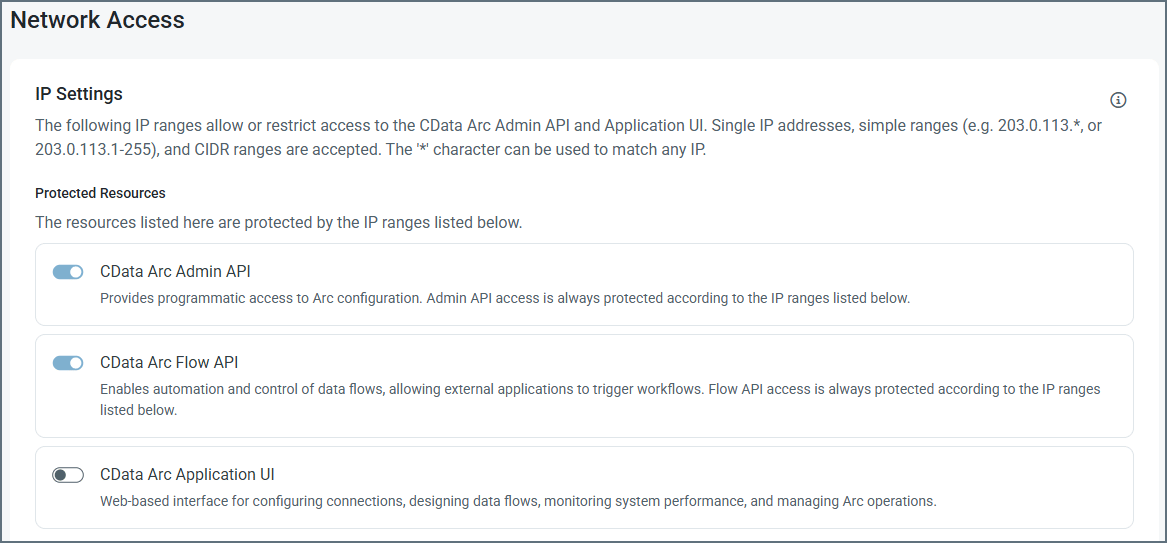 You can see in the list of **Protected Resources** that the **Admin API** and **Flow API** are *always* protected, and you cannot change that. Use the **Application UI** toggle to protect the UI.
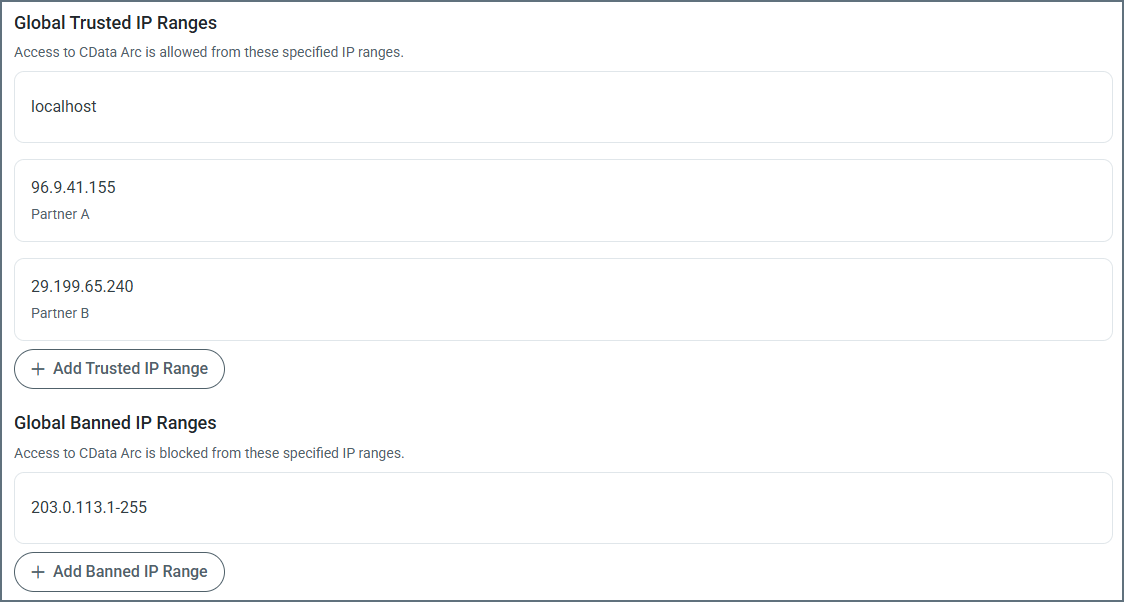 Use the **Add Trusted IP Range** and **Add Banned IP Range** buttons to allow or ban specific IP ranges. You can provide single IP addresses, simple ranges (such as `203.0.113.*` or `203.0.113.1-255`), or Classless Inter-Domain Routing (CIDR) ranges. To edit an existing range, hover over it, click the ellipses, then click **Edit**.
Because you can lock yourself out of the application with this setting, it detects when this might happen and does not allow you to save changes.
Use the **Add Trusted IP Range** and **Add Banned IP Range** buttons to allow or ban specific IP ranges. You can provide single IP addresses, simple ranges (such as `203.0.113.*` or `203.0.113.1-255`), or Classless Inter-Domain Routing (CIDR) ranges. To edit an existing range, hover over it, click the ellipses, then click **Edit**.
Because you can lock yourself out of the application with this setting, it detects when this might happen and does not allow you to save changes.