> ## Documentation Index
> Fetch the complete documentation index at: https://docs.arc.cdata.com/llms.txt
> Use this file to discover all available pages before exploring further.
# License
> How to view and manage your CData Arc license, connector usage, and disk space usage.
export const siteNameShort = "Arc";
export const siteName = "CData Arc";
The **License** tab displays your licensing information, including which enterprise features you have enabled, the license expiration date, your product key, the version of {siteName} you are running, and your Node ID.
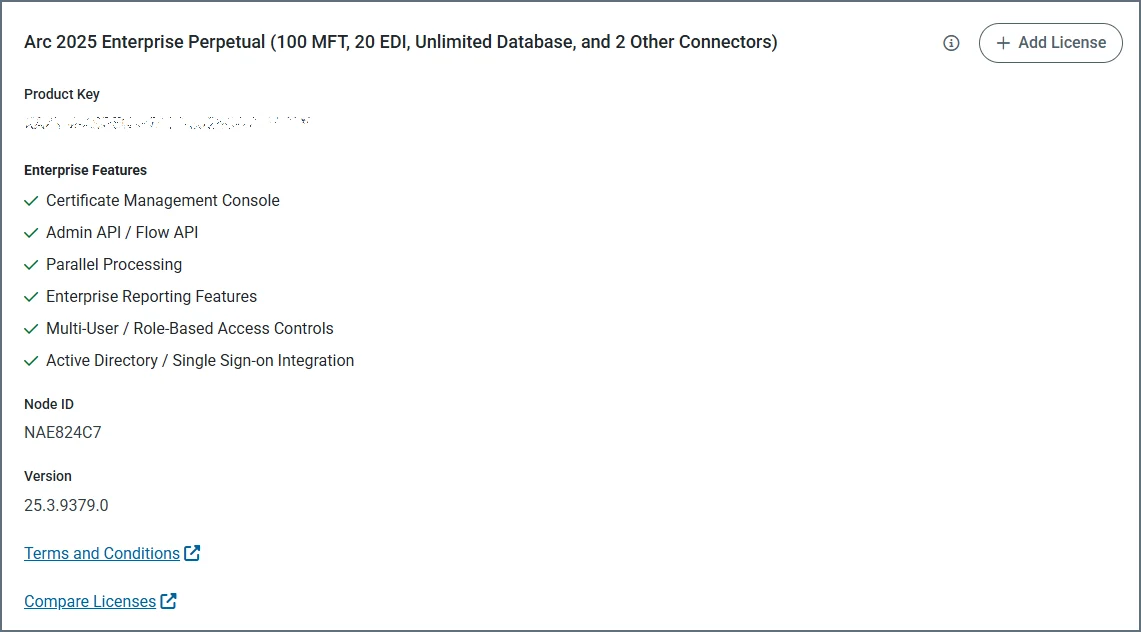 If you purchase a new license, you can install the license on this licensing tab using the **Add License** button. To extend a trial license, please contact [arcsales@cdata.com](mailto:arcsales@cdata.com) with your Node ID.
## Connector Usage
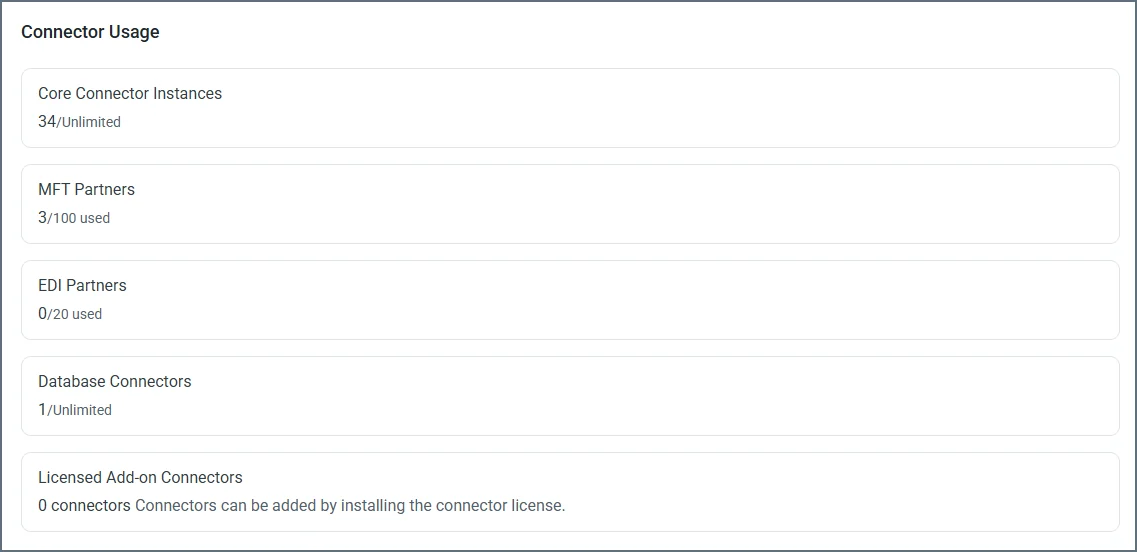
The **Connector Usage** section shows a breakdown of connector usage by category, providing a view of exactly how your current license is being utilized.
If you purchase a new license, you can install the license on this licensing tab using the **Add License** button. To extend a trial license, please contact [arcsales@cdata.com](mailto:arcsales@cdata.com) with your Node ID.
## Connector Usage
The **Connector Usage** section shows a breakdown of connector usage by category, providing a view of exactly how your current license is being utilized.
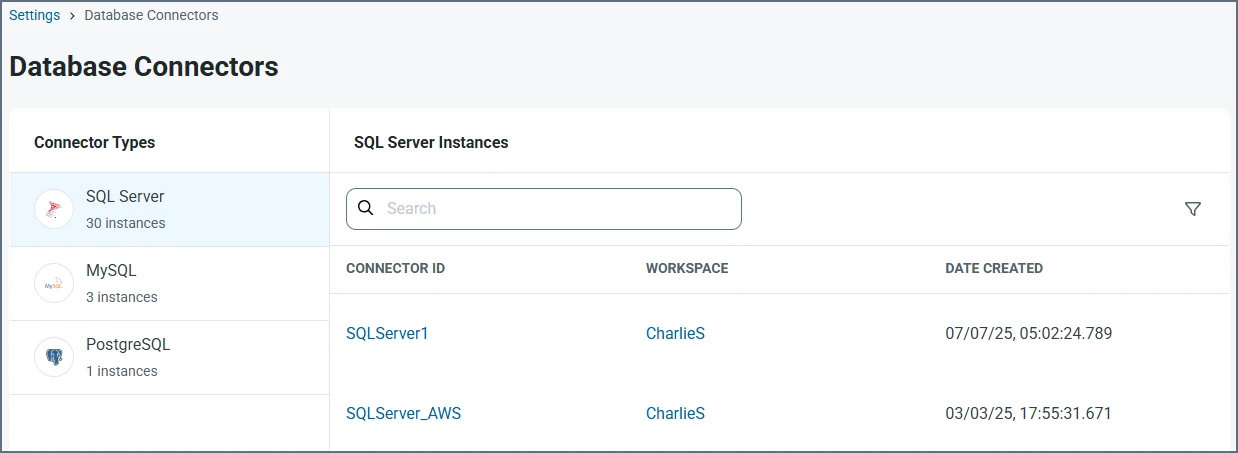
 Click any category to see details on all instances of that connector type. This allows you to identify and manage connectors of any category, so you can free up allocations if necessary.
 ## Disk Space Usage
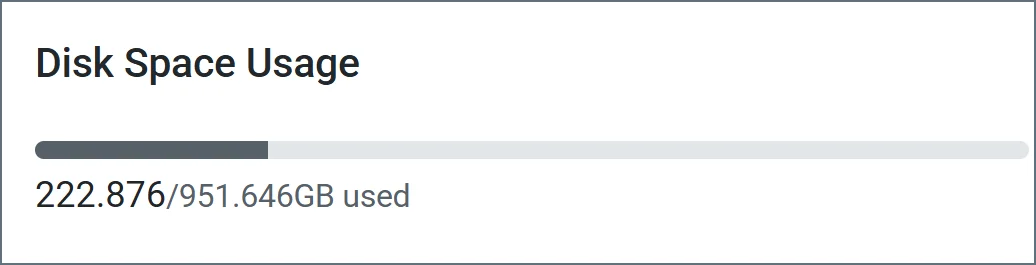
The **Disk Space Usage** section shows exactly how much disk space you have free. If your disk is over 80% full, {siteNameShort} displays a message to that effect, and notifies you that once you hit 90% full, automatic processing will be suspended.
## Disk Space Usage
The **Disk Space Usage** section shows exactly how much disk space you have free. If your disk is over 80% full, {siteNameShort} displays a message to that effect, and notifies you that once you hit 90% full, automatic processing will be suspended.