> ## Documentation Index
> Fetch the complete documentation index at: https://docs.arc.cdata.com/llms.txt
> Use this file to discover all available pages before exploring further.
# Git Version Control Settings
> How to configure Git-based version control for CData Arc configuration tracking and environment management.
export const cloudEnv = false;
export const siteNameShort = "Arc";
export const siteName = "CData Arc";
{!cloudEnv && (
You can use Git-based version control in {siteName}, which enables configuration tracking, audit trails, and environment management. Before you can use it, you must install Git, and create your remote repository. See Prerequisites for instructions.
)}
To complete the configuration, navigate to **Settings > Advanced > Git Version Control**, then click **Configure**.
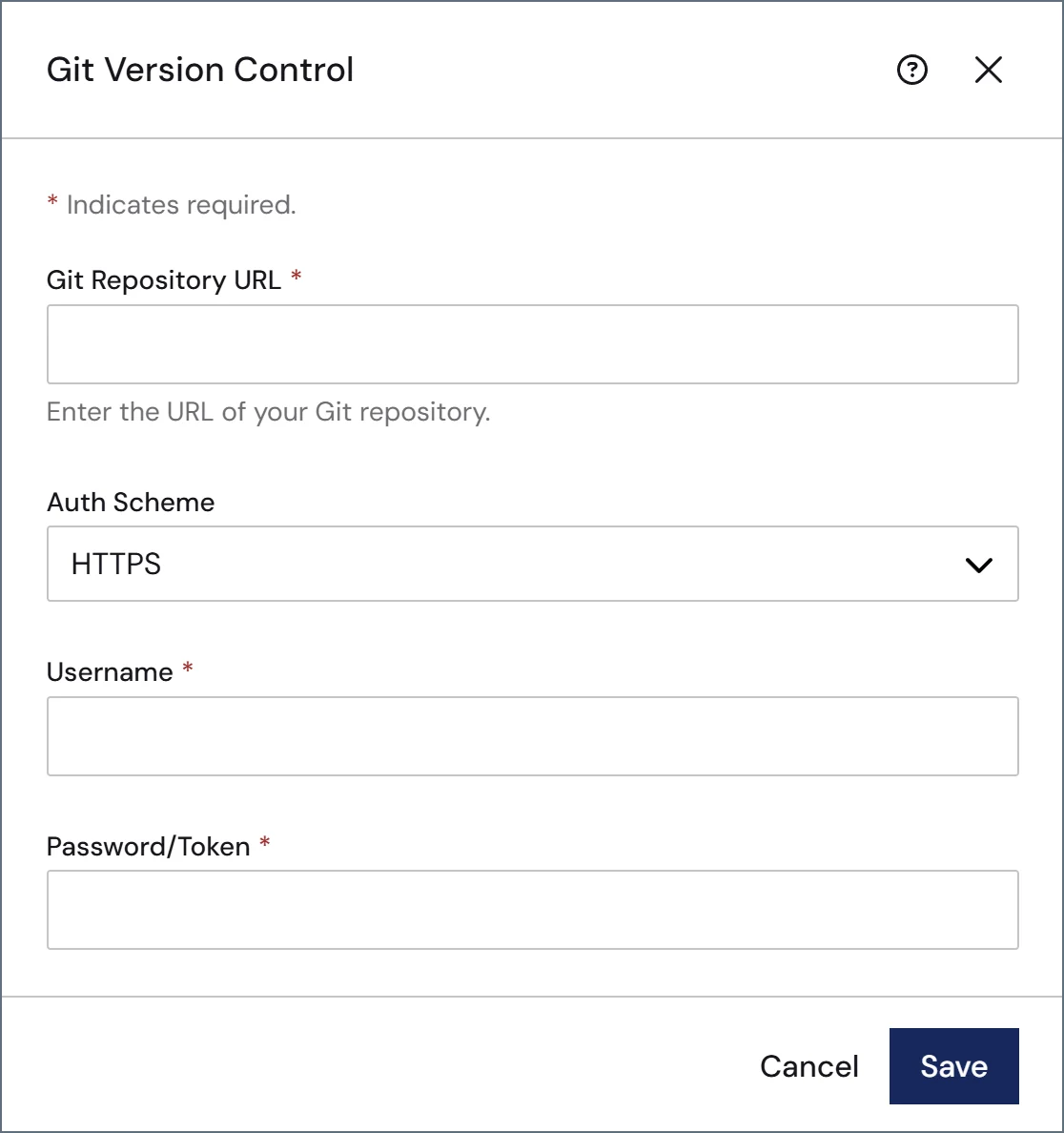 Provide the following:
* The URL to your remote Git repository. If you are using SSH, do not enter the HTTPS address here; you must use the SSH address (for example, `git@github.com:username/private-repo.git`). All major Git platforms are supported (such as GitHub, GitLab, Bitbucket, and Azure DevOps).
* Your auth scheme. Once you select an auth scheme, the fields required for configuration appear.
* HTTPS: The **Username** and **Password** or **Token** to connect to the repository.
* SSH: The **SSH Private Key** file and **Passphrase** to connect to the repository. See [Authenticating with SSH](#authenticating-with-ssh) for more information.
* OAuth: Click **Get Access Token** to retrieve the access token that allows you to connect.
When you click **Save**, {siteNameShort} connects to the repository and runs an initialization task. This initialization creates a Git repository inside `AppDirectory`, creates a branch named `settings-before-git-init-` that contains the configuration that exists at initialization, and stages those configuration files for commit. This ensures that no configurations are lost in the event that the remote repository already has content that would conflict with those settings.
The {siteNameShort} footer changes to a status bar showing a number of Git metrics and actions such as the current number of local files changed, the number of remote commits and the current branch. Click **Commit and Push** on the toolbar to push the initial commit to the remote repository.
Provide the following:
* The URL to your remote Git repository. If you are using SSH, do not enter the HTTPS address here; you must use the SSH address (for example, `git@github.com:username/private-repo.git`). All major Git platforms are supported (such as GitHub, GitLab, Bitbucket, and Azure DevOps).
* Your auth scheme. Once you select an auth scheme, the fields required for configuration appear.
* HTTPS: The **Username** and **Password** or **Token** to connect to the repository.
* SSH: The **SSH Private Key** file and **Passphrase** to connect to the repository. See [Authenticating with SSH](#authenticating-with-ssh) for more information.
* OAuth: Click **Get Access Token** to retrieve the access token that allows you to connect.
When you click **Save**, {siteNameShort} connects to the repository and runs an initialization task. This initialization creates a Git repository inside `AppDirectory`, creates a branch named `settings-before-git-init-` that contains the configuration that exists at initialization, and stages those configuration files for commit. This ensures that no configurations are lost in the event that the remote repository already has content that would conflict with those settings.
The {siteNameShort} footer changes to a status bar showing a number of Git metrics and actions such as the current number of local files changed, the number of remote commits and the current branch. Click **Commit and Push** on the toolbar to push the initial commit to the remote repository.
 ## Authenticating with SSH
Follow these steps to authenticate using SSH:
* Run `ls -al ~/.ssh` to check for an existing SSH key.
* If you have an existing key, you can use it. Alternatively, run this command to generate a new SSH public/private key pair: `ssh-keygen -t ed25519 -C "your_email@example.com"`.
* Optionally, add a passphrase to the key for added security.
* Use the **SSH Private Key** field to upload your private key.
* Add the public SSH key to your Git platform.
For more information on how to authenticate with SSH, review your Git platform's documentation.
## Authenticating with SSH
Follow these steps to authenticate using SSH:
* Run `ls -al ~/.ssh` to check for an existing SSH key.
* If you have an existing key, you can use it. Alternatively, run this command to generate a new SSH public/private key pair: `ssh-keygen -t ed25519 -C "your_email@example.com"`.
* Optionally, add a passphrase to the key for added security.
* Use the **SSH Private Key** field to upload your private key.
* Add the public SSH key to your Git platform.
For more information on how to authenticate with SSH, review your Git platform's documentation.