> ## Documentation Index
> Fetch the complete documentation index at: https://docs.arc.cdata.com/llms.txt
> Use this file to discover all available pages before exploring further.
# Profiles Page
> How to configure global connector profiles for AS2, AS4, SFTP Server, OFTP, and other protocols in CData Arc.
export const siteNameShort = "Arc";
export const siteName = "CData Arc";
Certain connectors require configuring a profile before you can establish a connection. This profile contains partner connection settings that are used globally by {siteName}. These typically include identifiers that refer to your company as an entity, and private certificates. The settings on the **Profiles** page represent the values that are constant across all connections.
The following connectors require a profile. Click the links to access configuration details for your connector:
* HTTP
* [AS2](../../connectors/as2#profile-configuration)
* [AS4](../../connectors/as4#profile-configuration)
* [GISB](../../connectors/gisb#profile-configuration)
* [RosettaNet](../../connectors/rnif#profile-configuration)
* Servers
* [FTP Server](../../connectors/ftp-server#profile-configuration)
* [HL7 MLLP](../../connectors/hl7mllp#profile-configuration)
* [OFTP](../../connectors/oftp#profile-configuration)
* [SFTP Server](../../connectors/sftp-server#profile-configuration)
## Profile Configuration
The **Profiles** page is divided into two sections: **HTTP** and **Servers**. HTTP includes profiles for connectors that send and receive traffic over the HTTP protocol. Servers contains profiles for connectors that send and receive traffic over a different protocol (for example, SFTP Server uses the SSH protocol).
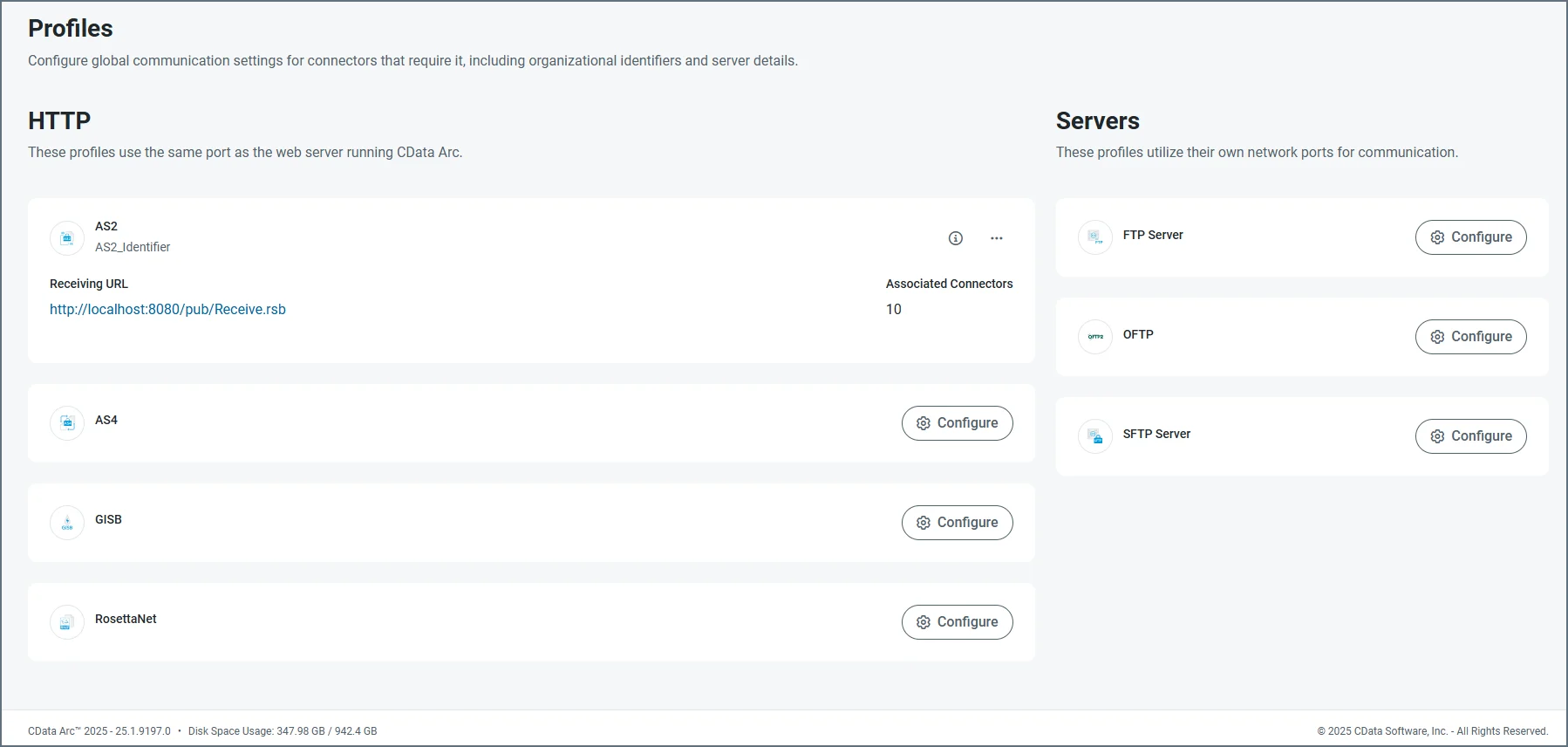 If you have not previously configured a profile, click the **Configure** button on a card to be guided through each step required to complete the configuration. For example, configuring the AS2 profile has three steps:
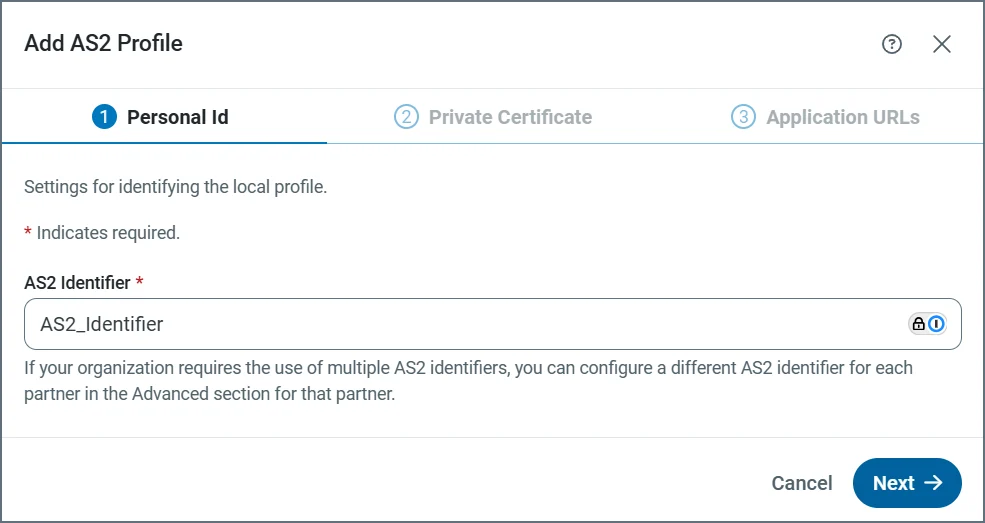
1. Provide the AS2 identifier.
If you have not previously configured a profile, click the **Configure** button on a card to be guided through each step required to complete the configuration. For example, configuring the AS2 profile has three steps:
1. Provide the AS2 identifier.
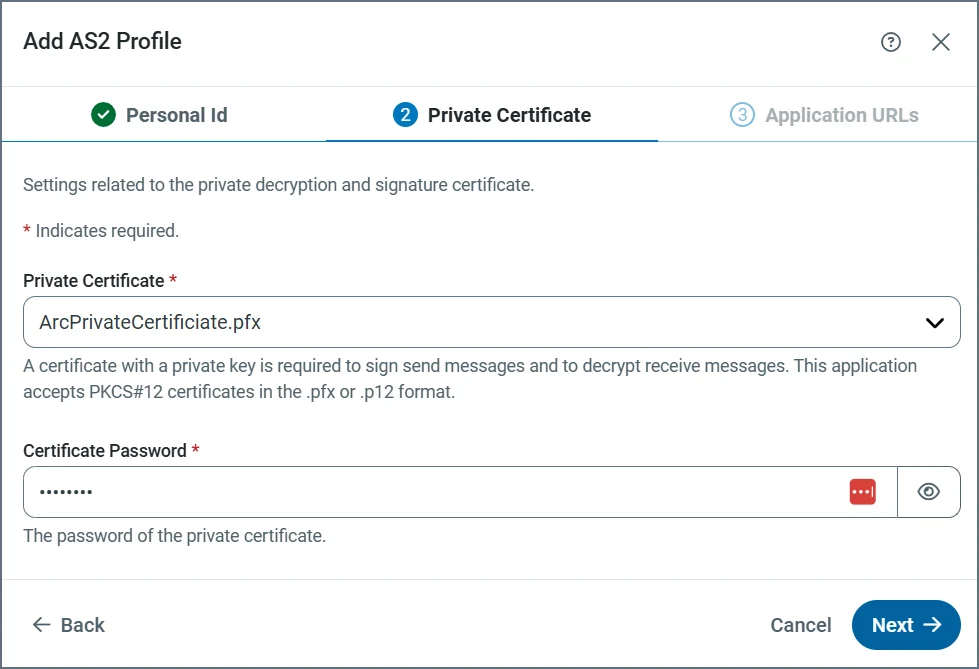
 2. Define the private certificate.
 3. Define the application URLs.
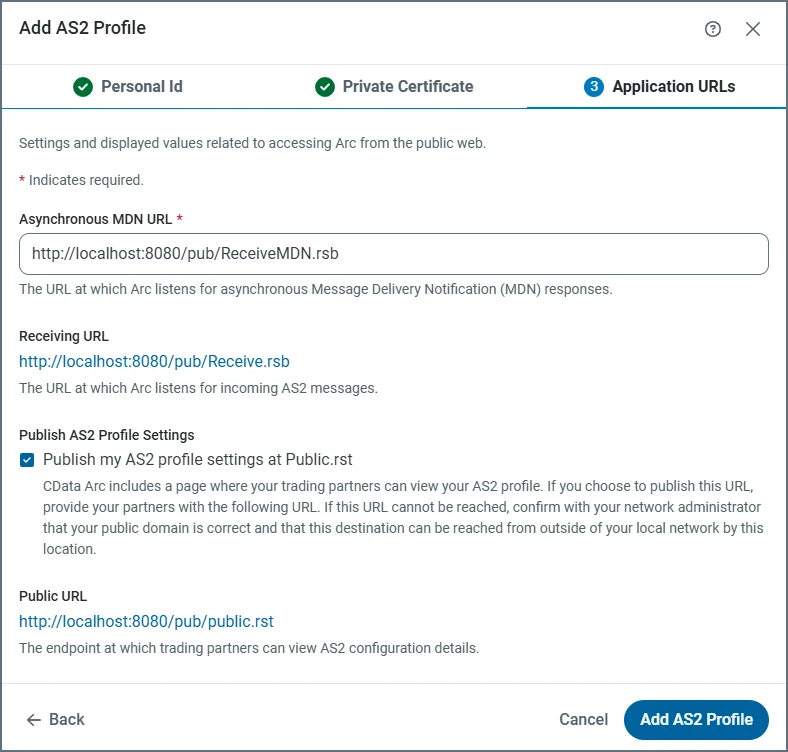 To edit an existing profile, click the ellipses on a card and choose **Edit**.
Once a profile has been configured, pertinent details are displayed on the profile summary card, including identifiers, URLs, ports, and the number of connectors using the profile. Click the link to the number of connectors to see a list of connector names. From there you can click the link to an individual connector to jump to its location in a [Workspace](../../flows/workspaces).
## Profile Details
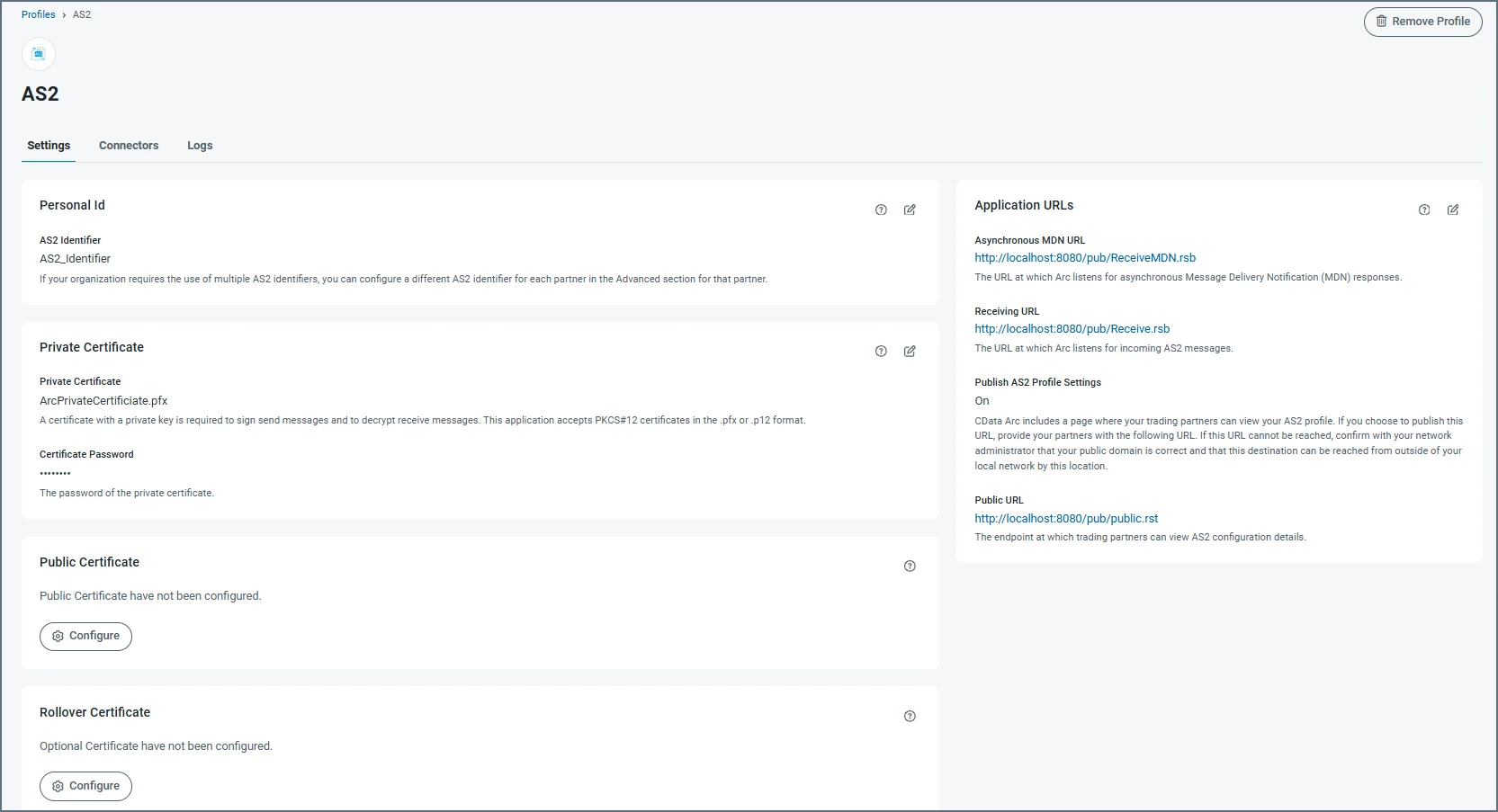
To view the details of a profile, click the ellipses on its card and choose **Edit**. Each profile has tabs for **Settings**, **Connectors**, and **Logs**. The following image uses the AS2 connector, but the principles are the same for each profile.
The **Settings** tab contains all of the profile settings, separated into cards. Each card displays details about the specific settings, and a summary of what they are used for. Click the tablet and pencil icon to edit the values of any card. Use the question mark icon to open the documentation for that setting, or the trash icon to delete that setting's value.
To edit an existing profile, click the ellipses on a card and choose **Edit**.
Once a profile has been configured, pertinent details are displayed on the profile summary card, including identifiers, URLs, ports, and the number of connectors using the profile. Click the link to the number of connectors to see a list of connector names. From there you can click the link to an individual connector to jump to its location in a [Workspace](../../flows/workspaces).
## Profile Details
To view the details of a profile, click the ellipses on its card and choose **Edit**. Each profile has tabs for **Settings**, **Connectors**, and **Logs**. The following image uses the AS2 connector, but the principles are the same for each profile.
The **Settings** tab contains all of the profile settings, separated into cards. Each card displays details about the specific settings, and a summary of what they are used for. Click the tablet and pencil icon to edit the values of any card. Use the question mark icon to open the documentation for that setting, or the trash icon to delete that setting's value.
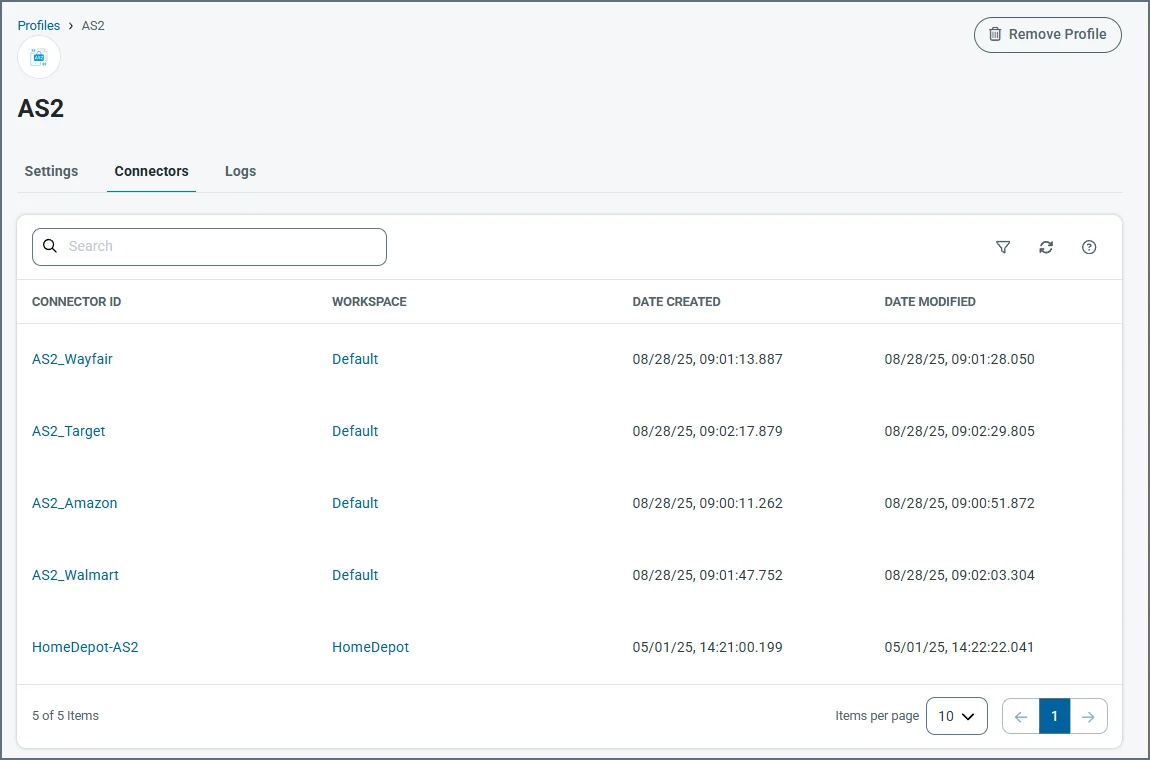
 The **Connectors** tab displays a list of all connectors that use the profile, including creation and modification dates, and links to the connector and workspace where it is located.
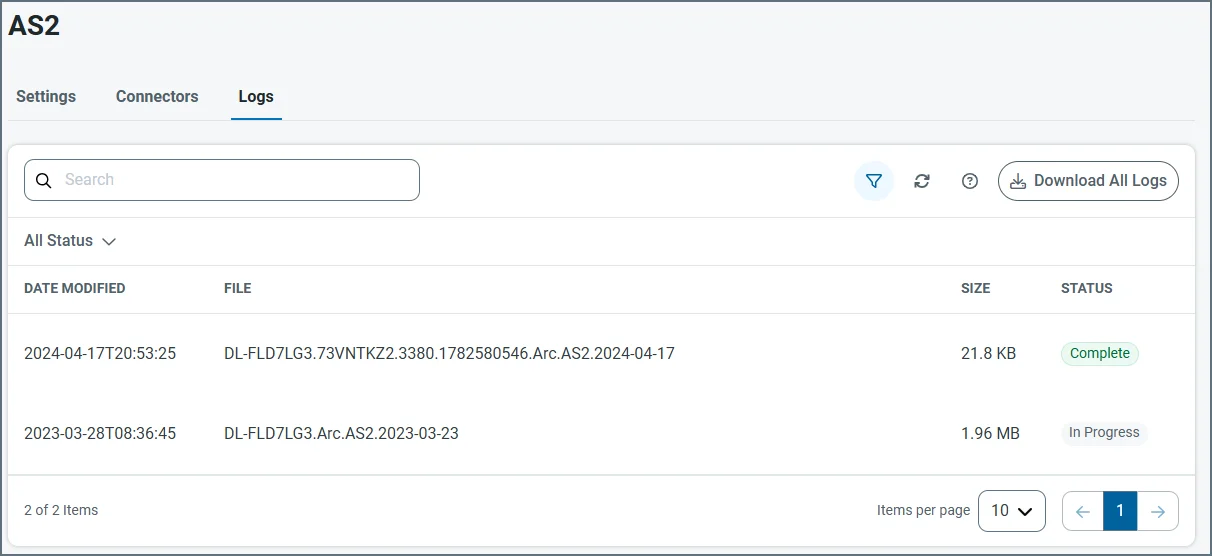
 The **Logs** tab displays the list of service logs for the profile. Click the file name link to open details of a log file. The **Status** column indicates the status of the rotating log file. **In Progress** means it is the log that the service is currently writing to. **Complete** means the log is no longer being updated.