> ## Documentation Index
> Fetch the complete documentation index at: https://docs.arc.cdata.com/llms.txt
> Use this file to discover all available pages before exploring further.
# DMZ Gateway
> How to configure CData Arc to receive secure connections through a DMZ gateway using an SSH reverse tunnel.
export const companyName = "CData";
export const siteNameShort = "Arc";
export const siteName = "CData Arc";
{siteName} can receive secure connections through a demilitarized zone (DMZ) gateway. Using a DMZ protects corporate firewalls and maintains network security by funneling all external connection attempts to the DMZ.
This feature is currently only available if you use the embedded web server included with the .NET edition of {siteNameShort}.
## How the Gateway Works
{siteNameShort} supports establishing an SSH reverse tunnel to receive data sent to the DMZ. Here's how it works:
* An SSH server sits in the DMZ and transfers data between {siteNameShort} and external trading partners.
* {siteNameShort} connects to this SSH server and opens an SSH reverse tunnel on any open port (for example, port 7777).
* Once the tunnel has been opened, the SSH server forwards any traffic it receives on port 7777 directly to {siteNameShort}.
* Trading partners connect to the SSH server and send any data intended for {siteNameShort} to port 7777.
* The data is forwarded from the SSH server to {siteNameShort} using the SSH standard for transport security.
This configuration allows trading partners to send business data to {siteNameShort} while only having access to the SSH server in the DMZ.
## Setting Up the Gateway
Follow these steps to enable DMZ gateway support:
1. Install an SSH server in the DMZ or choose a DMZ with an SSH server already installed—for example, an Amazon Machine Image (AMI) pre-loaded with an SSH server, or a free OpenSSH server implementation installed on a DMZ machine.
2. Enable port forwarding in the SSH server. To do this, open the server's `sshd_config` file and set `GatewayPorts` to **yes**.
3. Right-click the {siteNameShort} icon in the system tray, select **Server Options**, and navigate to the **Cloud Gateway** tab.
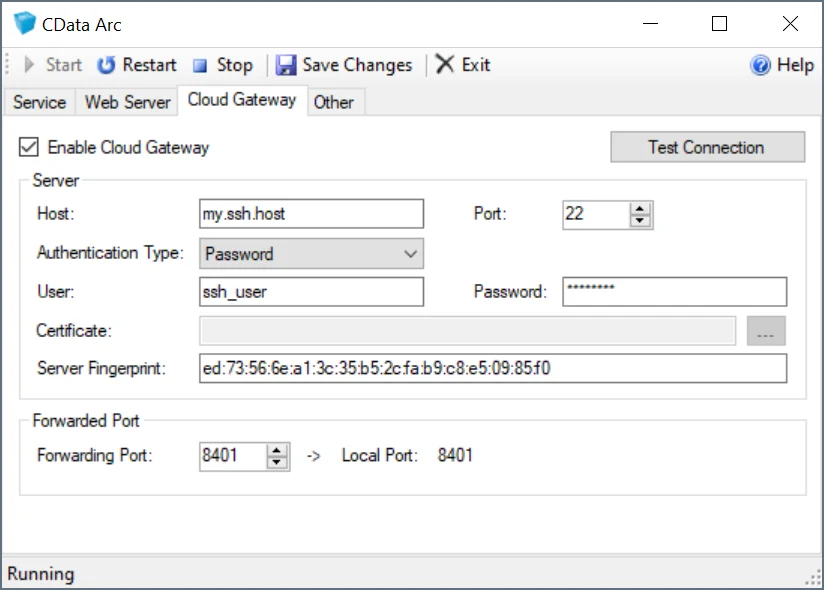 4. Check **Enable Cloud Gateway**.
5. In the **Server** section, configure the connection settings for the SSH server in the DMZ.
6. In the **Forwarded Port** section, set the **Forwarding Port** to the port on the SSH server to use when forwarding data to {siteNameShort}. You can also forward two additional ports to establish tunnels for SFTP and OFTP ports. See [Additional Forwarding Ports](#additional-forwarding-ports) for details.
7. Click **Test Connection** button to verify that the connection is successful.
8. Restart the {siteNameShort} embedded web server to automatically open an SSH reverse tunnel on the specified port.
After the above steps are complete, provide trading partners with connection details to the SSH server in the DMZ. Instruct them to send data to this SSH server on the port specified by **Forwarding Port** instead of the default port (22).
### Additional Forwarding Ports
Configuring the **Forwarding Port** allows traffic to be forwarded for the HTTP traffic used in {siteNameShort}. You can also forward two other ports to establish tunnels for SFTP and OFTP ports.
The DMZ Gateway supports a total of three forwarded ports for traffic, one of which is the HTTP or HTTPS port used to access HTTP or HTTPS-based service endpoints. While you can use the OFTP and SFTP ports for any other listening service on the machine, support for FTP Server connections requires an additional port range beyond the command channel. This means that FTP Server connections are not supported.
To forward additional ports, add the following four lines to the `CData.Arc.xml` configuration file in the application data directory (default path: `C:\ProgramData\CData\Arc\CData.Arc.xml`):
```xml theme={null}
6619
6619
22
2022
```
`Port` is the port that the traffic is forwarded to and `RemotePort` is the port to open on the SSH server.
You cannot forward the port that is already being used for the SSH service. For example, if the SSH server is listening on port 22, the `SFTPRemotePort` cannot also be port 22.
## Maintaining the Gateway
{siteNameShort} automatically opens the gateway when the server (re)starts. {siteNameShort} also handles reconnecting to the SSH server if the connection is dropped for any reason. No user maintenance is required to keep the gateway up and running.
4. Check **Enable Cloud Gateway**.
5. In the **Server** section, configure the connection settings for the SSH server in the DMZ.
6. In the **Forwarded Port** section, set the **Forwarding Port** to the port on the SSH server to use when forwarding data to {siteNameShort}. You can also forward two additional ports to establish tunnels for SFTP and OFTP ports. See [Additional Forwarding Ports](#additional-forwarding-ports) for details.
7. Click **Test Connection** button to verify that the connection is successful.
8. Restart the {siteNameShort} embedded web server to automatically open an SSH reverse tunnel on the specified port.
After the above steps are complete, provide trading partners with connection details to the SSH server in the DMZ. Instruct them to send data to this SSH server on the port specified by **Forwarding Port** instead of the default port (22).
### Additional Forwarding Ports
Configuring the **Forwarding Port** allows traffic to be forwarded for the HTTP traffic used in {siteNameShort}. You can also forward two other ports to establish tunnels for SFTP and OFTP ports.
The DMZ Gateway supports a total of three forwarded ports for traffic, one of which is the HTTP or HTTPS port used to access HTTP or HTTPS-based service endpoints. While you can use the OFTP and SFTP ports for any other listening service on the machine, support for FTP Server connections requires an additional port range beyond the command channel. This means that FTP Server connections are not supported.
To forward additional ports, add the following four lines to the `CData.Arc.xml` configuration file in the application data directory (default path: `C:\ProgramData\CData\Arc\CData.Arc.xml`):
```xml theme={null}
6619
6619
22
2022
```
`Port` is the port that the traffic is forwarded to and `RemotePort` is the port to open on the SSH server.
You cannot forward the port that is already being used for the SSH service. For example, if the SSH server is listening on port 22, the `SFTPRemotePort` cannot also be port 22.
## Maintaining the Gateway
{siteNameShort} automatically opens the gateway when the server (re)starts. {siteNameShort} also handles reconnecting to the SSH server if the connection is dropped for any reason. No user maintenance is required to keep the gateway up and running.