> ## Documentation Index
> Fetch the complete documentation index at: https://docs.arc.cdata.com/llms.txt
> Use this file to discover all available pages before exploring further.
# OpenPGP Connector
> Configuration and usage guide for the CData Arc OpenPGP connector, which supports encryption, decryption, signing, and verification according to the Open Pretty Good Privacy standard.
export const SlasTab = ({siteName = "CData Arc"}) => <>
Settings related to configuring Service Level Agreements (SLAs).
SLAs enable you to configure the volume you expect connectors in your flow to send or receive, and to set the time frame in which you expect that volume to be met. {siteName} sends emails to warn the user when an SLA is not met, and marks the SLA as At Risk, which means that if the SLA is not met soon, it will be marked as Violated. This gives the user an opportunity to step in and determine the reasons the SLA is not being met, and to take appropriate actions. If the SLA is still not met at the end of the at-risk time period, the SLA is marked as violated, and the user is notified again.
To define an SLA, toggle Expected Volume on, then click the Settings tab.
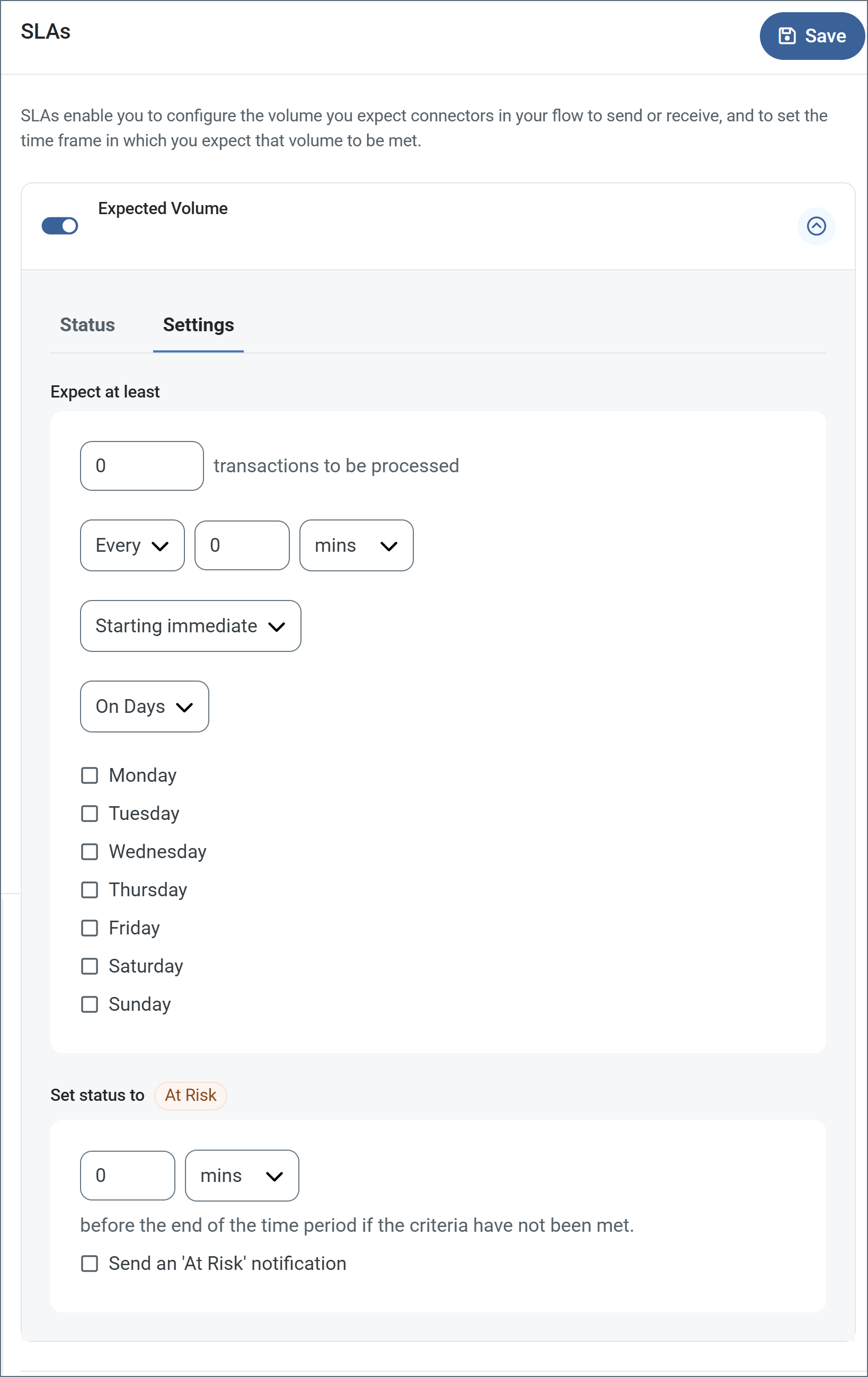
- If your connector has separate send and receive actions, use the radio buttons to specify which direction the SLA pertains to.
- In the Expect at least portion of the window:
- Set the minimum number of transactions you expect to be processed (the volume)
- Use the Every fields to specify the time frame
- Indicate when the SLA should go into effect. If you choose Starting on, complete the date and time fields.
- Check the boxes for the days of the week that you want the SLA to be in effect. Use the dropdown to choose Everyday if necessary.
- In the Set status to 'At Risk' portion of the window, specify when the SLA should be marked as at risk.
- By default, notifications are not sent until an SLA is in violation. To change that, check Send an 'At Risk' notification.
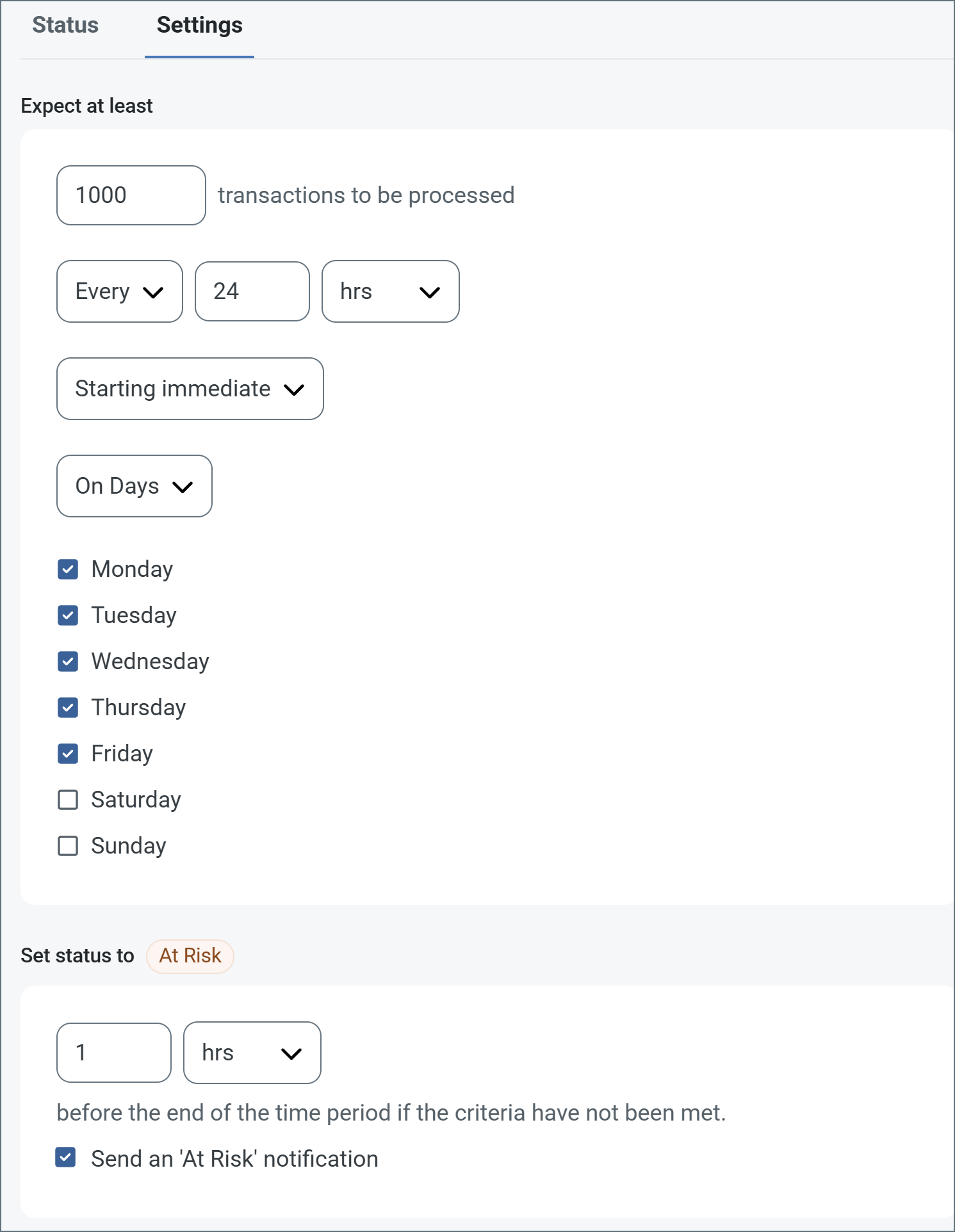
The following example shows an SLA configured for a connector that expects to receive 1000 files every day Monday-Friday. An at-risk notification is sent 1 hour before the end of the time period if the 1000 files have not been received.
 You can turn off SLA alerts if necessary. This can be useful during maintenance windows. Click Settings on the navbar, then navigate to Alerts > General Alerts. Click the tablet and pencil icon to edit, and uncheck the SLA Alerts setting.
;
export const AlertsTab = ({siteNameShort = "Arc"}) => <>
You can turn off SLA alerts if necessary. This can be useful during maintenance windows. Click Settings on the navbar, then navigate to Alerts > General Alerts. Click the tablet and pencil icon to edit, and uncheck the SLA Alerts setting.
;
export const AlertsTab = ({siteNameShort = "Arc"}) => <>
Settings related to configuring alerts.
Before you can execute Service Level Agreements (SLAs), you need to set up email alerts for notifications. By default, {siteNameShort} uses the global settings on the Alerts tab. To use other settings for this connector, toggle Override global setting on.
By default, error alerts are enabled, which means that emails are sent whenever there is an error. To turn them off, uncheck the Enable checkbox.
Enter a Subject (mandatory), then optionally enter a comma-separated list of Recipient emails.
;
export const Message = () => <>
Message settings determine how the connector searches for messages and manages them after processing.
| Setting | Description |
|---|
| Save to Sent Folder |
Check this to copy files processed by the connector to the Sent folder for the connector. |
| Sent Folder Scheme |
Instructs the connector to group files in the Sent folder according to the selected interval. For example, the Weekly option instructs the connector to create a new subfolder each week and store all sent files for the week in that folder. The blank setting instructs the connector to save all files directly in the Sent folder. For connectors that process many transactions, using subfolders can help keep files organized and improve performance. |
;
export const MiscConnector = () => <>
Miscellaneous settings are for specific use cases.
| Setting |
Description |
| Other Settings |
Enables you to configure hidden connector settings in a semicolon-separated list (for example, setting1=value1;setting2=value2). Normal connector use cases and functionality should not require the use of these settings. |
;
export const Logging = () => <>
Settings that govern the creation and storage of logs.
| Setting |
Description |
| Log Level |
The verbosity of logs generated by the connector. When you request support, set this to Debug. |
| Log Subfolder Scheme |
Instructs the connector to group files in the Logs folder according to the selected interval. The Weekly option (which is the default) instructs the connector to create a new subfolder each week and store all logs for the week in that folder. Leaving this setting blank tells the connector to save all logs directly in the Logs folder. For connectors that process many transactions, using subfolders helps keep logs organized and improves performance. |
| Log Messages |
Check this to have the log entry for a processed file include a copy of the file itself. If you disable this, you might not be able to download a copy of the file from the Transactions tab. |
;
export const MacrosExamples = ({extraMacros = []}) => <>
Some macros, such as %Ext% and %ShortDate%, do not require an argument, but others do. All
macros that take an argument use the following syntax: %Macro:argument%
Here are some examples of the macros that take an argument:
- %Header:headername%: Where
headername is the name of a header on a message.
- %Header:mycustomheader% resolves to the value of the
mycustomheader header set on the input message.
- %Header:ponum% resolves to the value of the
ponum header set on the input message.
- %RegexFilename:pattern%: Where
pattern is a regex pattern. For example, %RegexFilename:^([\w][A-Za-z]+)% matches and resolves to the first word in the filename and is case insensitive (test_file.xml resolves to test).
- %Vault:vaultitem%: Where
vaultitem is the name of an item in the vault. For example, %Vault:companyname% resolves to the value of the companyname item stored in the vault.
- %DateFormat:format%: Where
format is an accepted date format (see Sample Date Formats for details). For example, %DateFormat:yyyy-MM-dd-HH-mm-ss-fff% resolves to the date and timestamp on the file.
{extraMacros.filter(item => item.example).map(item => - {item.example}
)}
You can also create more sophisticated macros, as shown in the following examples:
- Combining multiple macros in one filename:
%DateFormat:yyyy-MM-dd-HH-mm-ss-fff%%EXT%
- Including text outside of the macro:
MyFile_%DateFormat:yyyy-MM-dd-HH-mm-ss-fff%
- Including text within the macro:
%DateFormat:'DateProcessed-'yyyy-MM-dd_'TimeProcessed-'HH-mm-ss%
;
export const MacrosTable = ({siteName = "CData Arc", extraMacros = []}) => <>
Using macros in file naming strategies can enhance organizational efficiency and contextual
understanding of data. By incorporating macros into filenames, you can dynamically include
relevant information such as identifiers, timestamps, and header information, providing
valuable context to each file.
{siteName} supports these macros, which all use the following syntax: %Macro%.
| Macro | Description |
|---|
| ConnectorID | Evaluates to the ConnectorID of the connector. |
| Ext | Evaluates to the file extension of the file currently being processed by the connector. |
| Filename | Evaluates to the filename (extension included) of the file currently being processed by the connector. |
| FilenameNoExt | Evaluates to the filename (without the extension) of the file currently being processed by the connector. |
| MessageId | Evaluates to the MessageId of the message being output by the connector. |
| RegexFilename:pattern | Applies a RegEx pattern to the filename of the file currently being processed by the connector. |
| Header:headername | Evaluates to the value of a targeted header (headername) on the current message being processed by the connector. |
| LongDate | Evaluates to the current datetime of the system in long-handed format (for example, Wednesday, January 24, 2024). |
| ShortDate | Evaluates to the current datetime of the system in a yyyy-MM-dd format (for example, 2024-01-24). |
| DateFormat:format | Evaluates to the current datetime of the system in the specified format (format). See Sample Date Formats for the available datetime formats. |
| Vault:vaultitem | Evaluates to the value of the specified vault item. |
{extraMacros.map(item =>
| {item.name} |
{item.description} |
)}
;
export const Performance = () => <>
Settings related to the allocation of resources to the connector.
| Setting |
Description |
| Max Workers |
The maximum number of worker threads consumed from the threadpool to process files on this connector. If set, this overrides the default setting on the Performance Settings portion of the Advanced Settings page. |
| Max Files |
The maximum number of files sent by each thread assigned to the connector. If set, this overrides the default setting on the Performance Settings portion of the Advanced Settings page. |
;
export const siteNameShort = "Arc";
export const siteName = "CData Arc";
The OpenPGP connector supports encryption, decryption, signing, and verification according to the Open Pretty Good Privacy standard.
## Key Capabilities
* Complete OpenPGP encryption, decryption, signing, and signature verification with multiple algorithm support
* Encoding mode (encrypt/sign) and decoding mode (decrypt/verify) with compression options
* Keyring management and ASCII armor encoding for readable encrypted data transmission
## Overview
OpenPGP connectors are the primary way that {siteNameShort} supports protecting data in a flow. OpenPGP connectors operating in **Encode** mode can encrypt and/or sign files, and OpenPGP connectors operating in **Decode** mode can decrypt files and/or verify signatures. Encryption and signature verification require a public OpenPGP key, and decryption and signing require a private OpenPGP key. These keys must be [created](#creating-keys) or imported into OpenPGP keyring files (`.gpg`) before you can use them with the application.
## Connector Configuration
This section contains all of the configurable connector properties.
### Settings Tab
#### Configuration
*Settings related to the core operation of the connector.*
| Setting | Description |
| ------------------------- | --------------------------------------------------------------------------------------------------------------------------------------------------------------------------------------------------------------------------------- |
| **Connector Id** | The static, unique identifier for the connector. |
| **Connector Type** | Displays the connector name and a description of what it does. |
| **Connector Description** | An optional field to provide a free-form description of the connector and its role in the flow. |
| **Operation** | Whether the connector is encoding or decoding incoming files. Encoding includes encrypting and signing data, and decoding includes decrypting data and verifying signatures. The connector settings change based on this setting. |
#### Message Settings
*Settings related to creating an OpenPGP message. Only available when encoding.*
| Setting | Description |
| ------------------------ | ------------------------------------------------------------------------------------------------------------------- |
| **Message Security** | Whether the connector should create an encrypted message, a signed message, or both a signed and encrypted message. |
| **Compression** | Whether the connector should compress the message before encrypting and/or signing it. |
| **Encryption Algorithm** | The symmetric algorithm to use when encrypting. |
| **Signature Algorithm** | The hash algorithm to use when signing. |
| **Compression Method** | The compression algorithm to use when compressing. |
#### Keys
*Settings related to the OpenPGP keys used by the connector. Encryption and signing are only available when encoding, while verification and decryption are only available when decoding.*
| Setting | Description |
| -------------------- | ------------------------------------------------------------------------------------------------------------------------------------------------------------ |
| **Encryption Key** | The user Id identifying the public key in a public keyring to use when encrypting. Import a public keyring file to view the available user Ids. |
| **Signing Key** | The user Id identifying the private key in the secret keyring to use when signing. Import a secret keyring file to view the available user Ids. |
| **Verification Key** | The user Id identifying the public key in the public keyring to use when verifying signatures. Import a public keyring file to view the available user Ids. |
| **Decryption Key** | The user Id identifying the private key in the secret keyring to use when verifying signatures. Import a secret keyring file to view the available user Ids. |
| **Passphrase** | When encoding: the passphrase for the selected private signing key. When decoding: the passphrase for the selected private decryption key. |
### Advanced Tab
#### Advanced Settings
*Settings not included in the previous categories.*
| Setting | Description |
| --------------------- | ------------------------------------------------------------------------------------------------------------------------------------------------------------------------------------------------------------------------------------------------------------------------------------------------------------ |
| **ASCII Armor** | Whether ASCII-encoding should be applied to OpenPGP messages generated by the connector. |
| **Clear Signature** | Whether the OpenPGP signature should appear in clear text. Not applicable when encrypting messages. |
| **Processing Delay** | The amount of time (in seconds) by which the processing of files placed in the **Transactions** tab is delayed. This is a legacy setting. Best practice is to [use a File connector](../flows/designing-a-flow#interacting-with-the-local-file-system) to manage local file systems instead of this setting. |
| **Local File Scheme** | A scheme for assigning filenames to messages that are output by the connector. You can use macros in your filenames dynamically to include information such as identifiers and timestamps. For more information, see [Macros](#macros). |
#### Message
#### Logging
#### Miscellaneous
### Automation Tab
#### Settings
*Settings related to the automatic processing of files by the connector.*
| Setting | Description |
| ------------------- | ----------------------------------------------------------------------- |
| **Send Automation** | Whether messages arriving at the connector are automatically processed. |
#### Performance
### Alerts Tab
### SLAs Tab
## Encoding
When encoding files, configure each of the settings under **Message Settings**. These determine how the file is encoded.
If encryption is required, specify a public encryption key in the **Encryption Key** field. If signing is required, specify a private signing key in the **Signing Key** field. To select a key in a keyring, import the keyring file then use the dropdown to choose a user Id. To sign with a private key, provide the **Passphrase** required to access the private key.
You can enable the **ASCII Armor** option on the [Advanced tab](#advanced-tab) to ASCII-encode encrypted data so that it remains readable. You can use the **Clear Signature** option if the signature should appear in clear text (not possible when encrypting files).
Once you set these options, files sent to the input directory of the OpenPGP connector are automatically encoded.
## Decoding
When decoding files, the connector automatically attempts to determine what encryption and/or signature algorithms were applied, so you do not need to configure the connector for specific algorithms.
If decryption is required, specify a private decryption key in the **Decryption Key** field (supply the private key that corresponds to the public key that was used to encrypt). If signature verification is required, specify a public verification key in the **Verification Key** field (supply the public key that corresponds to the private key used to sign). To select a key in a keyring, import the keyring file then use the dropdown to choose a user Id. To decrypt with a private key, provide the **Passphrase** required to access the private key.
Once you set these options, files sent to the input directory of the OpenPGP connector are automatically decoded: encrypted files are decrypted, and signed files are verified.
## Creating Keys
To create a key:
* Select **Import/Export > Create Key** to begin creating a new OpenPGP key pair:
* If the connector is in **Encode** mode, this is next to **Signing Key**.
* If the connector is in **Decode** mode, this is next to **Decryption Key**.
* Enter the following information:
* **User Id**: Provide at least **First Name** or **Email** to create a key. The User Id for the key is comprised of the first name, last name, and email fields in the key creation wizard.
* **Passphrase**: Enter a passphrase to protect the private key. The passphrase is used in the decrypt, encrypt, and sign operations.
* **Key Encryption Algorithm** and **Key Signature Algorithm**: Select the encryption algorithm that corresponds to the desired strength of your encryption. Select the signature algorithm that corresponds to the desired length of the hash of the message.
* Click **Create Key**. Keys are created in the `data/~Profiles/OpenPGP` folder relative to the Application Directory.
## Macros
### Examples
## Common Errors
### Error: Unknown PGP Packet tag
When attempting to decode a GPG message using the OpenPGP connector, you might get the error **Unknown PGP Packet tag** on the **Transactions** tab and in the logs.
**Cause**
The GPG message has been encrypted with the AEAD cipher. AEAD is a cipher that is [still in draft](https://datatracker.ietf.org/doc/html/draft-ietf-openpgp-crypto-refresh-04#section-5.16), and {siteNameShort} does not yet support it.
**Resolution**
GPG messages encrypted in GPG 2.3.0 and later using keys created in GPG 2.3.0 and later need to be encrypted using the following options to disable the cipher:
`--force-mdc --rfc2440 --encrypt`
GPG packets encrypted in earlier releases or encrypted in GPG 2.3.0 or later using keys created in prior releases are not affected.