> ## Documentation Index
> Fetch the complete documentation index at: https://docs.arc.cdata.com/llms.txt
> Use this file to discover all available pages before exploring further.
# Managing Documents
> Create, configure, and reuse EDI document workflows in the CData Arc TPMC Documents tab.
The **Documents** tab displays a list of all configured documents, their versions, the number of partners each document is associated with, whether the document is for incoming or outgoing data, and the date it was created and last modified. You can search for specific documents, and filter by type, partner name, and direction.
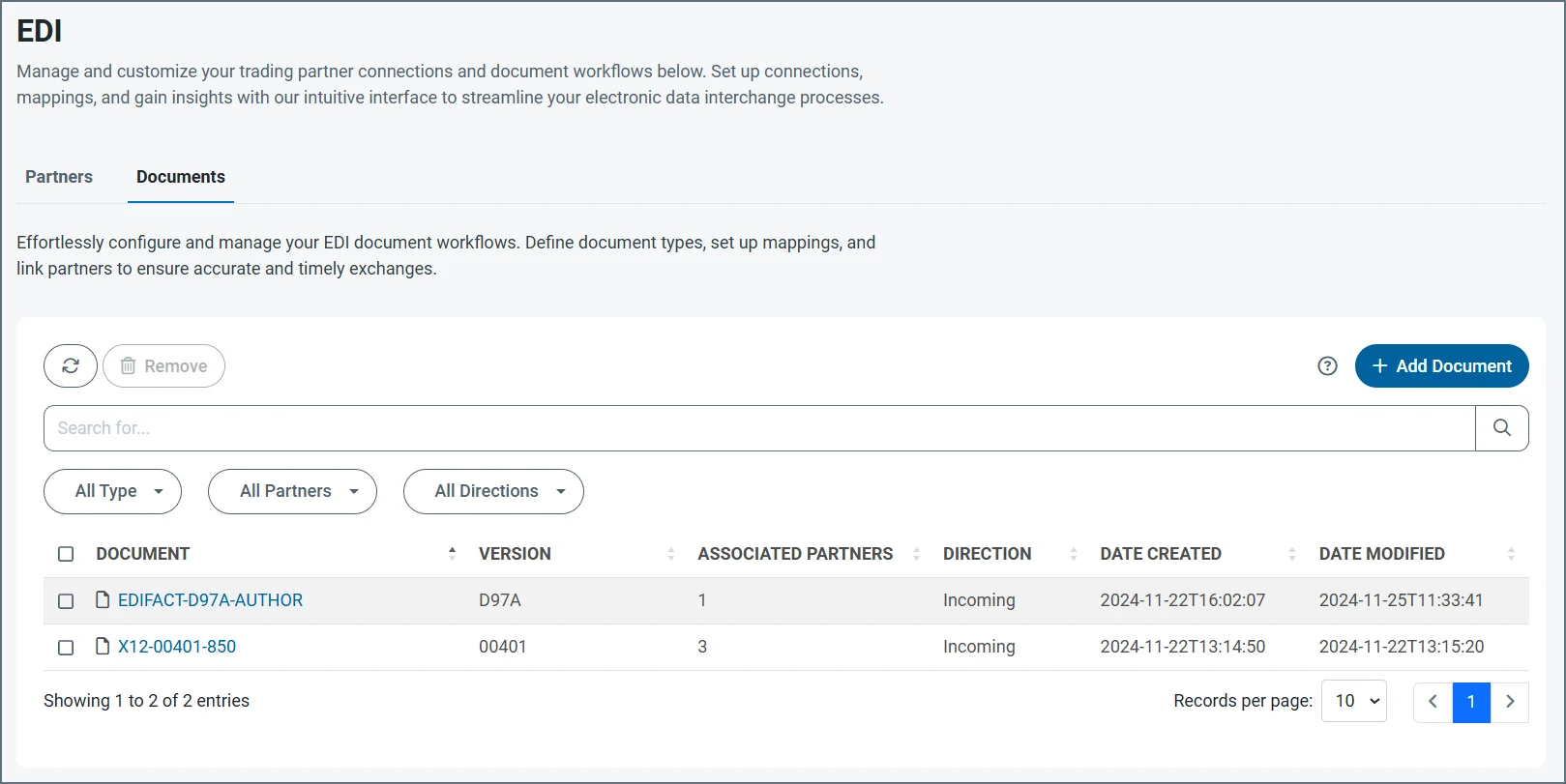 To edit an existing document, click its name. You can change the document name, add partners, and update mappings.
## Creating a Document from the Documents Tab
You can create new documents from both the **Partners** and **Documents** tabs. These instructions cover creating a document from the **Documents** tab. See [Select or Add Documents](./edi-partners-tab#select-or-add-documents) for information on creating documents from the **Partners** tab.
From the navbar, click **EDI**, **Documents**, then click **Add Document**.
To edit an existing document, click its name. You can change the document name, add partners, and update mappings.
## Creating a Document from the Documents Tab
You can create new documents from both the **Partners** and **Documents** tabs. These instructions cover creating a document from the **Documents** tab. See [Select or Add Documents](./edi-partners-tab#select-or-add-documents) for information on creating documents from the **Partners** tab.
From the navbar, click **EDI**, **Documents**, then click **Add Document**.
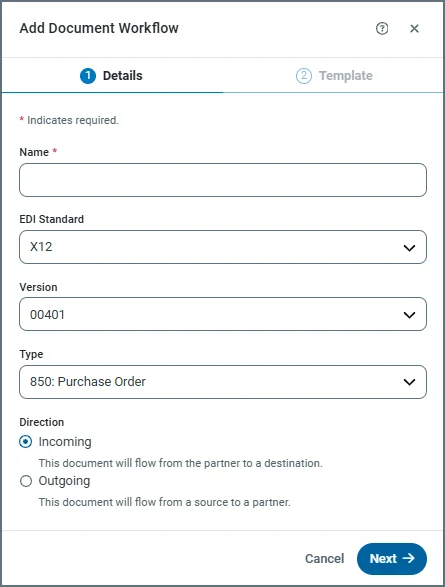 1. On the **Add Document Workflow Details** screen, supply a **Name**, then use the three dropdowns to choose the **EDI Standard**, **Version**, and **Type**.
2. Specify whether this document is for incoming or outgoing data.
3. Click **Next** to go to the **Template** screen.
4. Choose whether the document workflow should be based on the built-in **Schema** for your document type, or on a sample **File** in EDI or XML format.
5. If you select **File**, click **Choose File** and navigate to the EDI or XML file to upload.
6. Click **Add Document** to save the new document.
The **Document Information** section of the page that opens contains the information you supplied in the previous steps. However, before you can use the document, you need to specify which partners it is for, and what the source or destination is. The order in which these items appear in the document workflow page depends on the document direction (incoming or outgoing).
The following image shows an outgoing document.
1. On the **Add Document Workflow Details** screen, supply a **Name**, then use the three dropdowns to choose the **EDI Standard**, **Version**, and **Type**.
2. Specify whether this document is for incoming or outgoing data.
3. Click **Next** to go to the **Template** screen.
4. Choose whether the document workflow should be based on the built-in **Schema** for your document type, or on a sample **File** in EDI or XML format.
5. If you select **File**, click **Choose File** and navigate to the EDI or XML file to upload.
6. Click **Add Document** to save the new document.
The **Document Information** section of the page that opens contains the information you supplied in the previous steps. However, before you can use the document, you need to specify which partners it is for, and what the source or destination is. The order in which these items appear in the document workflow page depends on the document direction (incoming or outgoing).
The following image shows an outgoing document.
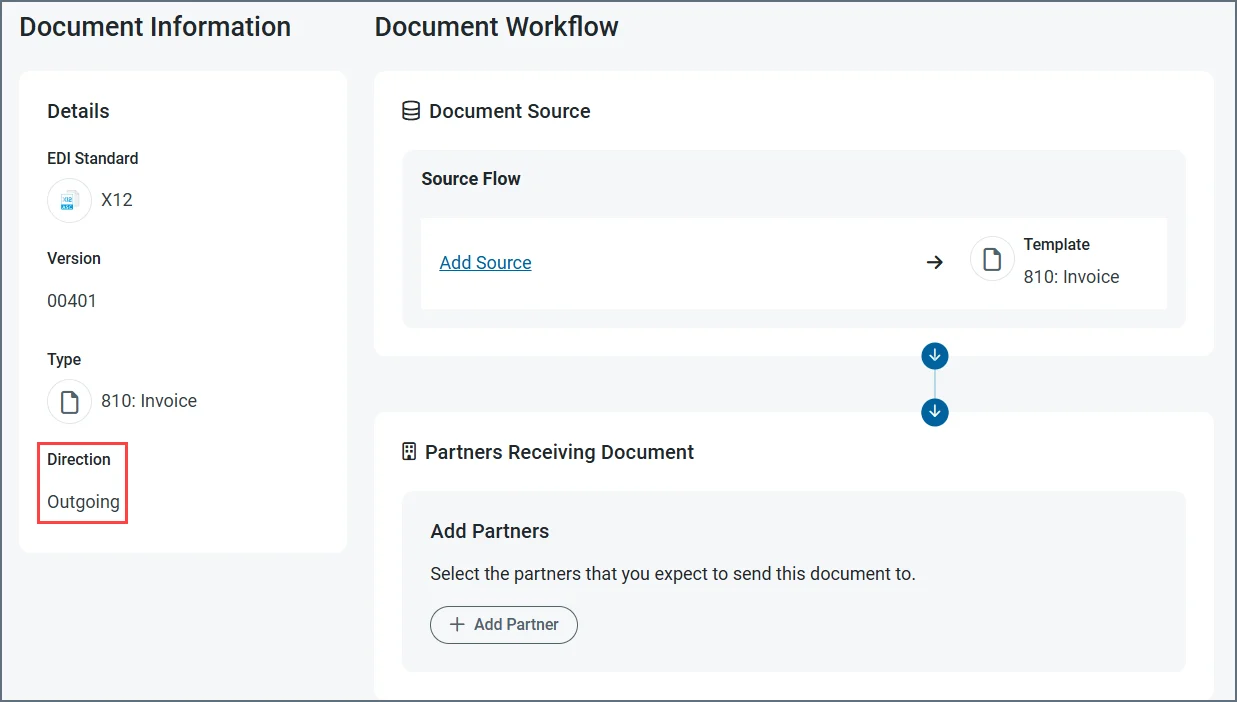 * In the **Document Source** section of an outgoing document, click **Add Source** to specify where the data is coming from. After you select and configure the source connector, the workflow mapping page opens. See [Configure the Mapping](./edi-mapping#configure-the-mapping) for detailed instruction on how to complete the mappings.
* In the **Document Destination** section of an incoming document, click **Add Destination** to specify where the data flows to. After you select and configure the destination connector, the workflow mapping page opens. See [Configure the Mapping](./edi-mapping#configure-the-mapping) for detailed instruction on how to complete the mappings.
* In the partners portion of the page, click **Add Partner**. Only partners that use the same EDI standard appear in the list of available partners. Use the checkboxes to specify your partners, then click **Add Partner**.
## Reusing Documents
Documents are reusable between partners as often as you need, as long as the document shares the same EDI standard as that partner. Follow the steps in [Adding a Partner to an Existing Document](#adding-a-partner-to-an-existing-document) to reuse a document.
### Adding a Partner to an Existing Document
You can add partners to existing documents at any time.
1. From the **Documents** tab, click a document name.
2. In the **Document Workflow** section of the page, click **Add Partner**. Only partners that use the same EDI standard appear in the list of available partners. Use the checkboxes to specify your partners, then click **Add Partner**.
* In the **Document Source** section of an outgoing document, click **Add Source** to specify where the data is coming from. After you select and configure the source connector, the workflow mapping page opens. See [Configure the Mapping](./edi-mapping#configure-the-mapping) for detailed instruction on how to complete the mappings.
* In the **Document Destination** section of an incoming document, click **Add Destination** to specify where the data flows to. After you select and configure the destination connector, the workflow mapping page opens. See [Configure the Mapping](./edi-mapping#configure-the-mapping) for detailed instruction on how to complete the mappings.
* In the partners portion of the page, click **Add Partner**. Only partners that use the same EDI standard appear in the list of available partners. Use the checkboxes to specify your partners, then click **Add Partner**.
## Reusing Documents
Documents are reusable between partners as often as you need, as long as the document shares the same EDI standard as that partner. Follow the steps in [Adding a Partner to an Existing Document](#adding-a-partner-to-an-existing-document) to reuse a document.
### Adding a Partner to an Existing Document
You can add partners to existing documents at any time.
1. From the **Documents** tab, click a document name.
2. In the **Document Workflow** section of the page, click **Add Partner**. Only partners that use the same EDI standard appear in the list of available partners. Use the checkboxes to specify your partners, then click **Add Partner**.