> ## Documentation Index
> Fetch the complete documentation index at: https://docs.arc.cdata.com/llms.txt
> Use this file to discover all available pages before exploring further.
# End to End Workflow Testing
> Perform end-to-end testing of TPMC partner document workflows using sample data in CData Arc.
export const siteNameShort = "Arc";
You can use the Trading Partner Management Console (TPMC) to perform end-to-end (E2E) testing for your partners and their associated workflows. Using sample data, you can test the workflow from start to finish. Testing is supported on both incoming and outgoing documents. Incoming workflow tests are further broken down into active and passive categories, as described in the following sections.
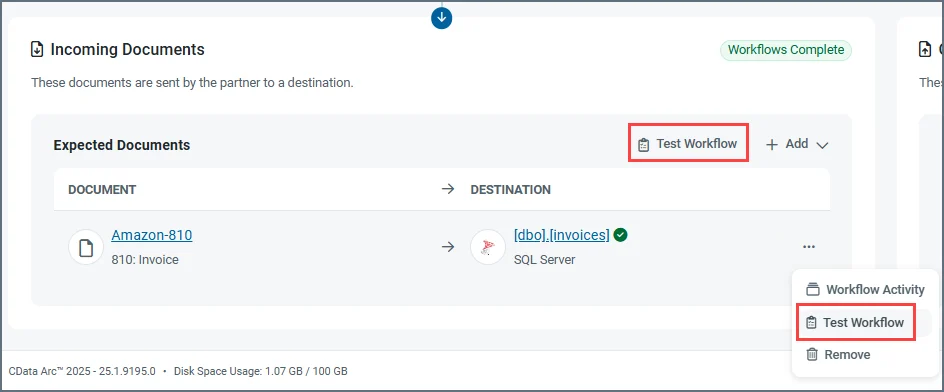
To run a workflow test, click **Test Workflow** from the **Expected Documents** section of a partner's **Workflows** tab, or by clicking the ellipses next to a specific document and choosing **Test Workflow**.
 ## Active Incoming Testing
The *active* category refers to incoming workflows that receive documents by the triggering of a receive automation event from the source connector (where {siteNameShort} pulls from the partner's server). Connectors in this category include [MFT](../connectors/mft-connectors) connectors such as [SFTP](../connectors/sftp), [FTP](../connectors/ftp), and [S3](../connectors/s3).
Choose **Test Workflow** to trigger a test. If you use the button in the **Expected Documents** section, you are prompted to select a workflow. Once the test file has been received and processed through the workflow, a results page opens showing details about the file that was received as well as statuses for each step of the workflow. The following image shows a successful E2E test:
## Active Incoming Testing
The *active* category refers to incoming workflows that receive documents by the triggering of a receive automation event from the source connector (where {siteNameShort} pulls from the partner's server). Connectors in this category include [MFT](../connectors/mft-connectors) connectors such as [SFTP](../connectors/sftp), [FTP](../connectors/ftp), and [S3](../connectors/s3).
Choose **Test Workflow** to trigger a test. If you use the button in the **Expected Documents** section, you are prompted to select a workflow. Once the test file has been received and processed through the workflow, a results page opens showing details about the file that was received as well as statuses for each step of the workflow. The following image shows a successful E2E test:
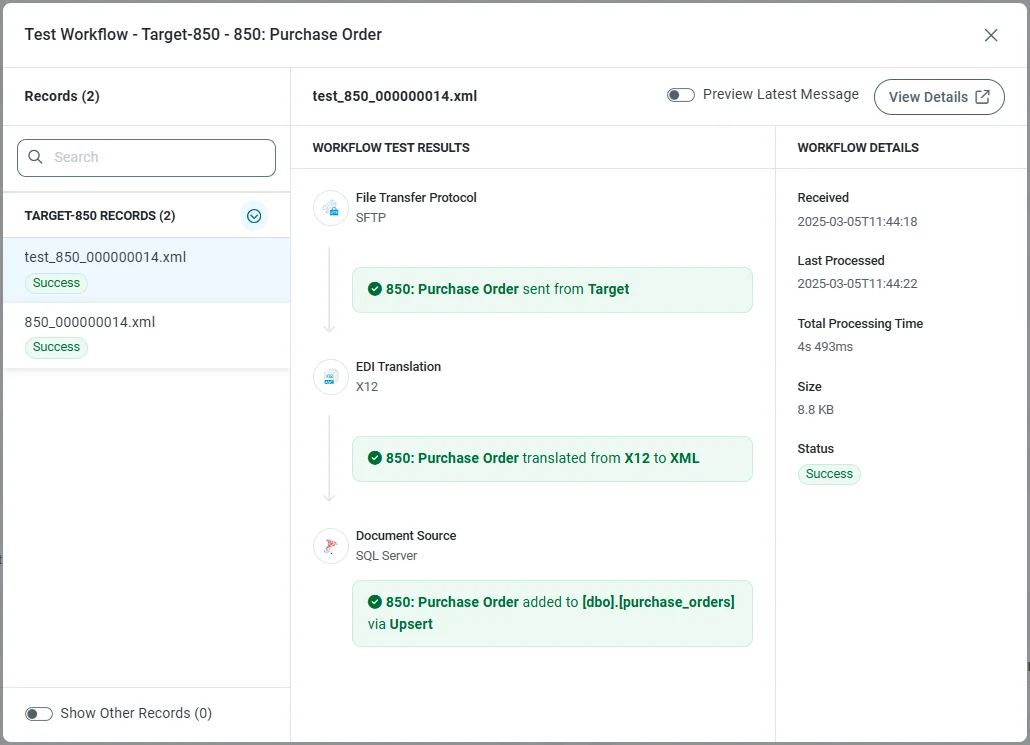 * Click **View Details** to open the message **Details** page of the message.
* Toggle **Preview Latest Message** to see the contents of the message used in the E2E test.
* By default the {siteNameShort} results window only shows records that pertain to the specific partner:document relationship you chose to test the workflow on. It is possible, however, to receive documents that are not part of the specific workflow. This happens when data received from a partner's server is for a different document type, or when pulling records from a database for an outgoing test. Toggle **Show Other Records** to see these documents.
## Passive Incoming Testing
The *passive* category refers to workflows that are triggered from the partner's end of the connection (the partner sends documents to you). Connectors in this category include [MFT](../connectors/mft-connectors) connectors such as [AS2](../connectors/as2), [AS4](../connectors/as4), and [OFTP](../connectors/oftp). Unlike with active workflow tests, you cannot trigger receipt of a document, so {siteNameShort} provides an email template you can use to ask your partner to send some sample data.
To perform an E2E test for a passive incoming document workflow, navigate to the partner's **Workflows** tab. You have two options:
* Use the **Test Workflow** button in the documents section to create a sample email with details on all of the partner's configured incoming documents. Use this to send one email to your partner requesting they send sample data for all expected documents.
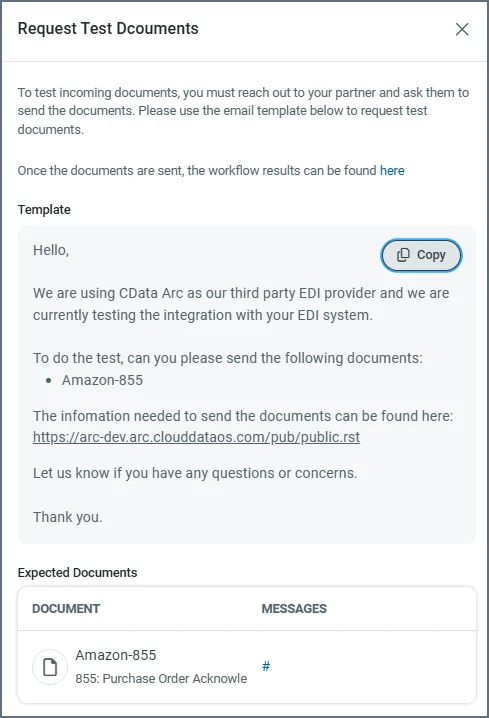
* Hover over a workflow, click the ellipses, then click **Test Workflow** to create a sample email containing information related to one incoming document. It might look something like this:
* Click **View Details** to open the message **Details** page of the message.
* Toggle **Preview Latest Message** to see the contents of the message used in the E2E test.
* By default the {siteNameShort} results window only shows records that pertain to the specific partner:document relationship you chose to test the workflow on. It is possible, however, to receive documents that are not part of the specific workflow. This happens when data received from a partner's server is for a different document type, or when pulling records from a database for an outgoing test. Toggle **Show Other Records** to see these documents.
## Passive Incoming Testing
The *passive* category refers to workflows that are triggered from the partner's end of the connection (the partner sends documents to you). Connectors in this category include [MFT](../connectors/mft-connectors) connectors such as [AS2](../connectors/as2), [AS4](../connectors/as4), and [OFTP](../connectors/oftp). Unlike with active workflow tests, you cannot trigger receipt of a document, so {siteNameShort} provides an email template you can use to ask your partner to send some sample data.
To perform an E2E test for a passive incoming document workflow, navigate to the partner's **Workflows** tab. You have two options:
* Use the **Test Workflow** button in the documents section to create a sample email with details on all of the partner's configured incoming documents. Use this to send one email to your partner requesting they send sample data for all expected documents.
* Hover over a workflow, click the ellipses, then click **Test Workflow** to create a sample email containing information related to one incoming document. It might look something like this:
 ## Active Outgoing Testing
Because outgoing workflows always originate from {siteNameShort}, all outgoing workflows are *active*.
The one exception to this rule is the [AMQP](../connectors/amqp) connector. It passively waits for new information to be published to the queue it is listening to. However, E2E testing works the same way as all other outgoing workflow tests.
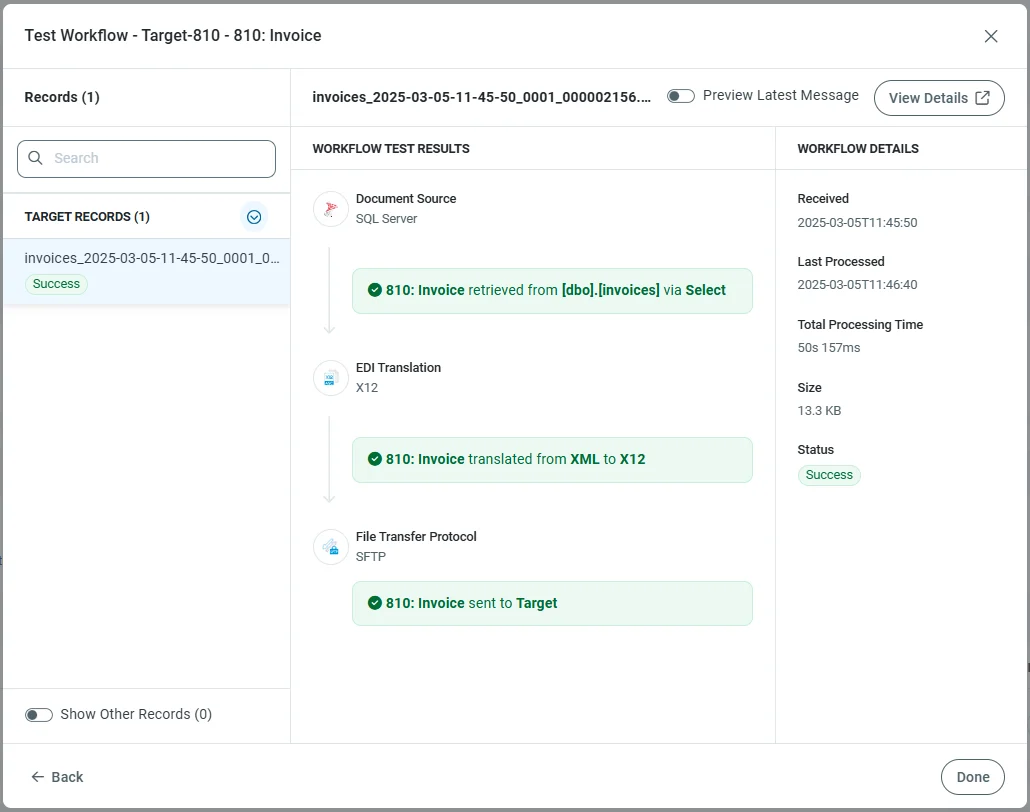
Outgoing tests involve the source connector (such as [Salesforce](../connectors/salesforce/salesforce), [MySQL](../connectors/mysql/mysql), or [Shopify](../connectors/shopify/shopify)) firing its receive automation and pulling data from a data source, database or queue. Use the same **Test Workflow** options as described above. The following image depicts a test that selects data from a SQL Server, translates it to X12, then sends the X12 file to the partner using SFTP.
## Active Outgoing Testing
Because outgoing workflows always originate from {siteNameShort}, all outgoing workflows are *active*.
The one exception to this rule is the [AMQP](../connectors/amqp) connector. It passively waits for new information to be published to the queue it is listening to. However, E2E testing works the same way as all other outgoing workflow tests.
Outgoing tests involve the source connector (such as [Salesforce](../connectors/salesforce/salesforce), [MySQL](../connectors/mysql/mysql), or [Shopify](../connectors/shopify/shopify)) firing its receive automation and pulling data from a data source, database or queue. Use the same **Test Workflow** options as described above. The following image depicts a test that selects data from a SQL Server, translates it to X12, then sends the X12 file to the partner using SFTP.
 ## Workflow Activity
Each workflow has a page that shows all of the activity (tests and real files) for that document workflow. To open it, hover over a workflow, click the ellipses, then click **Workflow Activity**.
## Workflow Activity
Each workflow has a page that shows all of the activity (tests and real files) for that document workflow. To open it, hover over a workflow, click the ellipses, then click **Workflow Activity**.
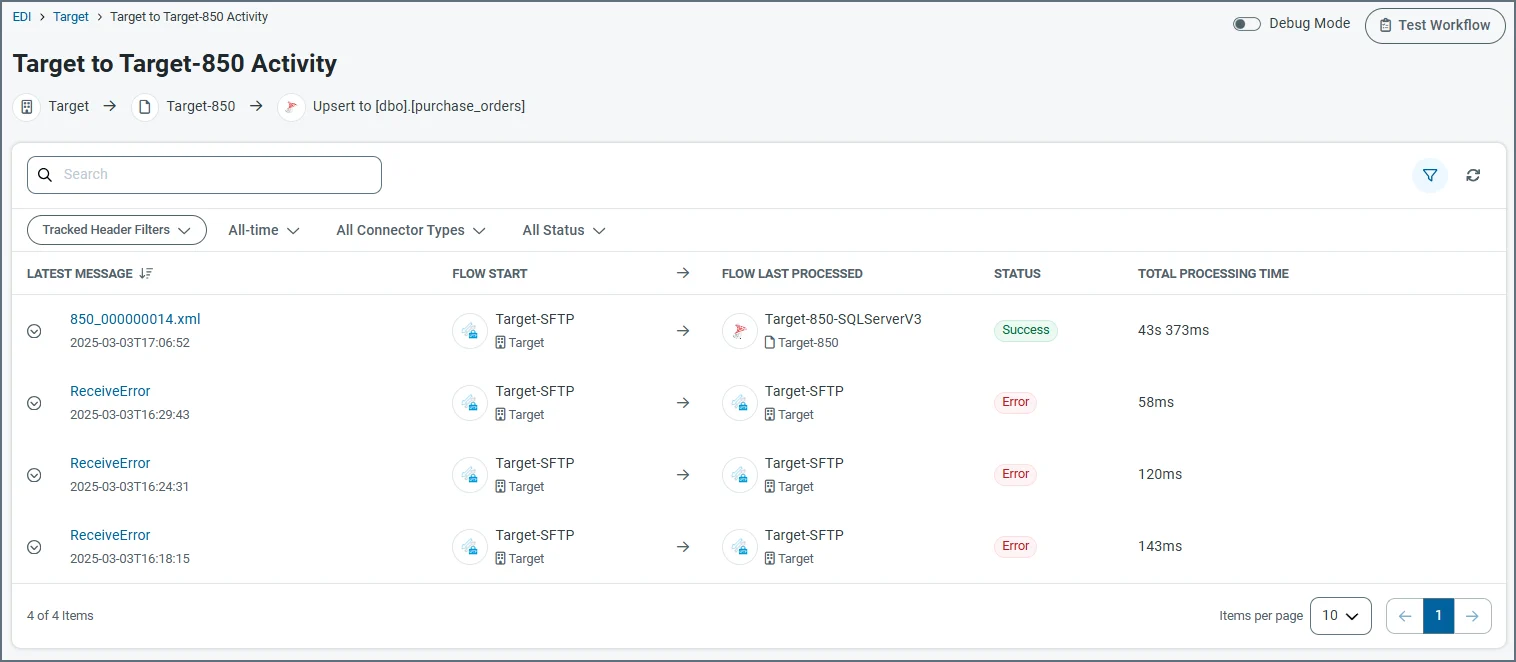 It includes the following information (click the arrow to the left of the message name to see additional details):
* Message name
* Connector that started the workflow
* Final connector in the workflow
* Status
* Processing time
Toggle **Debug Mode** to enable debug mode. Best practice is to enable debug mode for new partner:document relationships. It gives you the opportunity for manual intervention, ensuring that you only send data to your partner that you've confirmed looks correct, and that you only insert data into your database that you know is correct.
Debug mode causes {siteNameShort} to not automatically process messages when they are in the final step in the flow for that partner:document relationship. For incoming messages, this lets you ensure that the data you receive from your partner is what you're expecting, and that it's mapped correctly all along the flow. For outgoing messages you can ensure that the data from your database is mapped correctly, and is being translated to EDI that your partner expects. After you confirm that the contents are what you expect, click the **Send Document** button on the **Test Workflow** screen.
It includes the following information (click the arrow to the left of the message name to see additional details):
* Message name
* Connector that started the workflow
* Final connector in the workflow
* Status
* Processing time
Toggle **Debug Mode** to enable debug mode. Best practice is to enable debug mode for new partner:document relationships. It gives you the opportunity for manual intervention, ensuring that you only send data to your partner that you've confirmed looks correct, and that you only insert data into your database that you know is correct.
Debug mode causes {siteNameShort} to not automatically process messages when they are in the final step in the flow for that partner:document relationship. For incoming messages, this lets you ensure that the data you receive from your partner is what you're expecting, and that it's mapped correctly all along the flow. For outgoing messages you can ensure that the data from your database is mapped correctly, and is being translated to EDI that your partner expects. After you confirm that the contents are what you expect, click the **Send Document** button on the **Test Workflow** screen.