> ## Documentation Index
> Fetch the complete documentation index at: https://docs.arc.cdata.com/llms.txt
> Use this file to discover all available pages before exploring further.
# Kintone Upsert
> Insert or update Kintone data from an Arc message in the flow.
export const DbasaUpsertExampleFlow = ({datasource = "the data source", upsertXmlFlow = "dbsa_upsert_flow.png", siteNameShort = "Arc"}) => <>
After you choose the tables and columns for the Upsert-configured {datasource} connector, place the connector at the end of an {siteNameShort} flow. The screenshot below depicts an example flow with a CSV connector, an XML Map connector, and a {datasource} Upsert connector at the end:

Data in this example flow passes through these steps:
- The File connector pulls a CSV file from disk and into the flow.
- The CSV1 connector translates the CSV file into XML.
- This data passes to the XML_Map connector as the Source File, which maps to the Source tree.
- Data from the {datasource}_Upsert connector passes to the XML_Map connector as the Destination File, which maps to the Destination tree.
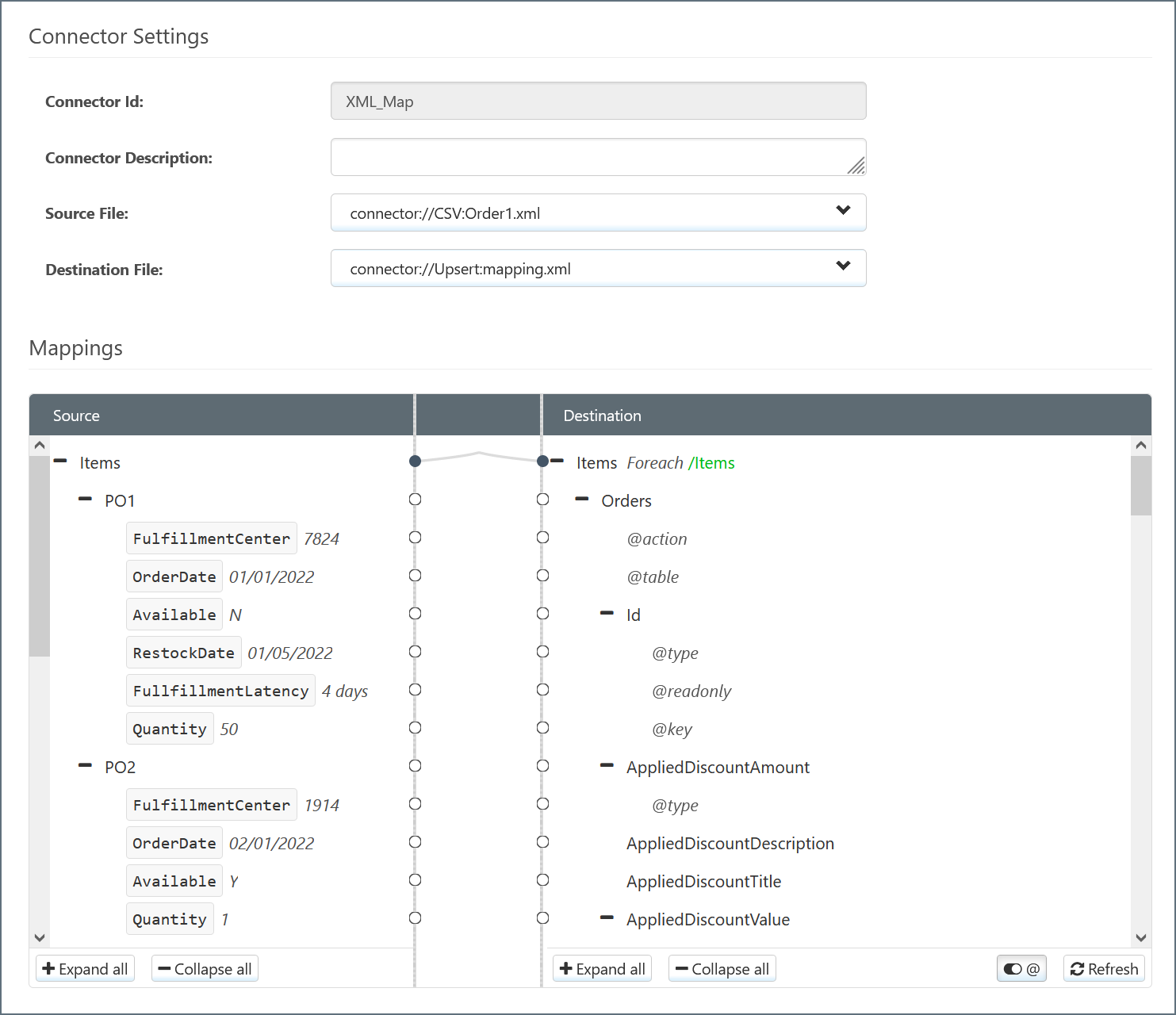
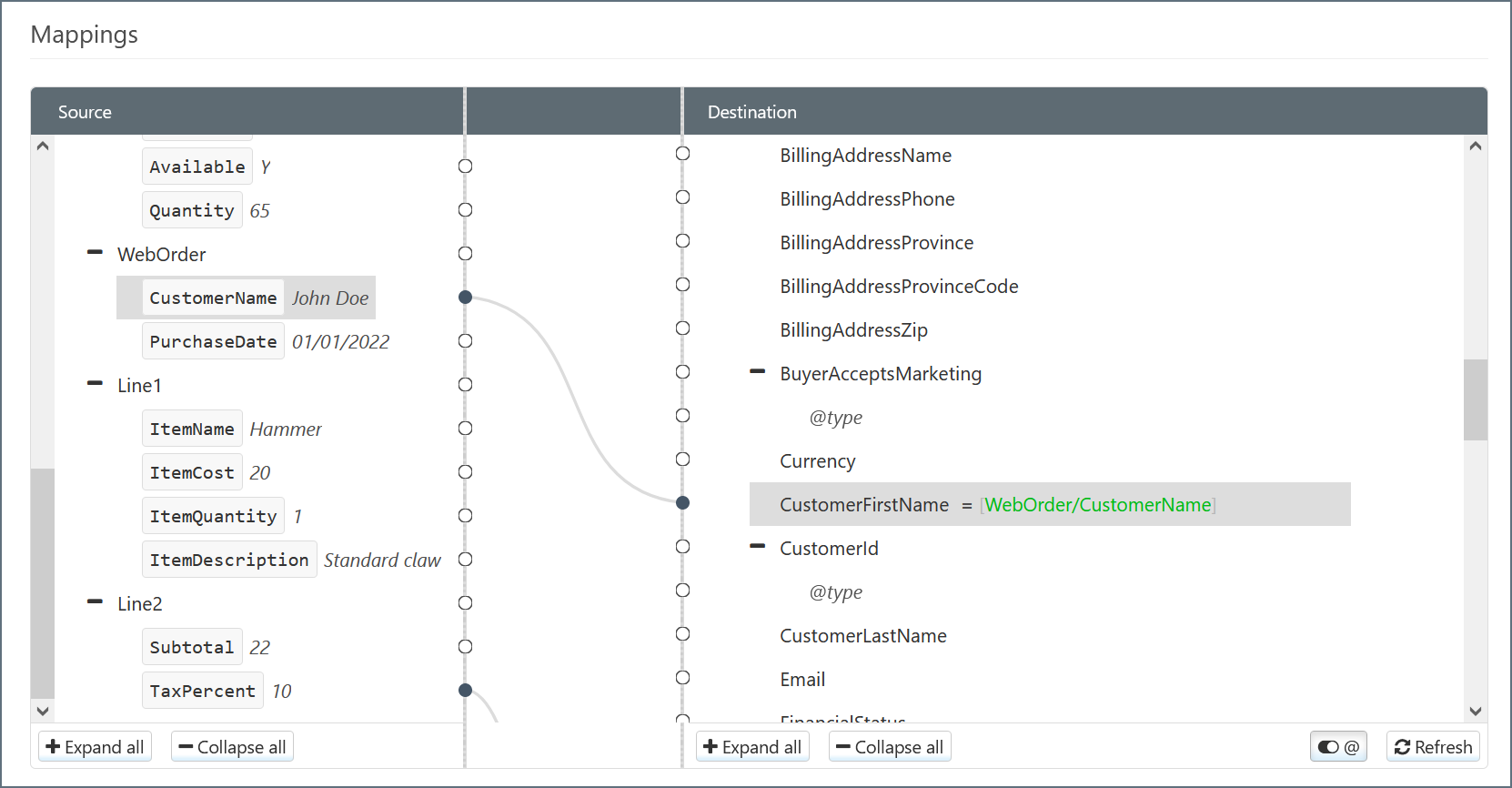
- The XML_Map connector attempts to automatically map Source elements to Destination elements with the same name. You can manually change these and fill in blank mappings by dragging elements from Source to Destination.
- The {datasource}_Upsert connector performs the Upsert according to the mapping and passes the resulting data to {datasource}.
;
export const DbasaUpsertSliderOnIntro = () => When the slider is set to ON, the query behavior changes based on what you select in the UPSERT By and Perform this query... radio buttons.
;
export const DbasaUpsertQueryBehavior = () => <>
By default, the UPSERT slider in the column mapping is set to ON. This means the UPSERT mapping determines whether a record exists in the destination before INSERTing it (if there is no matching record) or UPDATEing it (if the record already exists).
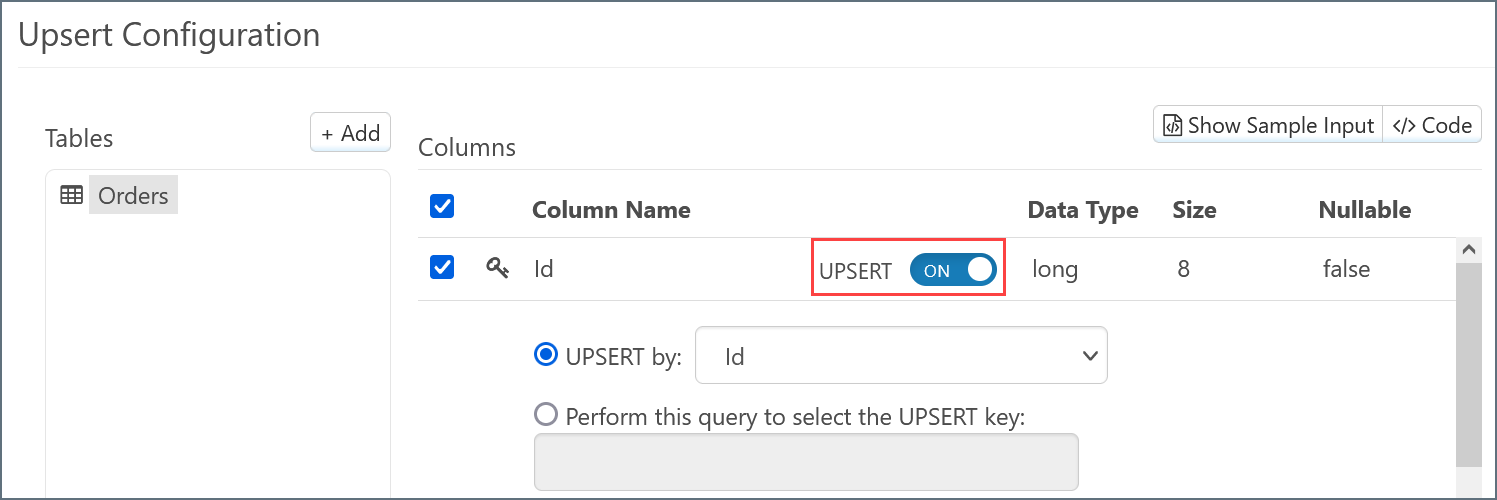
The query that is used to determine that value is determined by the logic described in the following sections.
;
export const DbasaUpsertTablesAndColumns = ({datasource = "the data source", connectorSlug}) => <>
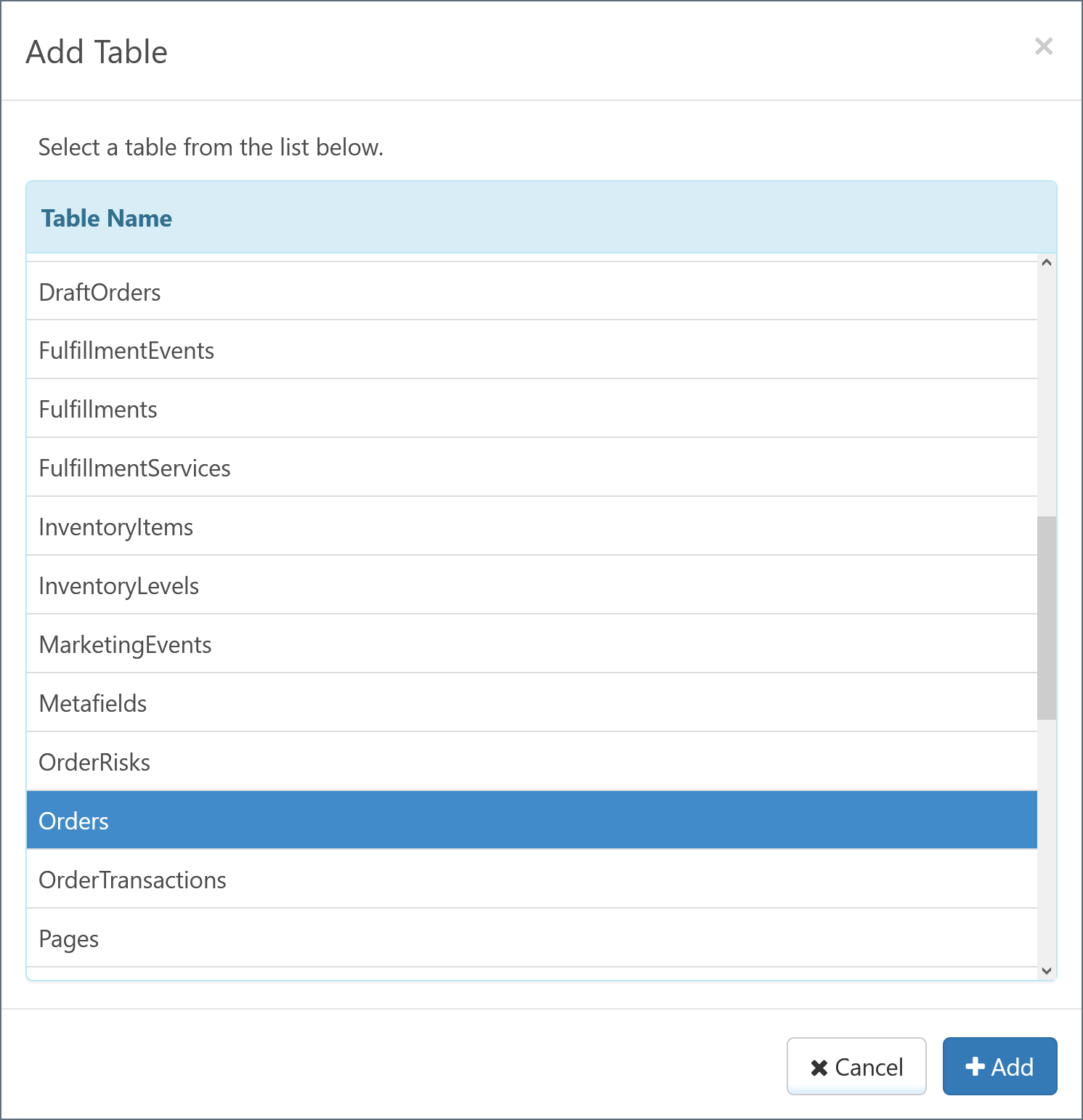
If you choose Upsert for the {datasource} connector, you must select a target table (or tables) from {datasource}. Click the Add button above the Tables pane.
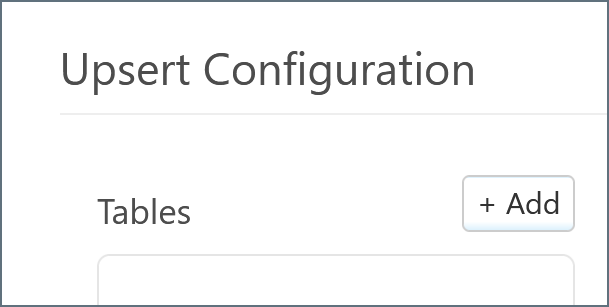
A modal appears and lists all available tables. Select the desired table and click Add.
The chosen table appears under the Tables pane, and the columns in the table appear under the Columns pane. The connector automatically detects values that have special relevance (such as the primary key and foreign keys) and labels them accordingly.
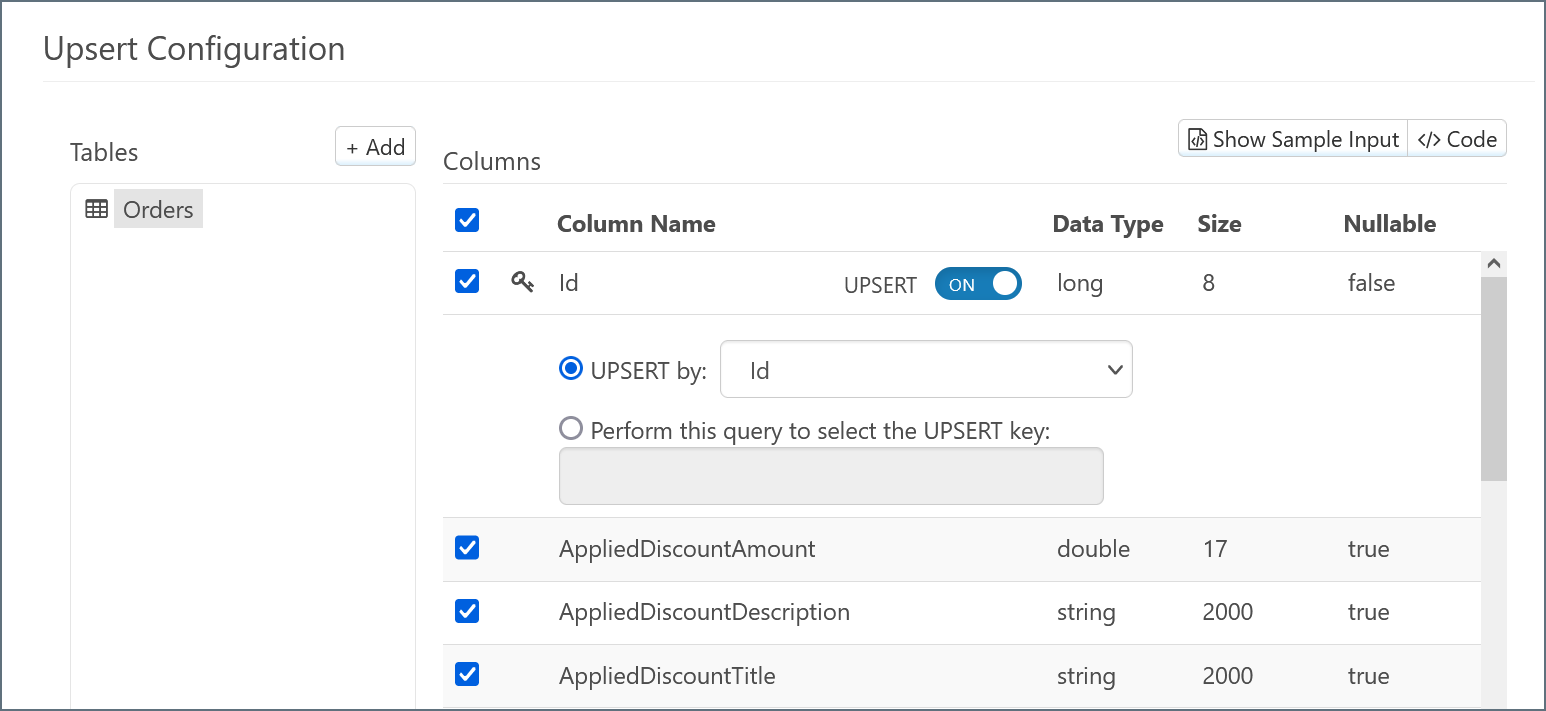
By default, all columns are selected for inclusion in the action for the {datasource} connector. Exclude individual columns by unchecking them.
You can select more tables by clicking Add and repeating this process. See Child Tables for more information.
;
export const DbasaUpsertIntro = ({datasource = "the data source"}) => The Upsert action updates or inserts {datasource} data. By default, if a record already exists in {datasource}, an update is performed on the existing data in {datasource} using the values provided from the input. See UPSERT Query Behavior for more information.
;
## Tables and Columns
## UPSERT Query Behavior
### UPSERT Slider Set to ON
#### UPSERT By Id
If the key column is present in the input XML, a query is issued to the database to determine if any records exist with the matching key:
```text theme={null}
The action type is UPSERT and an UPSERT query is not specified. The key column [Id] is present and will be determined using an automatically generated UPSERT query.
SELECT COUNT(*) AS [count] FROM [Orders] WHERE [Id] = @Id; @Id='123'
```
A match results in an update; no match results in an insert.
If the key column is not present in the input XML, the record is always inserted:
```text theme={null}
The key column Id was not specified, INSERT will be executed.
The action type is UPSERT or an UPSERT query is specified. The key column is not present. Record will be INSERTED.
```
#### UPSERT By Non-key Column
A query is issued to the database to determine if any records exist where the selected **UPSERT By** column contains the matching value, by selecting the primary key of the table:
```sql theme={null}
SELECT [Id] FROM [Orders] WHERE [OrderId] = @OrderId; @OrderId='12345'
```
The SELECT query always targets the key column(s) of the table in the SELECT statement. If there is a successful match, the data in the input XML is updated into the data source. If there is no match, the record is inserted instead.
If the selected **UPSERT By** column is not specified in the input, the lookup is used with a NULL value, as shown in the following query:
```sql theme={null}
SELECT [Id] FROM [Orders] WHERE [OrderId] = @OrderId; @OrderId=NULL
```
#### Using a Custom Query
You can also write a custom query to select the UPSERT key. This option allows for the lookup to be performed using more complex logic than just a single column match. Consider the following query:
```sql theme={null}
SELECT [Id] FROM [Orders] WHERE [OrderId] = @OrderId AND Status = 'Active'
```
In this example, you must select the key column(s) of the table, to provide adequate criteria for the UPDATE. The `@OrderID` syntax is used to reference a value from the matching input XML. You can also use static values: the quotes around `'Active'` denote that this clause uses a static value.
Again, a successful match of the key column is used to form an update request. If there is no match, the record is inserted.
When in doubt about the behavior of a database insertion, review the `.log` file for the UPSERT attempt: a complete breakdown of the logic used to guide the behavior is sent to the log file.
### UPSERT Slider Set to OFF
When the slider is set to **OFF**, the connector simply inserts all queries into the database. Examining the code view of the input mapping shows that the `action` attribute of the table is `insert`:
```xml theme={null}
```
All queries issued to the table are treated as inserts, whether or not the primary key is present. To have all received records updated against the table, you can set this action keyword to `update`, as shown in the following snippet:
```xml theme={null}
```
When the action is defined as `update`, the application expects the key column of the table (for example, Id) to be present. If the key column is not provided, the effects of the UPDATE command can vary by target database type, so you might see more rows changed than expected, or that none are changed at all.
## Example Arc Flow